How to sync lyrics to a song
Last updated
To sync lyrics to a song, play the track and mark the moment each line begins, then nudge any line that lands early or late. In Karaoke Sync® you do this by tapping one button per line while the song plays.
Karaoke Sync is a free app for iPhone and Android. One timing pass works for singing along, recording, and exporting LRC, SRT and other lyric files.


What you need
- The song: an audio file (MP3, M4A, WAV, FLAC or AAC), a video with the music in it (MP4, MOV or M4V), or a YouTube link.
- The lyrics as text. Copy them from a lyrics website: the app's Find Lyrics buttons open LRCLib and Lyricsify (timed lyrics) or Genius (lyrics only).
How to sync lyrics, step by step
Step 1: Import the song
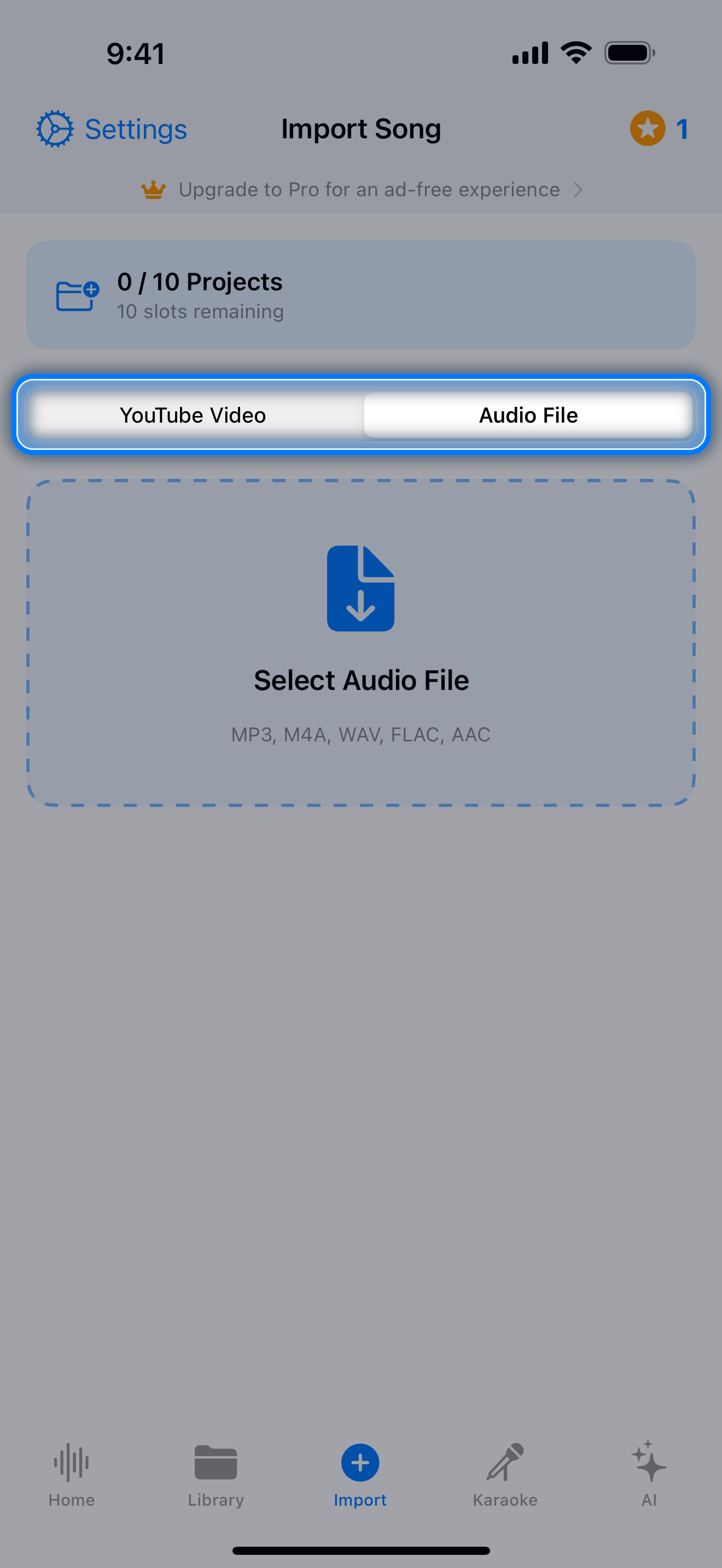
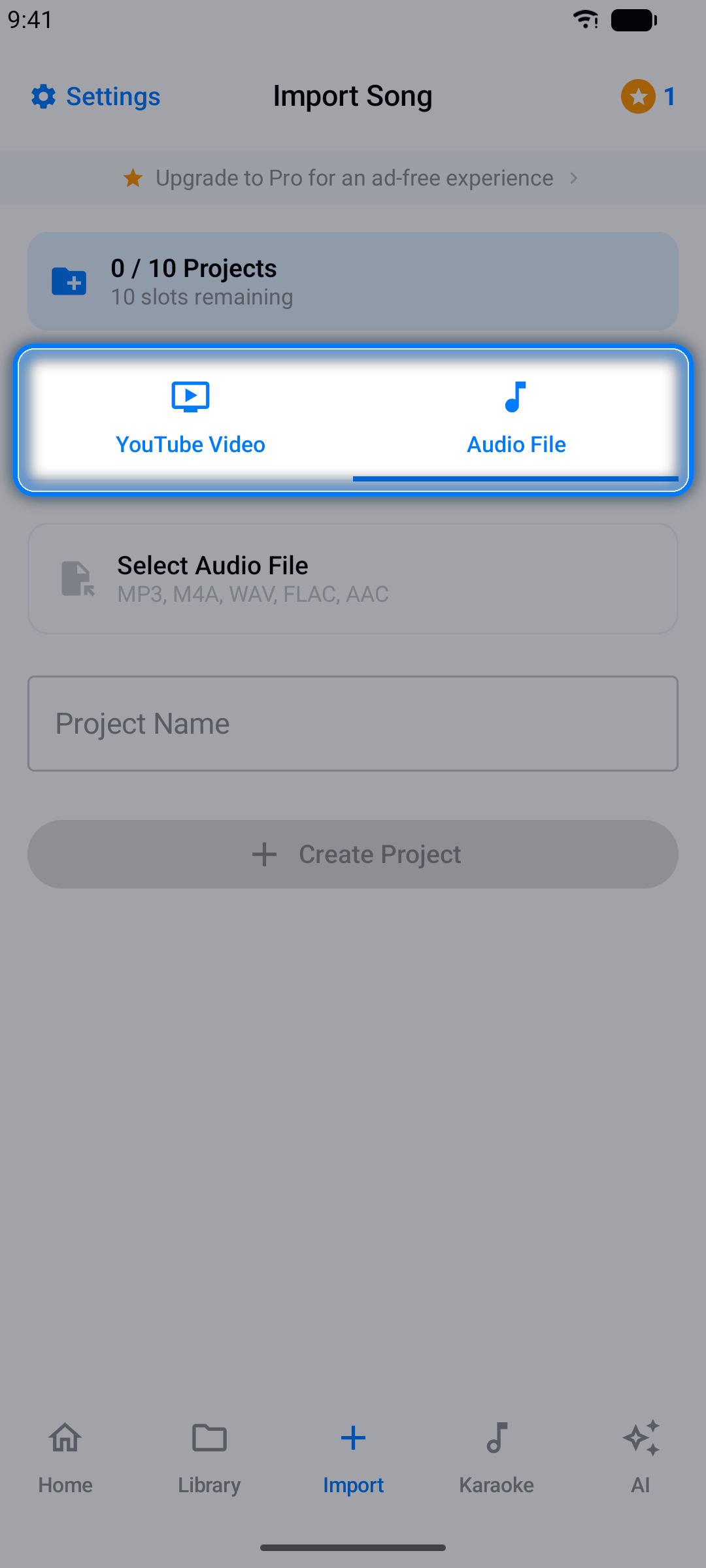
Open the Import tab. Choose Audio / Video and tap Select Audio File (or Select Video), or choose YouTube Video, paste the link and tap Create Project.
Step 2: Paste the lyrics
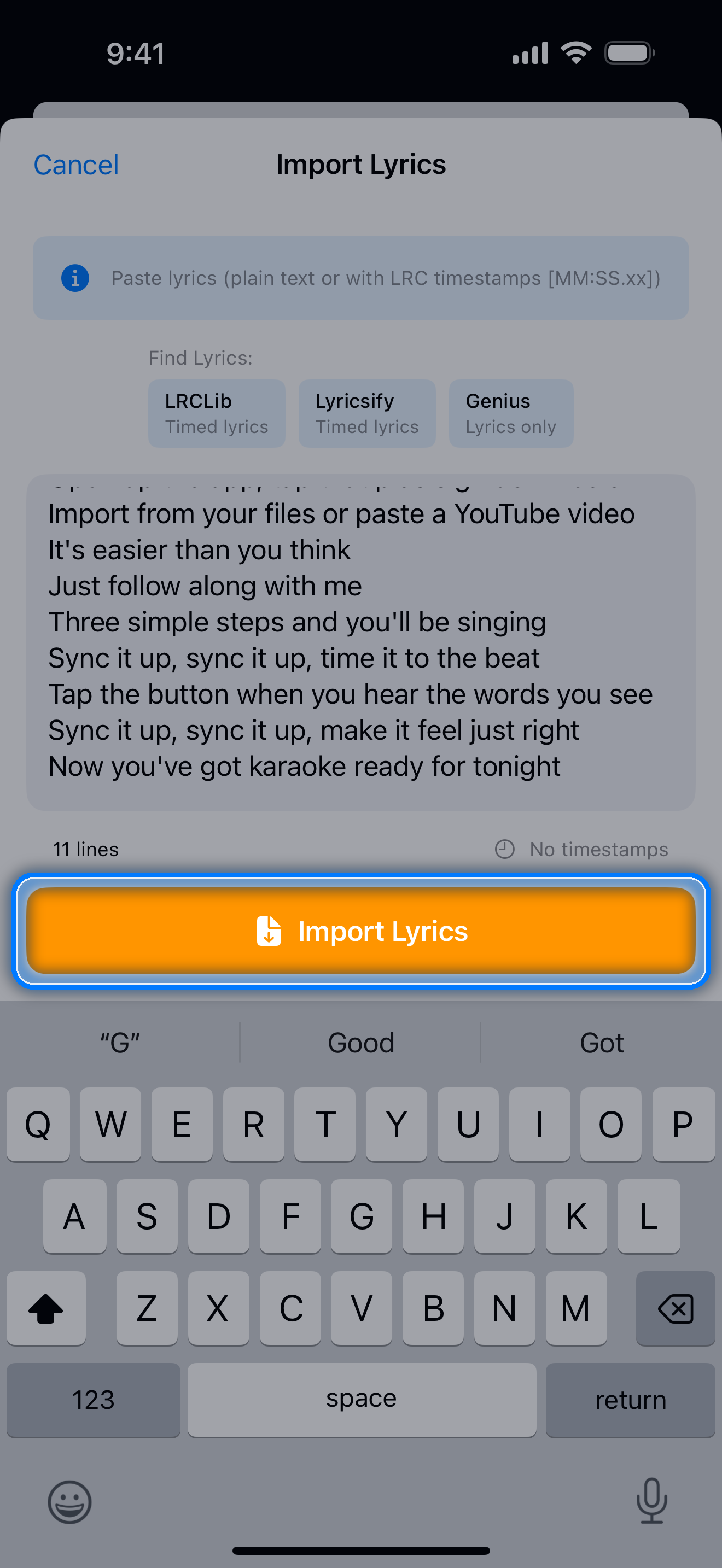
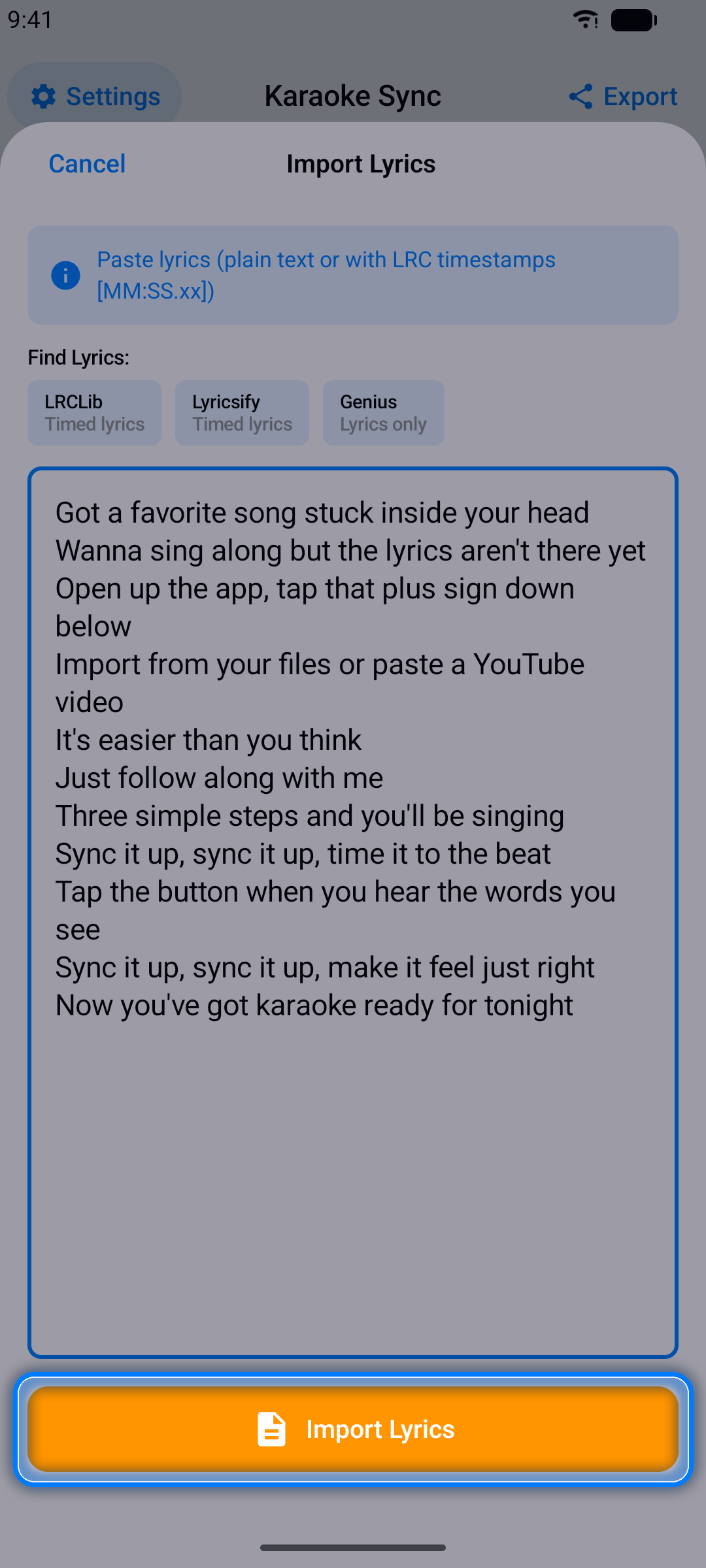
The lyrics importer opens by itself for a new project. Paste the lyrics, one line per line, and tap Import Lyrics.
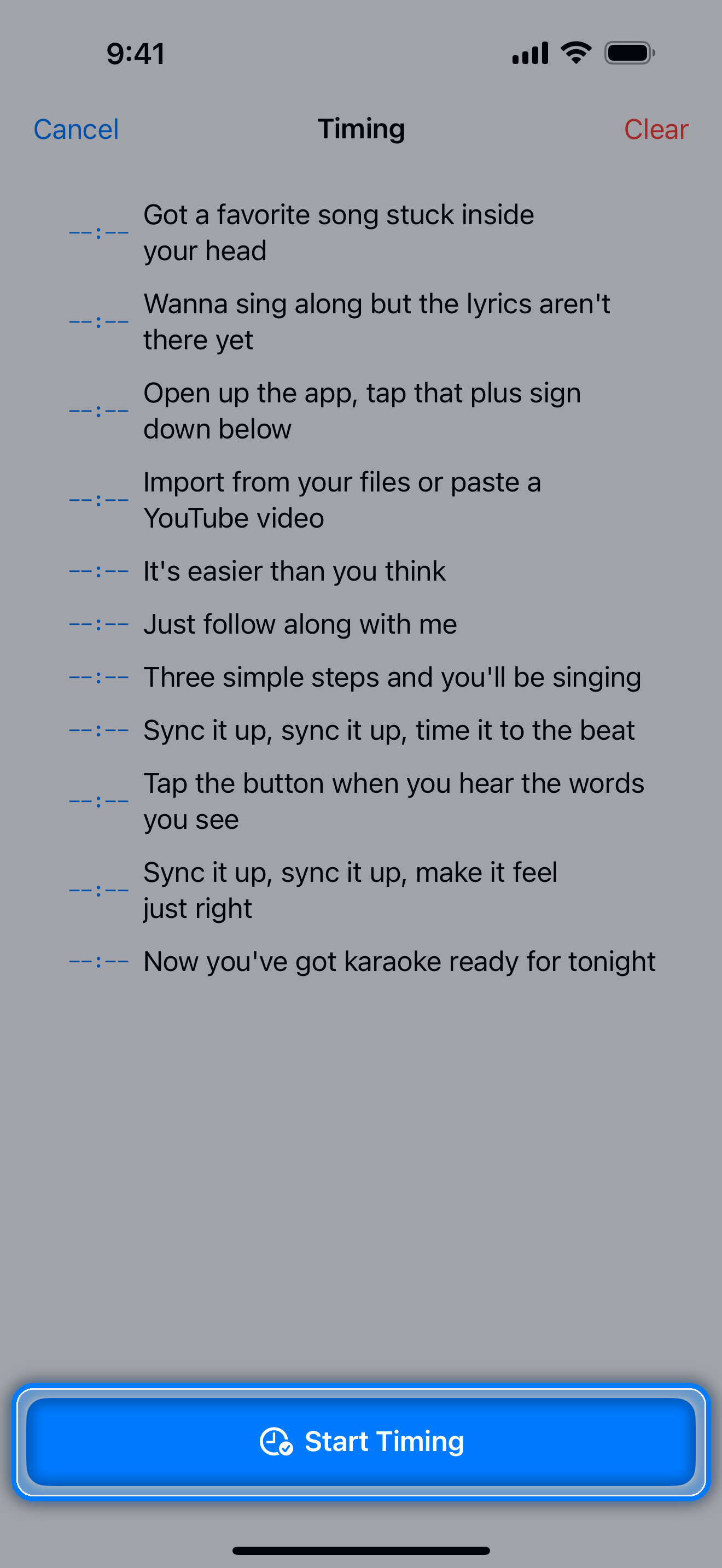
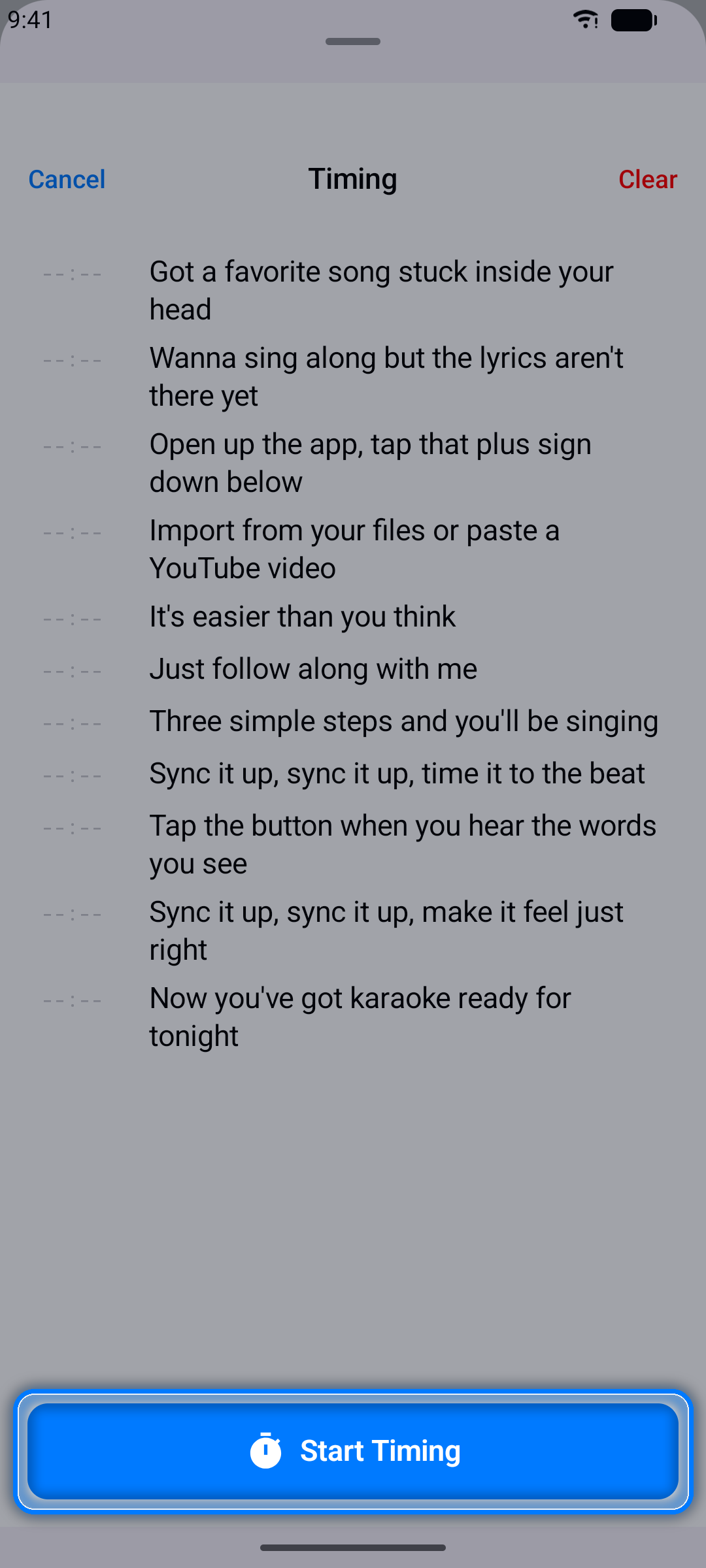
Step 3: Open Timing and tap Start Timing
Tap Timing, then Start Timing. The song starts playing.
Step 4: Tap as each line starts
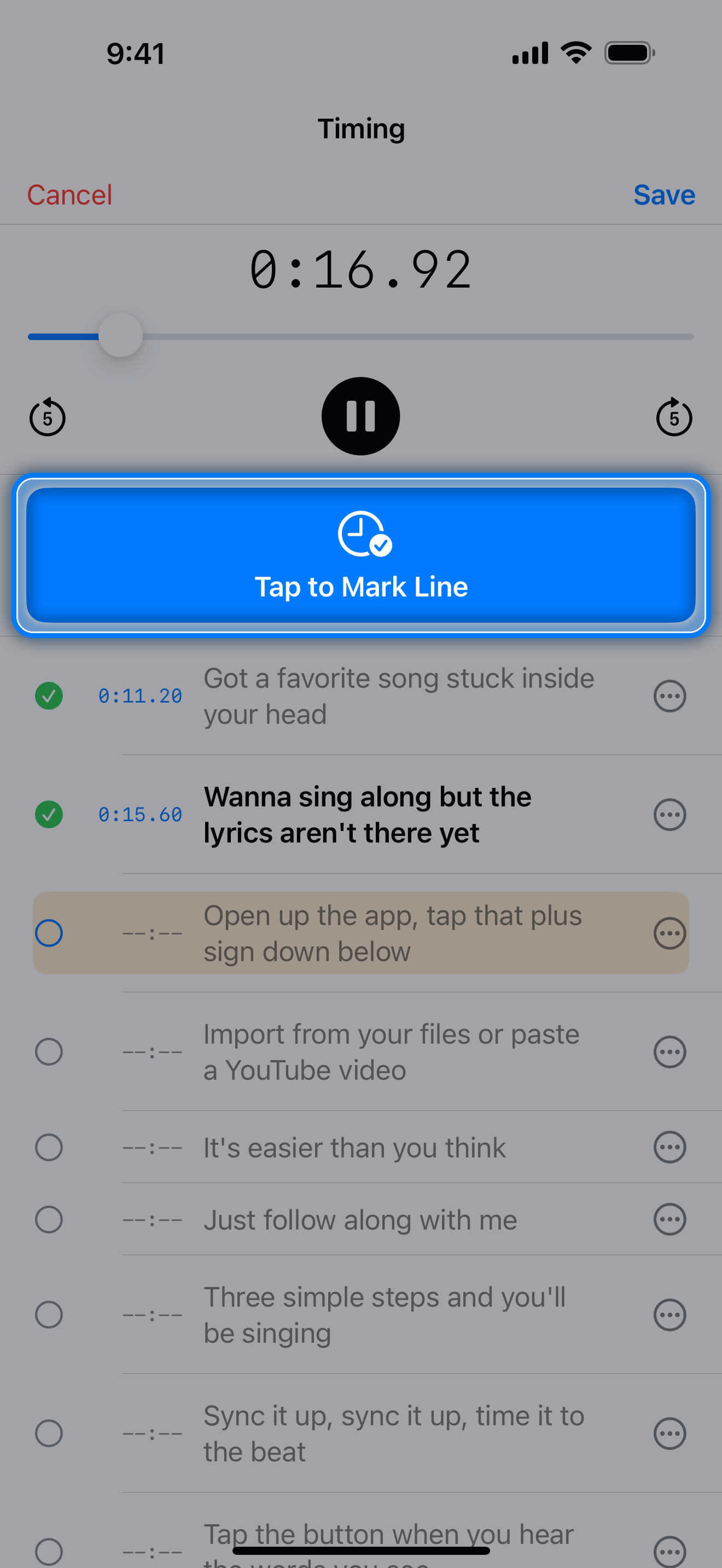
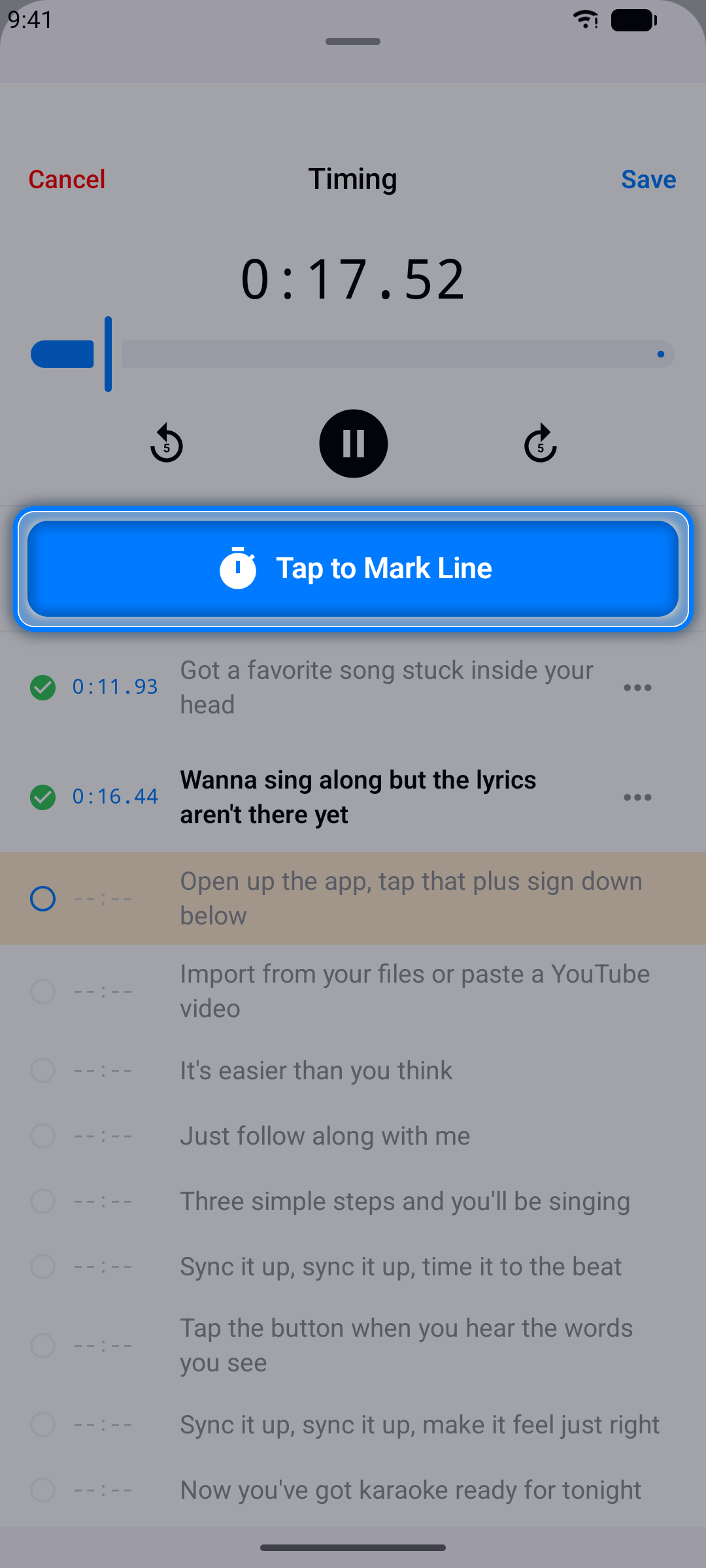
The moment you hear a line begin, tap Tap to Mark Line. The current playback time is saved to that line and the next line comes up.
Step 5: Save
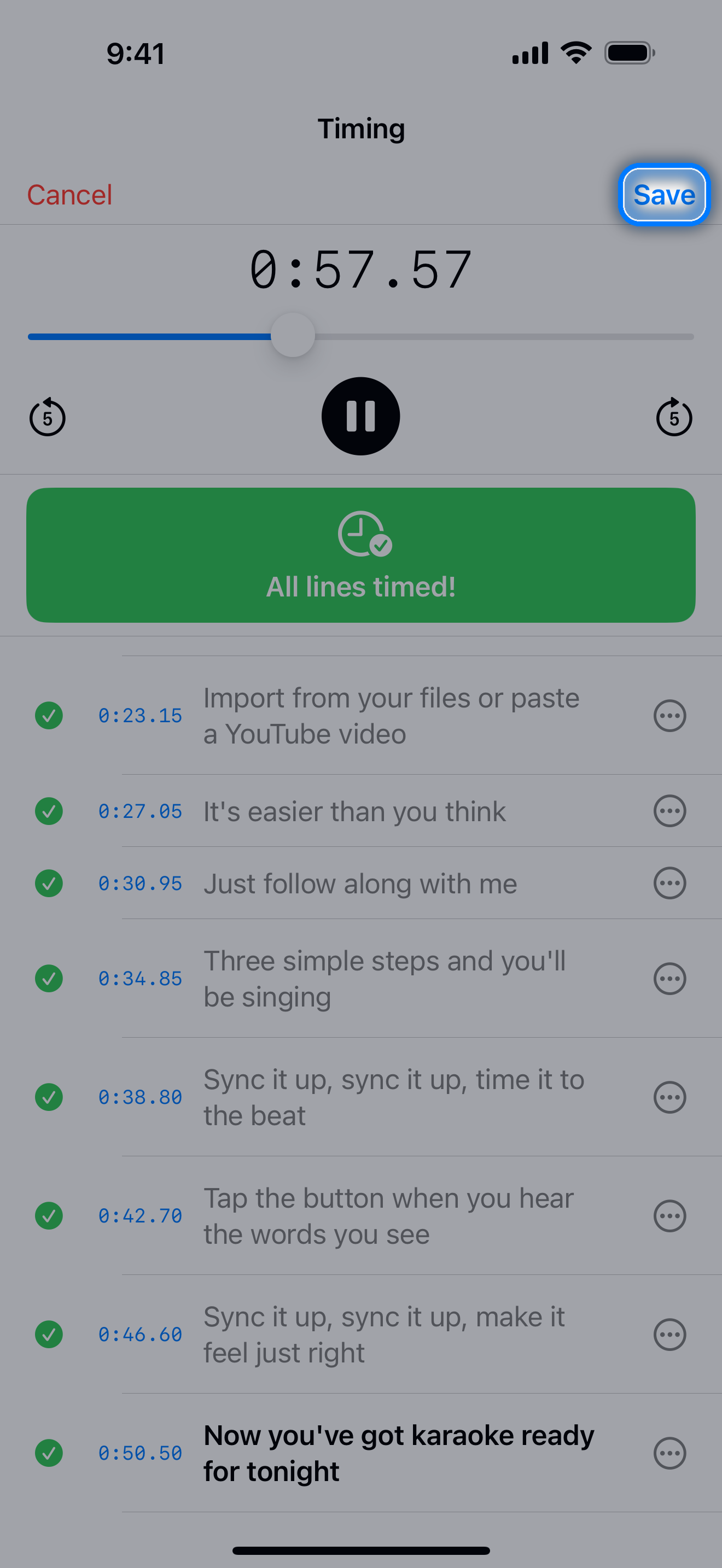
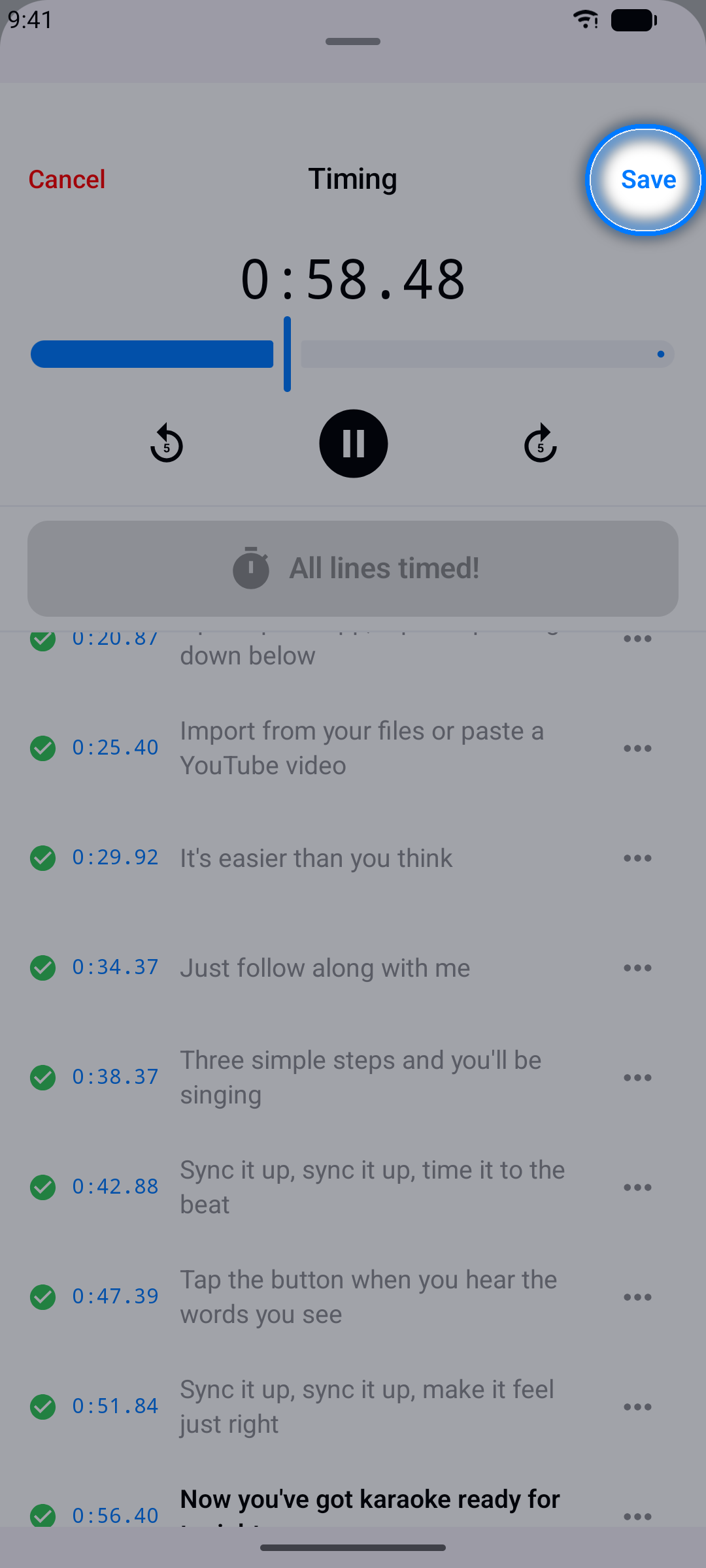
When every line is timed, the button reads All lines timed! Tap Save. Then fine-tune any line that is a little early or late, as described next.
Fix the timing
- Nudge a line: in the project editor, tap the ... button next to a line, choose Adjust Timing, and move it earlier or later by 0.1, 0.5 or 1.0 second.
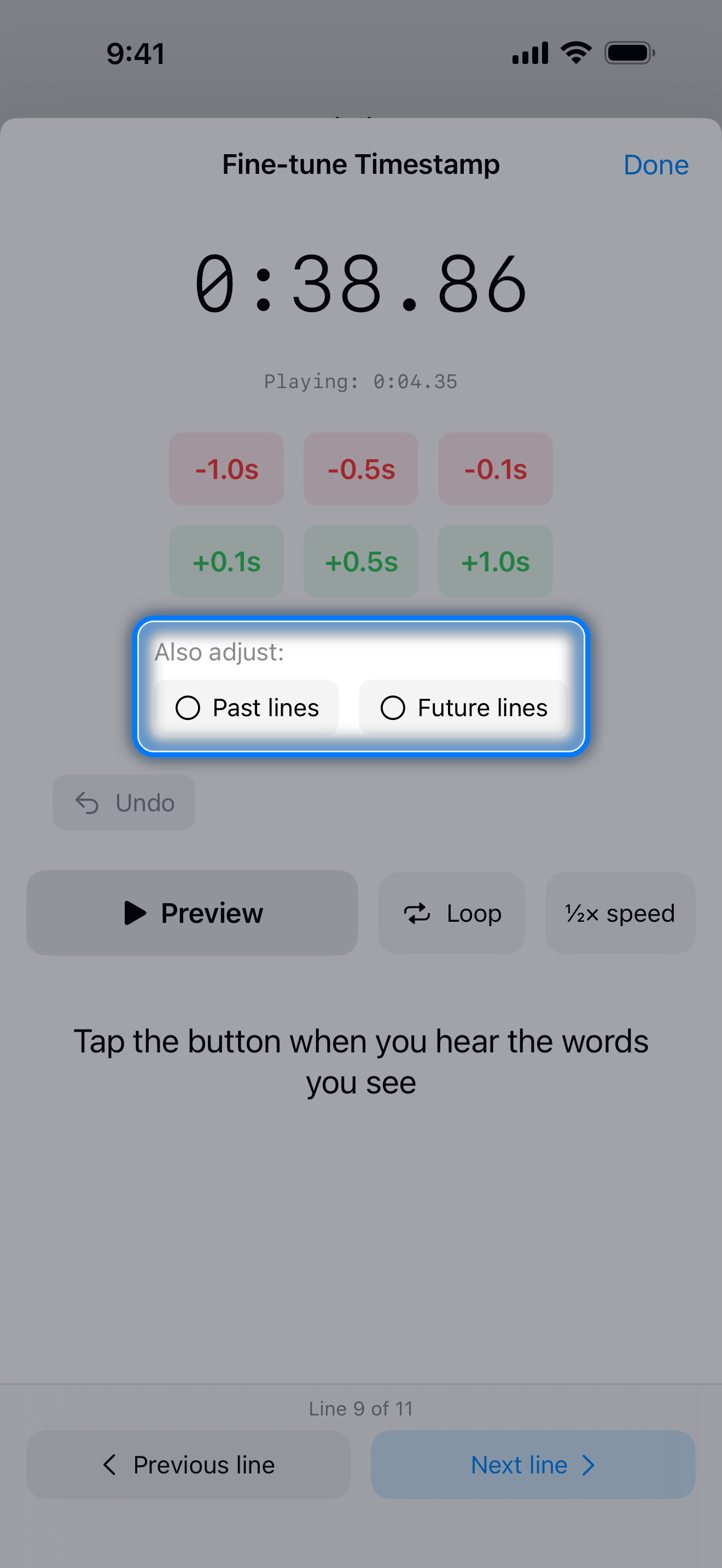
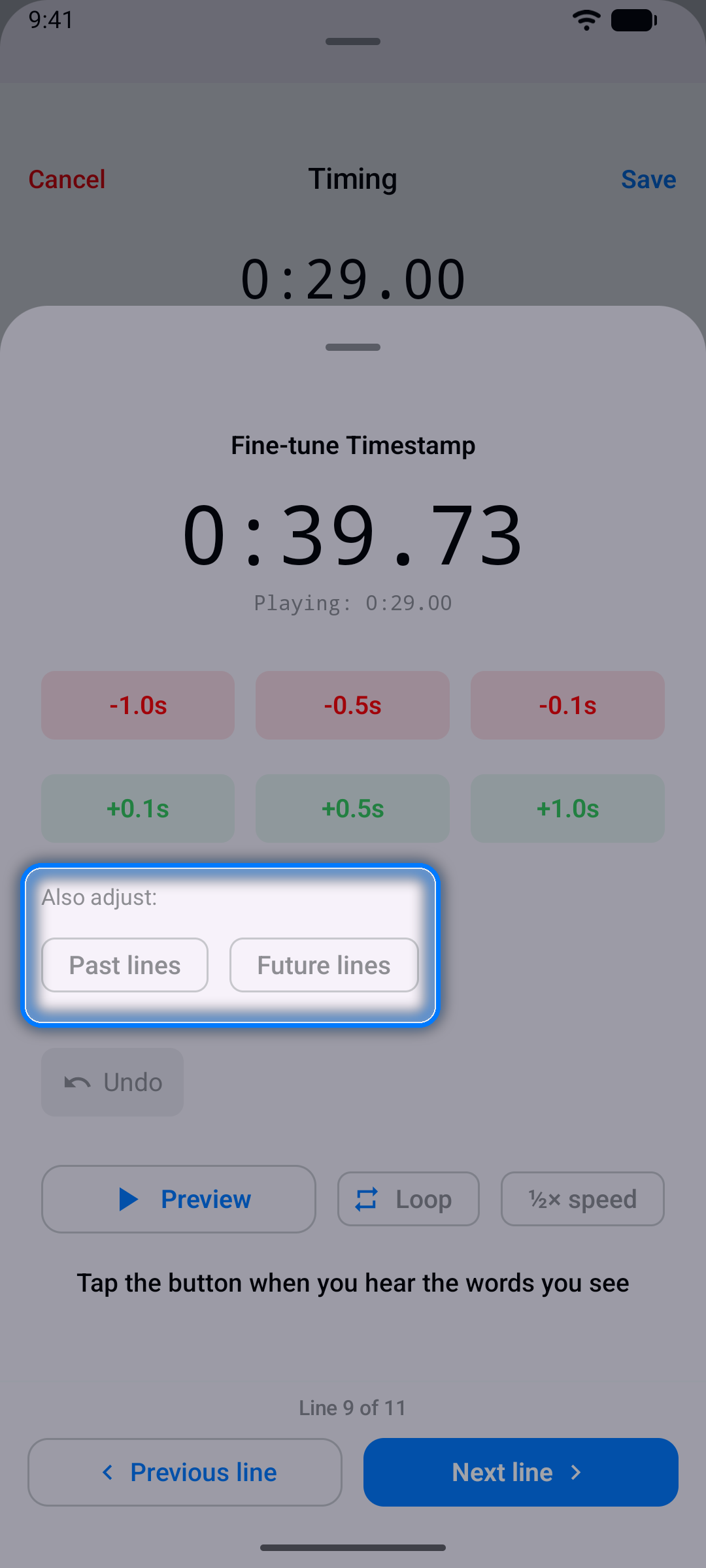
- Check a line closely: on the Timing screen, tap a line's ... button to open Fine-tune Timestamp. Preview plays just that line, Loop repeats it, ½× speed slows it down, and Previous line and Next line step through the song without closing the sheet.
- Shift the whole song: if every line is early or late by the same amount, open the Fine-tune sheet of a line without word timing, turn on Past lines or Future lines under Also adjust, and tap a +/- button. All those lines move at once, word timing included.
Sync lyrics word by word
Time the lines first, then tap Words in the Lines | Words selector on the Timing screen. The app spreads each timed line's words across a timeline for you, so you only drag the ones that are off. Each word has a knob at its left edge; the last word also has one at its right edge, which sets where the line ends. Undo reverts your last move, and the zoom buttons help with fast passages.
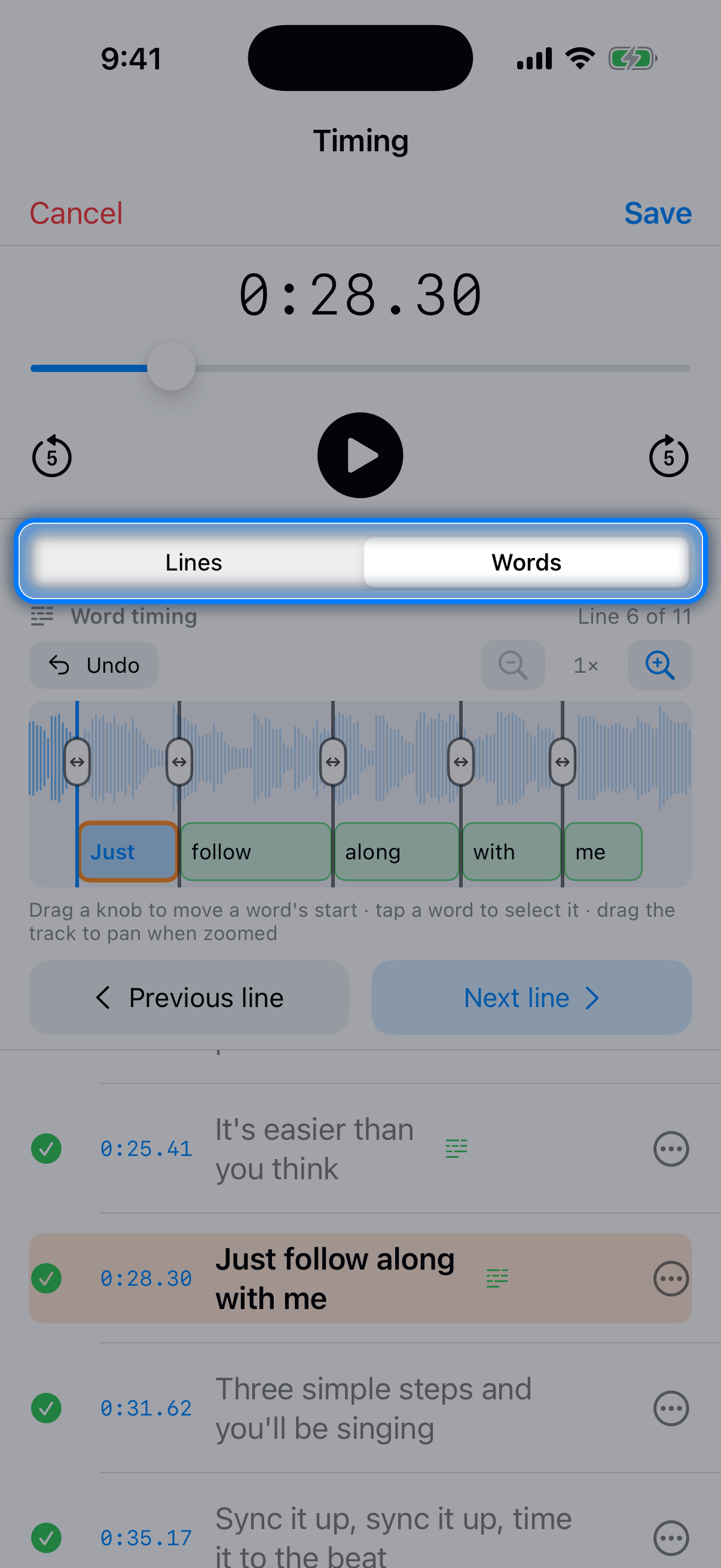
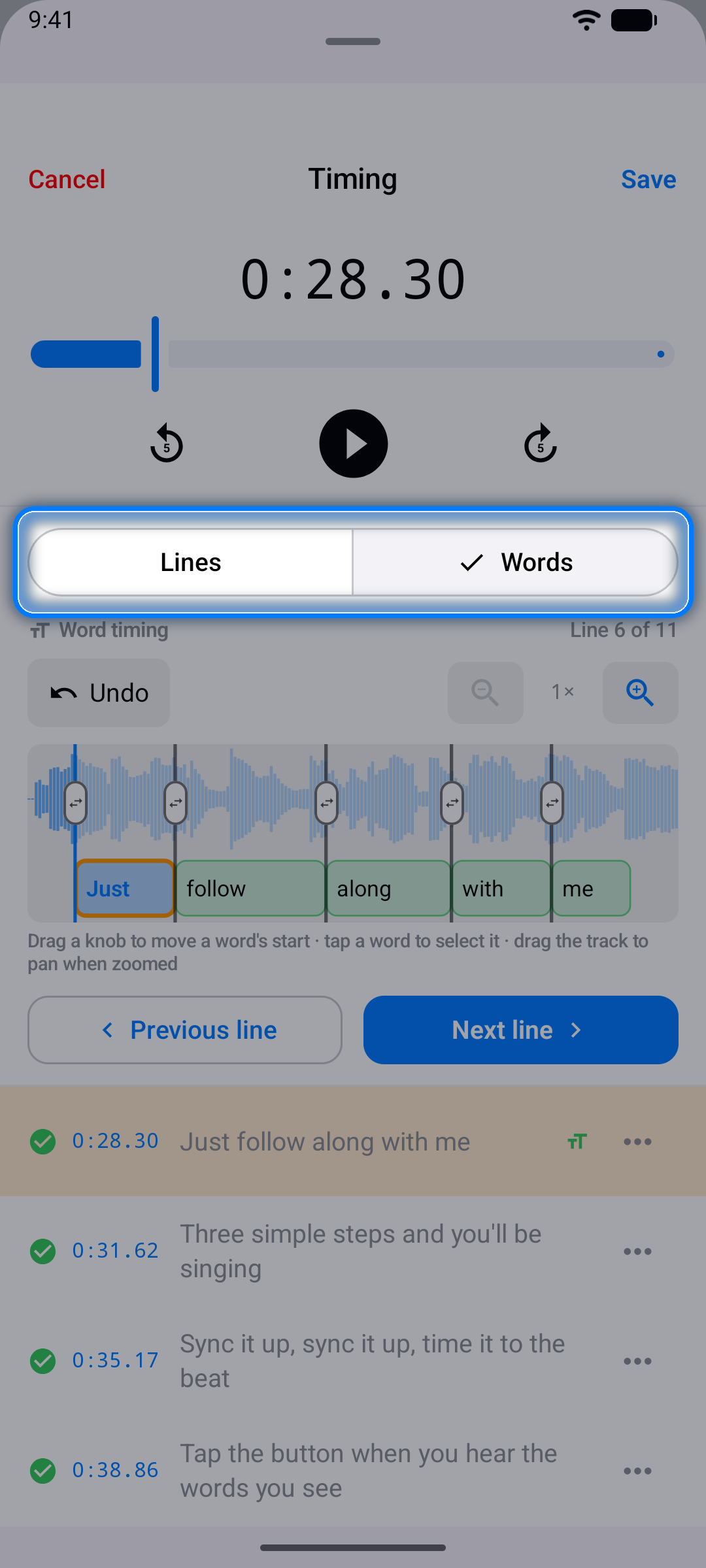
Word-timed lines fill in word by word as they are sung in Practice and Sing Mode, and they export as Enhanced LRC.
Tips
- Slow the song down for fast verses. The editor's playback speed goes from 0.5x to 1.5x. Time at 0.5x, then check the result at full speed.
- Don't aim for perfect on the first pass. Tap through the whole song, then fine-tune.
- Reuse a timed chorus. Tap a line's ... button, choose Select Lines, check the chorus lines and tap Copy. Then play the song to where the chorus comes back and choose Paste Lines Below on the line it follows. The pasted lines keep their timing relative to each other and start at the playback position.
- Already have timed lyrics? Paste lyrics in LRC format (lines like
[00:15.50] Lyrics here) and the timestamps come in with them.
What to do with synced lyrics
- Sing along: Practice scrolls the lyrics with the current line highlighted, and Sing Mode records your voice over the music.
- Export a lyrics file: LRC or Enhanced LRC, SRT subtitles, CSV, or Smule format.
- Make a video: record a take and export it as a lyric video with your timed lyrics on screen.
- Learn more: the Timing Your Lyrics section of the full tutorial.
Questions and answers
Does Karaoke Sync sync lyrics automatically?
No. Line timing is manual: you tap once as each line starts, and the app does not listen to the song to place lines. Two things save time. Lyrics you paste in LRC format keep their timestamps. And in Words mode the app spreads each timed line's words across the line in proportion to their length, so you only drag the words that are off.
Can I sync lyrics to a YouTube video?
Yes. Paste a YouTube link on the Import tab and you can time lyrics, practice and record over the video. The video is streamed and its sound is never captured, so recordings from a YouTube project contain only your voice (and your camera, for a video take).
Can I sync lyrics word by word?
Yes. Time the lines first, then switch the Timing screen to Words. The app places each line's words on a timeline, and you drag any word that is off. Word-timed lyrics highlight one word at a time and export as Enhanced LRC.
How precise is the timing?
You can move any line in 0.1-second steps, and in Words mode you can zoom in on the timeline to place each word.
Sync your first song free on iPhone or Android.
More guides
- LRC maker: make an LRC or Enhanced LRC lyrics file
- Lyrics to SRT: turn timed lyrics into an SRT subtitle file
- Lyric video maker: record yourself singing and export an MP4 with your lyrics on screen
- Karaoke Sync tutorial: the complete user guide, in 33 languages
- Karaoke Sync home: features, pricing and questions