Make an LRC file on your phone
Last updated
An LRC file is a plain-text lyrics file in which every line starts with a timestamp, so a player can show each lyric at the moment it is sung. Karaoke Sync® makes one by letting you tap along as the song plays, then exports the finished .lrc file.
Karaoke Sync is a free app for iPhone and Android. It also exports word-by-word Enhanced LRC, SRT subtitles, CSV and Smule format from the same timing.


What is an LRC file?
LRC (short for "lyrics") is a simple text format. Each line starts with the moment it is sung, in minutes, seconds and hundredths of a second inside square brackets, followed by the words. A Karaoke Sync LRC file starts like this:
[00:12.40]First line of the song
[00:15.50]Second line of the song
[00:19.05]Third line of the song
A music player or karaoke app that reads LRC shows each line at its time. Karaoke Sync rounds each time to the nearest hundredth of a second and leaves out lines you haven't timed.
How to create an LRC file
Step 1: Import a song
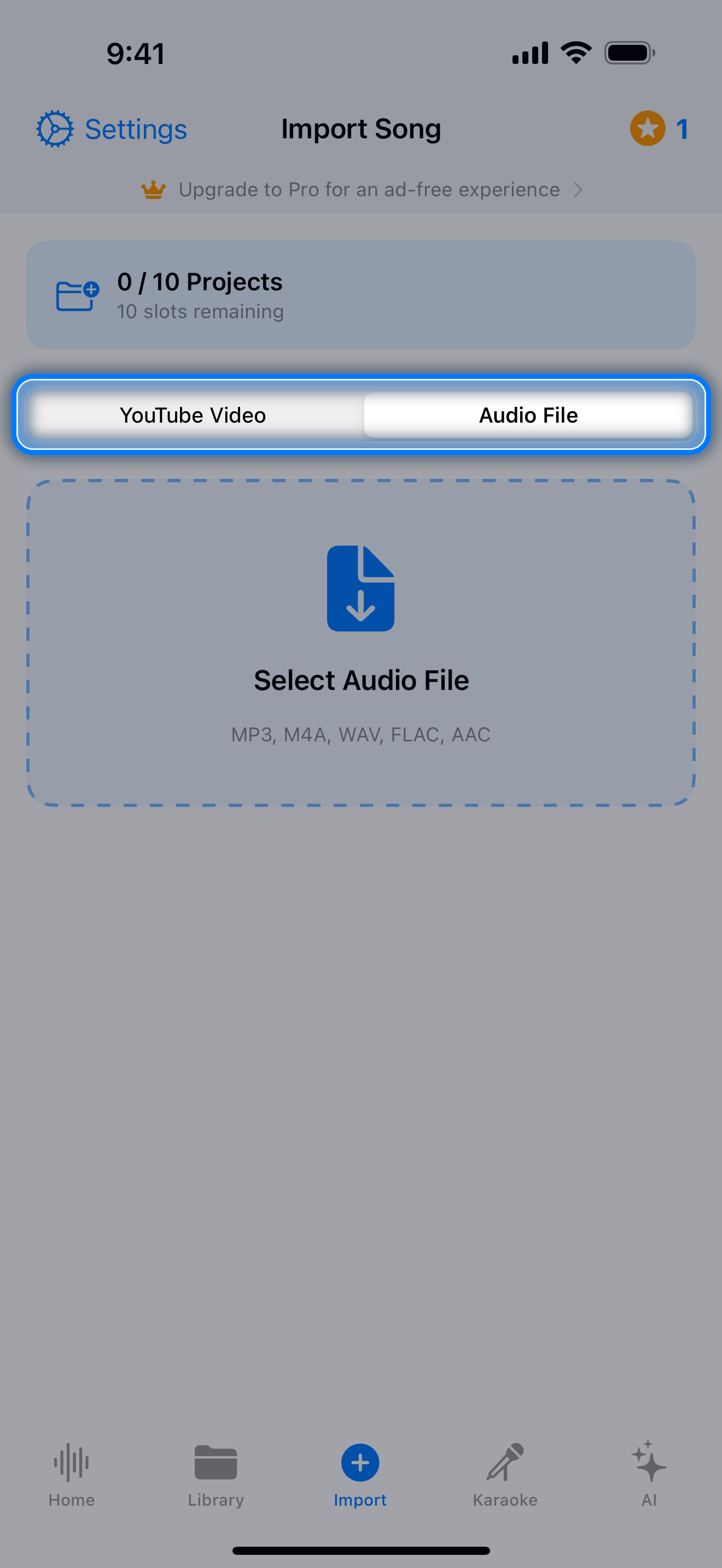
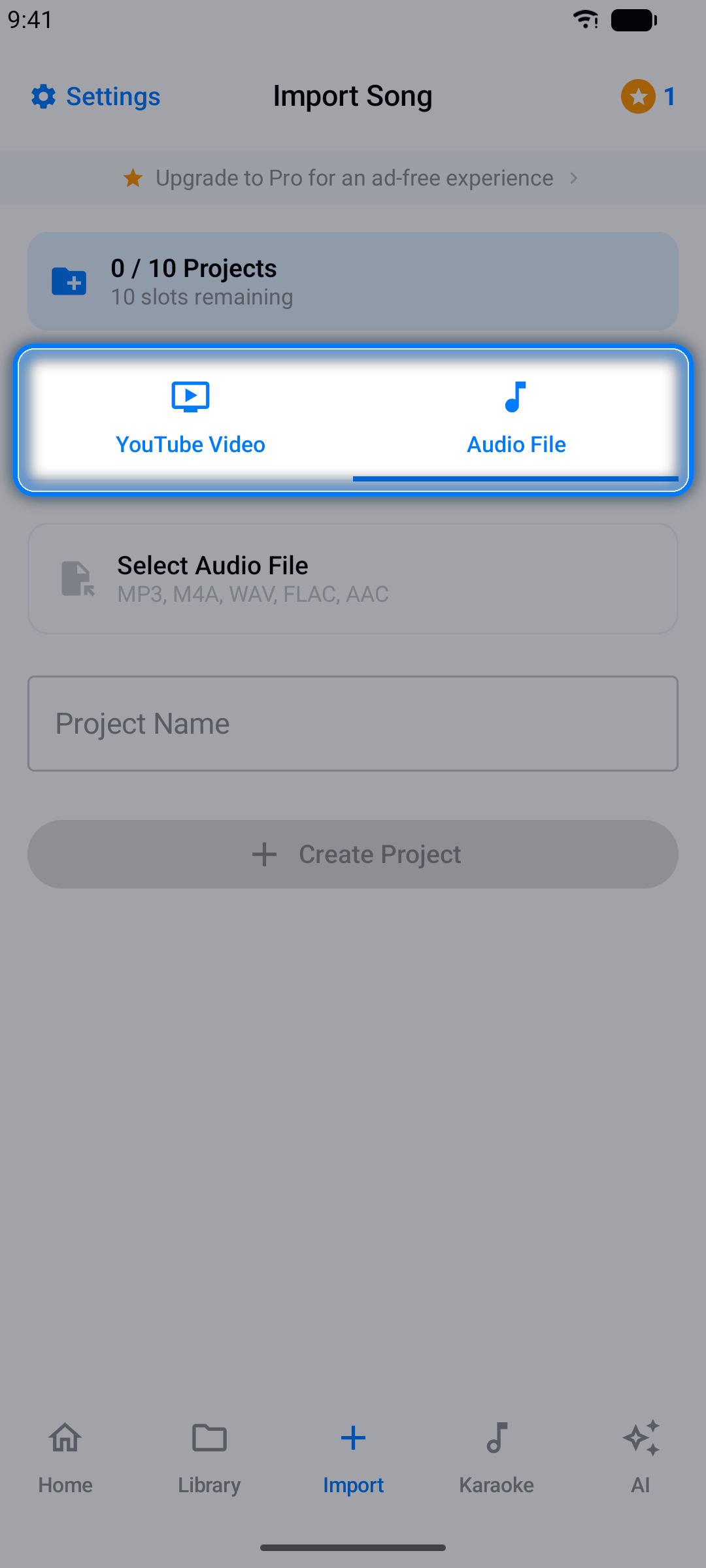
On the Import tab, choose Audio / Video and pick a song file (MP3, M4A, WAV, FLAC or AAC) or a video with the music in it, or choose YouTube Video and paste a link.
Step 2: Paste the lyrics
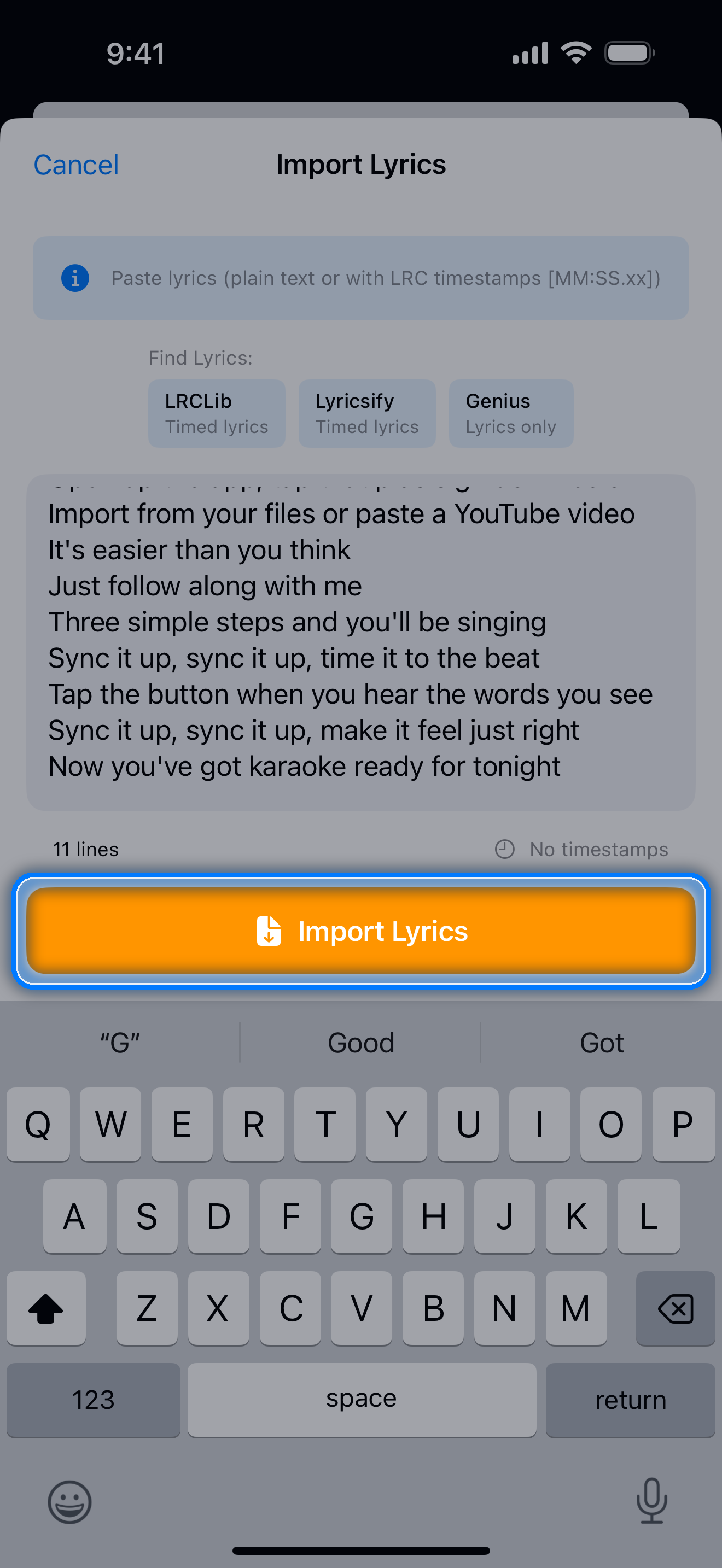
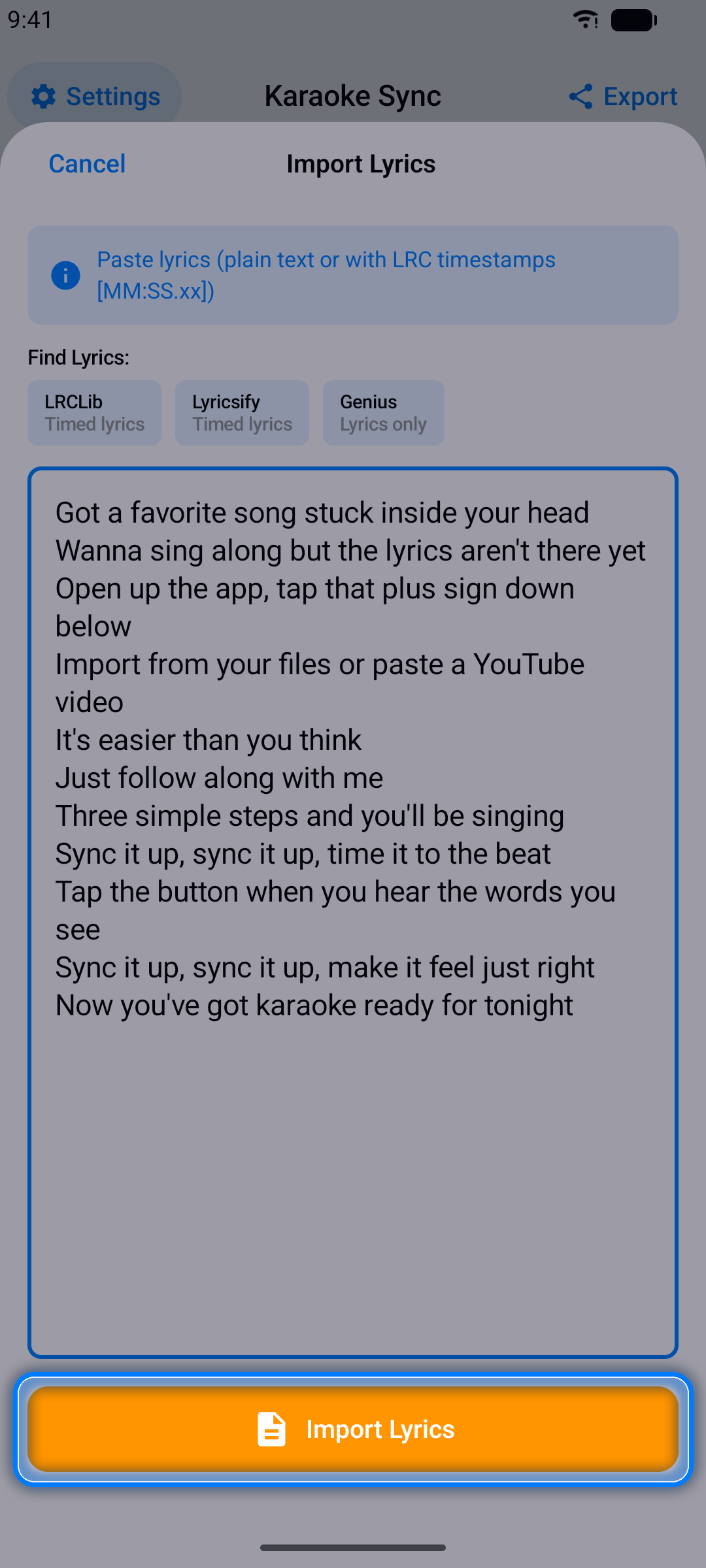
The lyrics importer opens by itself. Paste the lyrics, one line per line, and tap Import Lyrics.
Step 3: Tap to time each line
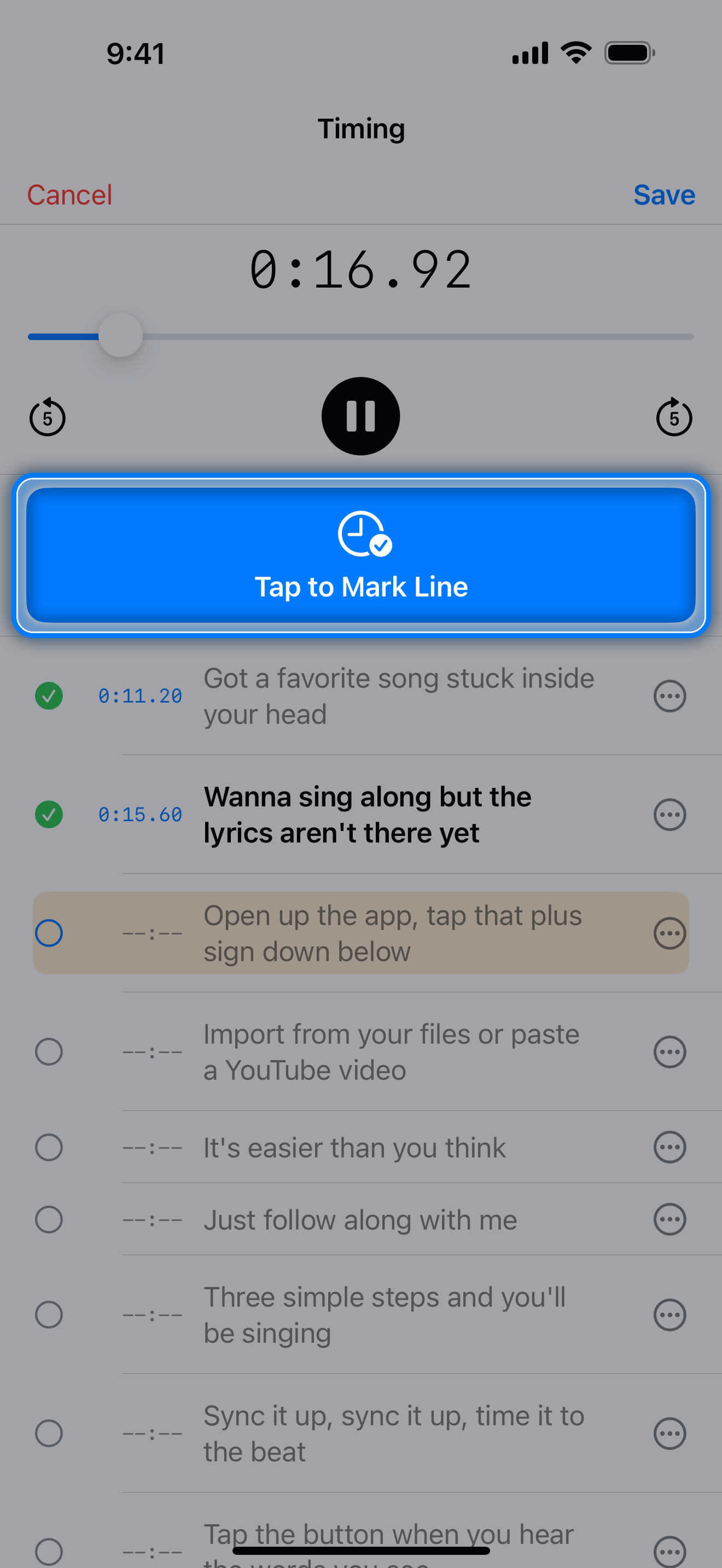
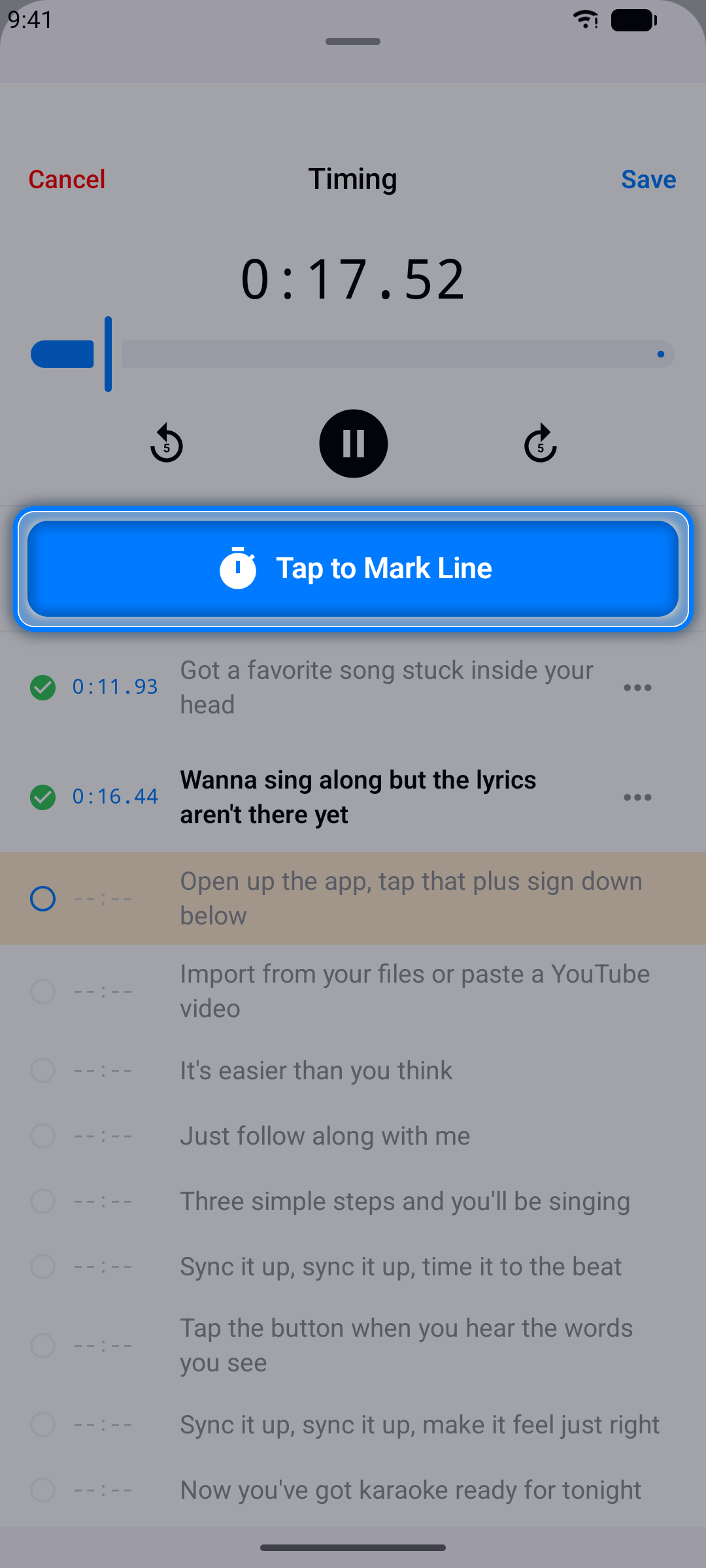
Tap Timing, then Start Timing. As the song plays, tap Tap to Mark Line the moment each line begins. When every line is timed, tap Save. The step-by-step guide How to sync lyrics to a song covers this in detail.
Step 4: Fine-tune in 0.1-second steps
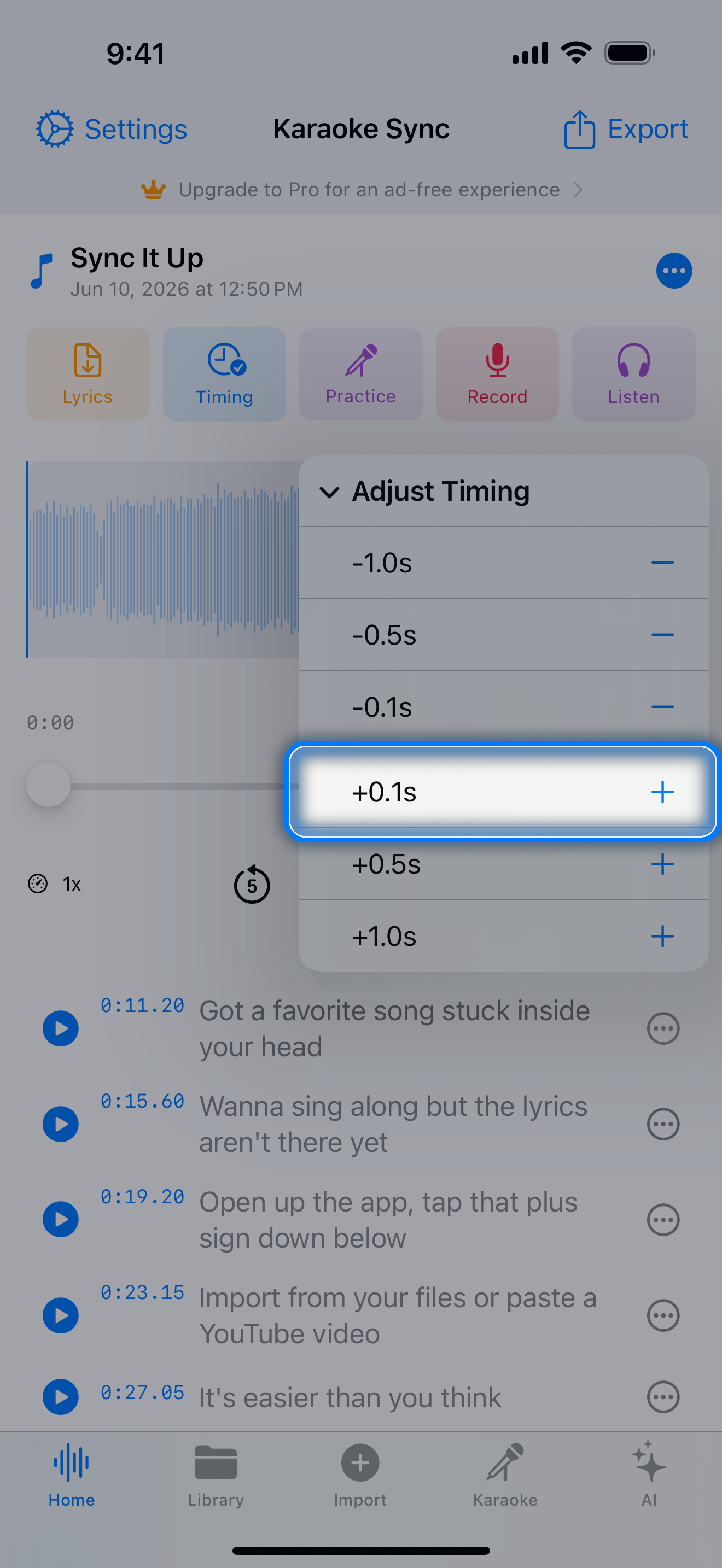
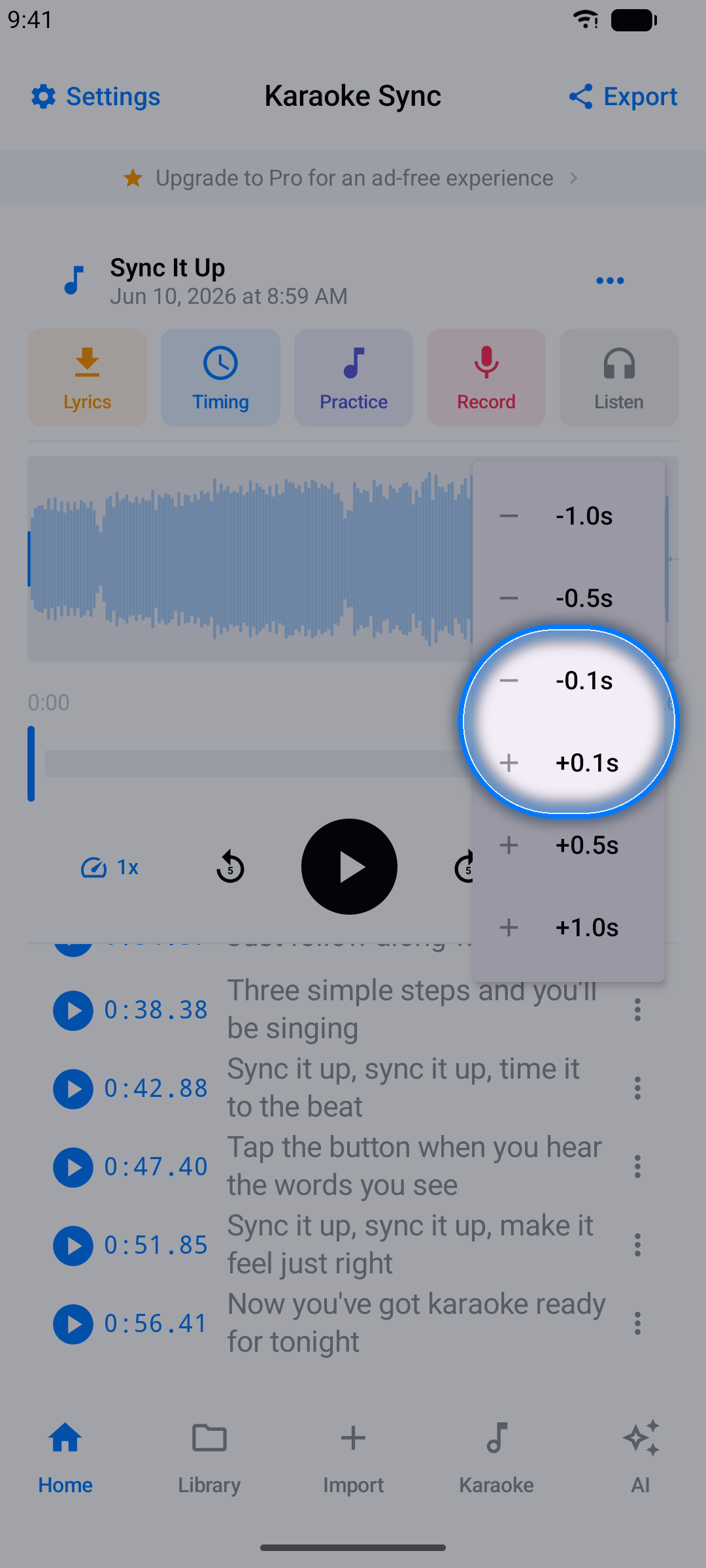
Tap the ... button next to any line in the editor and choose Adjust Timing to move it earlier or later by 0.1, 0.5 or 1.0 second.
Step 5: Export LRC
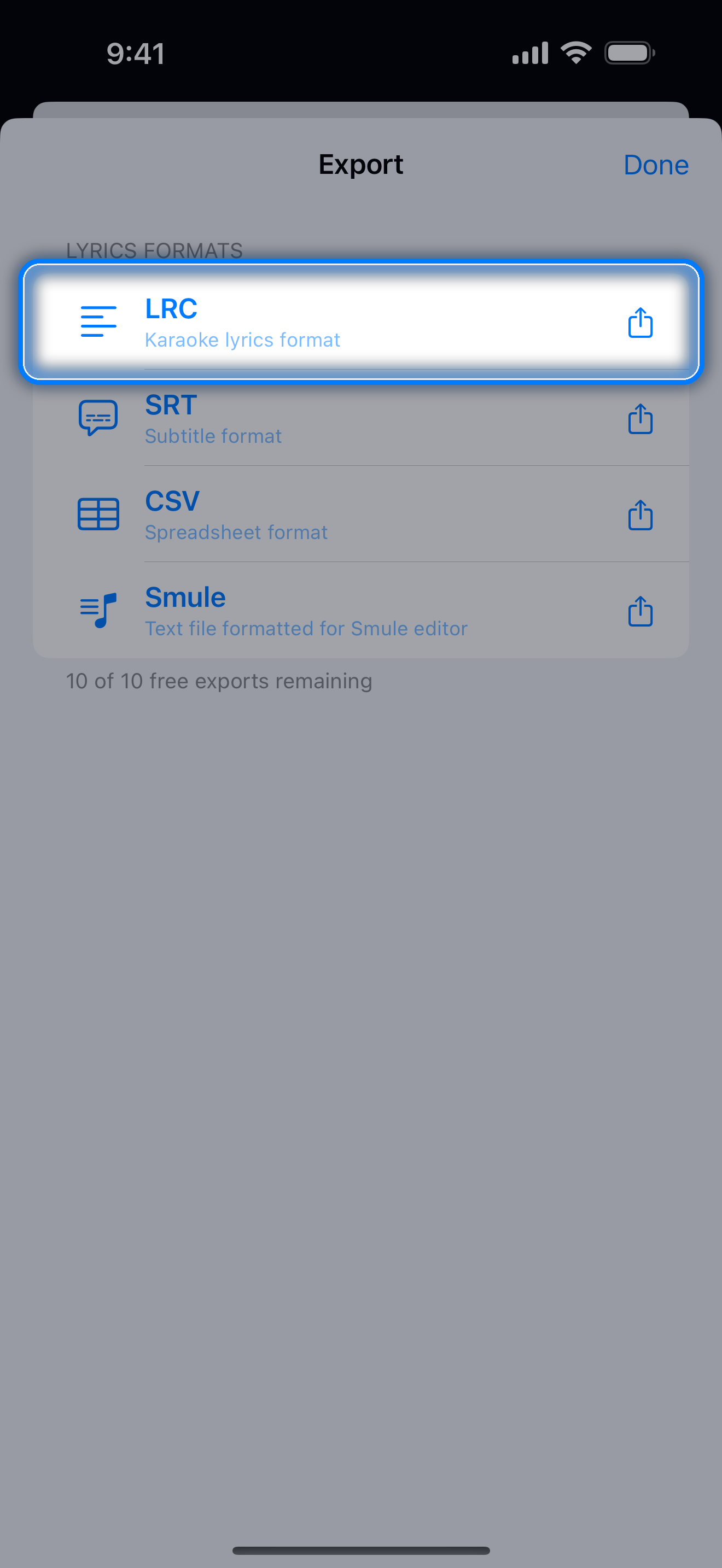
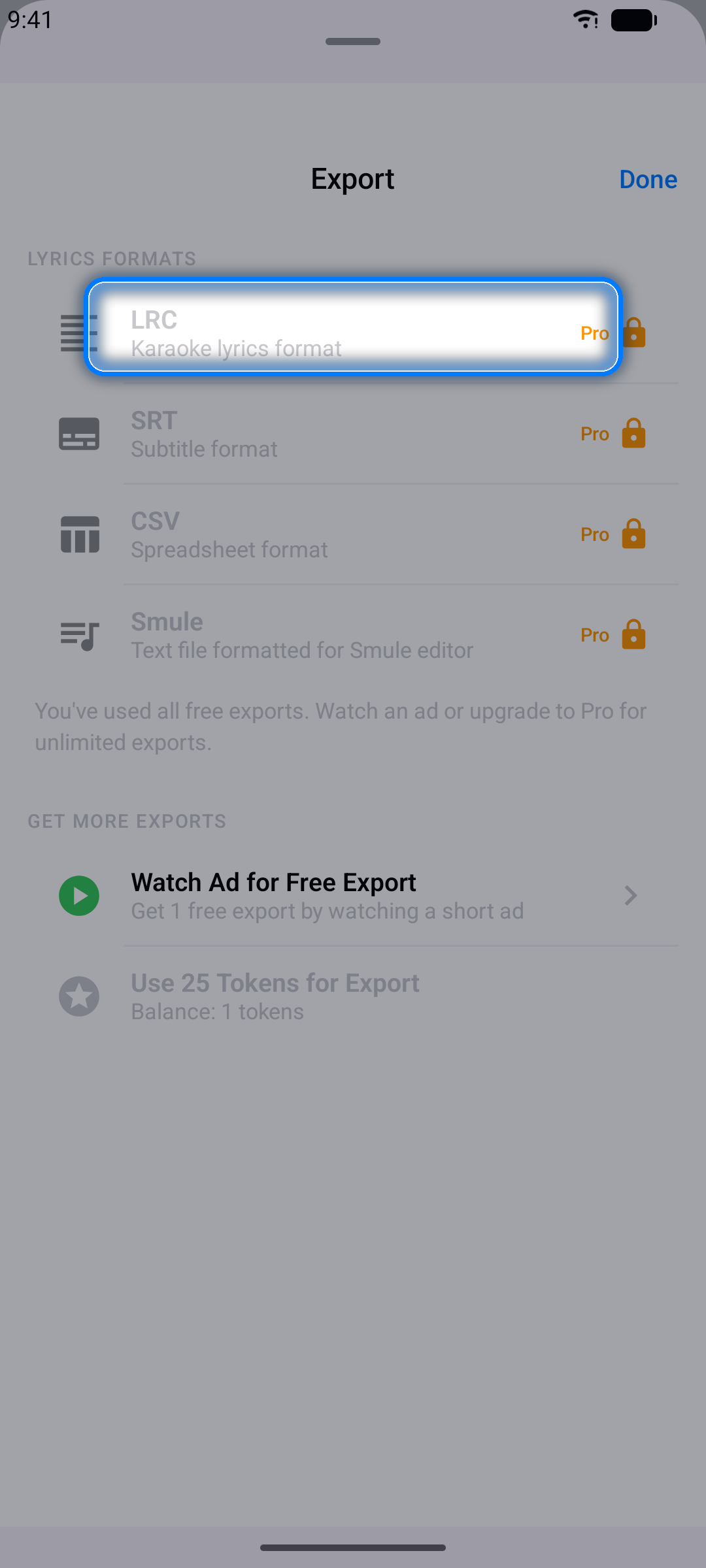
Tap Export in the top-right corner of the project editor and choose LRC. The file is named after your project.
Enhanced LRC (word by word)
Enhanced LRC adds a time tag in angle brackets before each word, so a player can highlight the lyrics one word at a time. A word-timed line looks like this:
[00:15.50]<00:15.50>Second <00:16.10>line <00:16.62>of <00:16.90>the <00:17.30>songIf you set where a line ends (with the last word's right-edge knob), one more tag after the last word marks that moment.
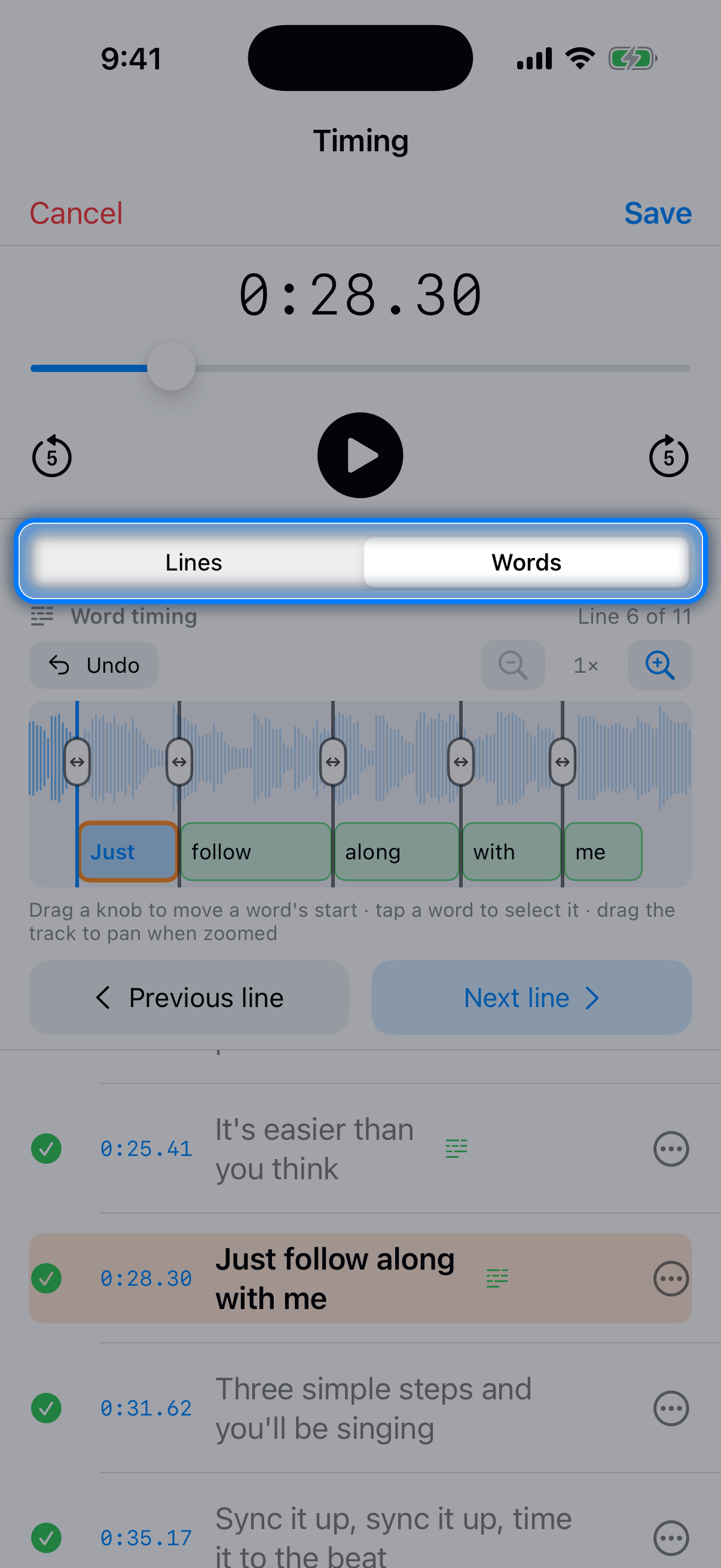
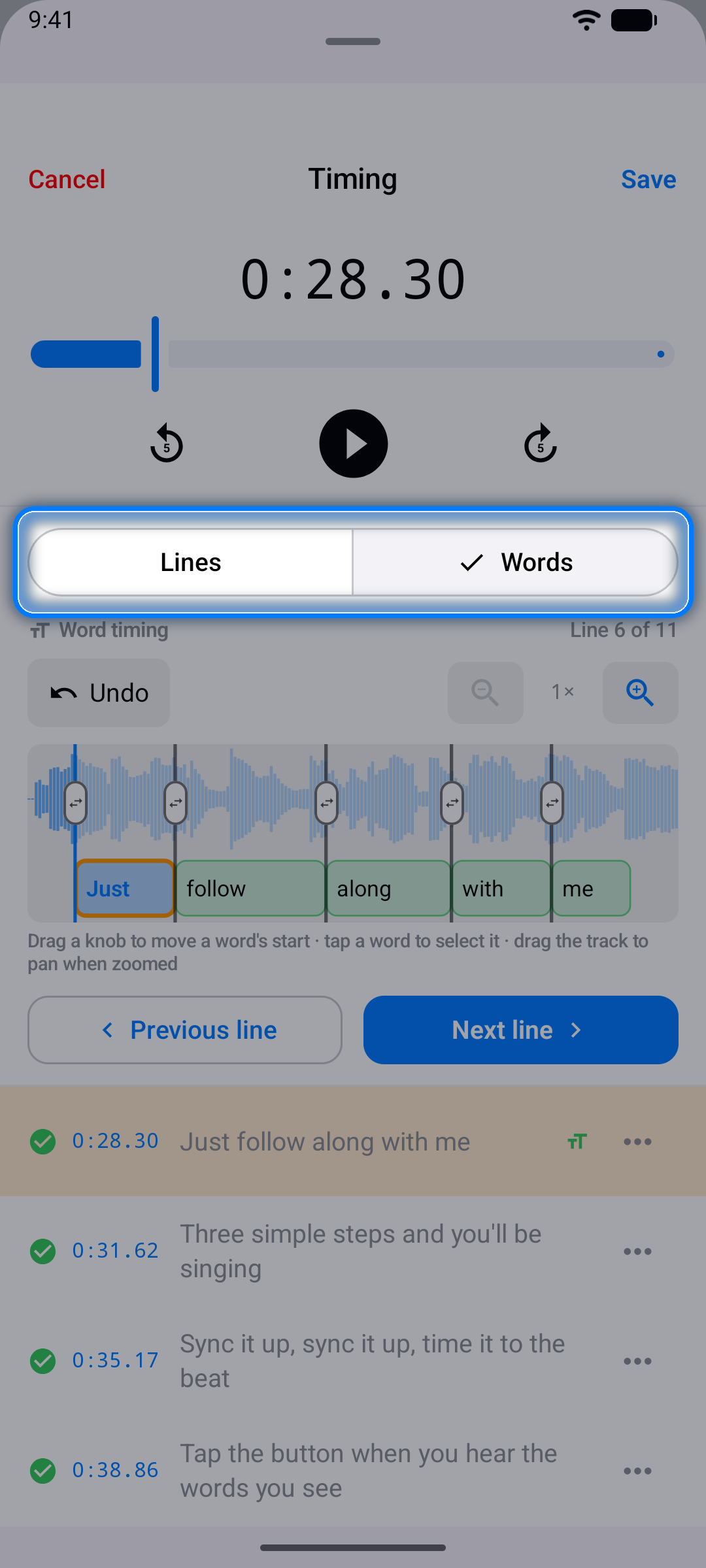
To make one, time the lines first, then switch the Timing screen to Words. The app places each timed line's words on a timeline for you; drag any word that is off. Then tap Export and choose Enhanced LRC. The option turns on once at least one line has word timing, and lines without word timing come out as plain LRC lines.
Edit an existing LRC file
Already have timed lyrics? Copy the text of the LRC file and paste it into the lyrics importer. The timestamps come in with the lines automatically, and Enhanced LRC word tags come in as word timing. Adjust anything that is off, then export again.
Where the file goes
- iPhone and iPad: the share sheet opens right away, so you can save the file to Files, AirDrop it, or send it to another app.
- Android: the file is saved to your Downloads folder, and lyrics files also offer Copy to clipboard.
Questions and answers
Is it free?
Yes, to start. The free version includes up to 10 projects, every export format, and 10 exports without ads. After that, each export takes a short ad or 25 tokens earned in the app. Pro ($0.99 a month or $5.99 a year) removes the ads and the project and export limits.
How precise is the timing?
You can move any line in 0.1-second steps, and word timing places each word on a zoomable timeline.
Can I shift every line at once if the whole song is early or late?
Yes. On the Timing screen, open the Fine-tune Timestamp sheet of a line without word timing, turn on Past lines or Future lines under Also adjust, and tap a +/- button. All of those lines move at once, word timing included.
What else can I export?
The same timing exports as SRT subtitles, CSV for spreadsheets, and Smule format. Recordings of you singing export as an M4A mix or as an MP4 lyric video.
Make your first LRC file free on iPhone or Android.
More guides
- How to sync lyrics: time lyrics to any song, line by line or word by word
- Lyrics to SRT: turn timed lyrics into an SRT subtitle file
- Lyric video maker: record yourself singing and export an MP4 with your lyrics on screen
- Karaoke Sync tutorial: the complete user guide, in 33 languages
- Karaoke Sync home: features, pricing and questions