Make SRT subtitles for a song
Last updated
An SRT file is a subtitle file that lists each line of text with its start and end time. Karaoke Sync® creates one for a song by having you tap as each lyric line is sung, then exporting the result as .srt.
Karaoke Sync is a free app for iPhone and Android. Use the SRT file as subtitles in a video editor, or burn the lyrics straight into a video in the app instead.


How to make SRT subtitles for a song
Step 1: Import the song or video
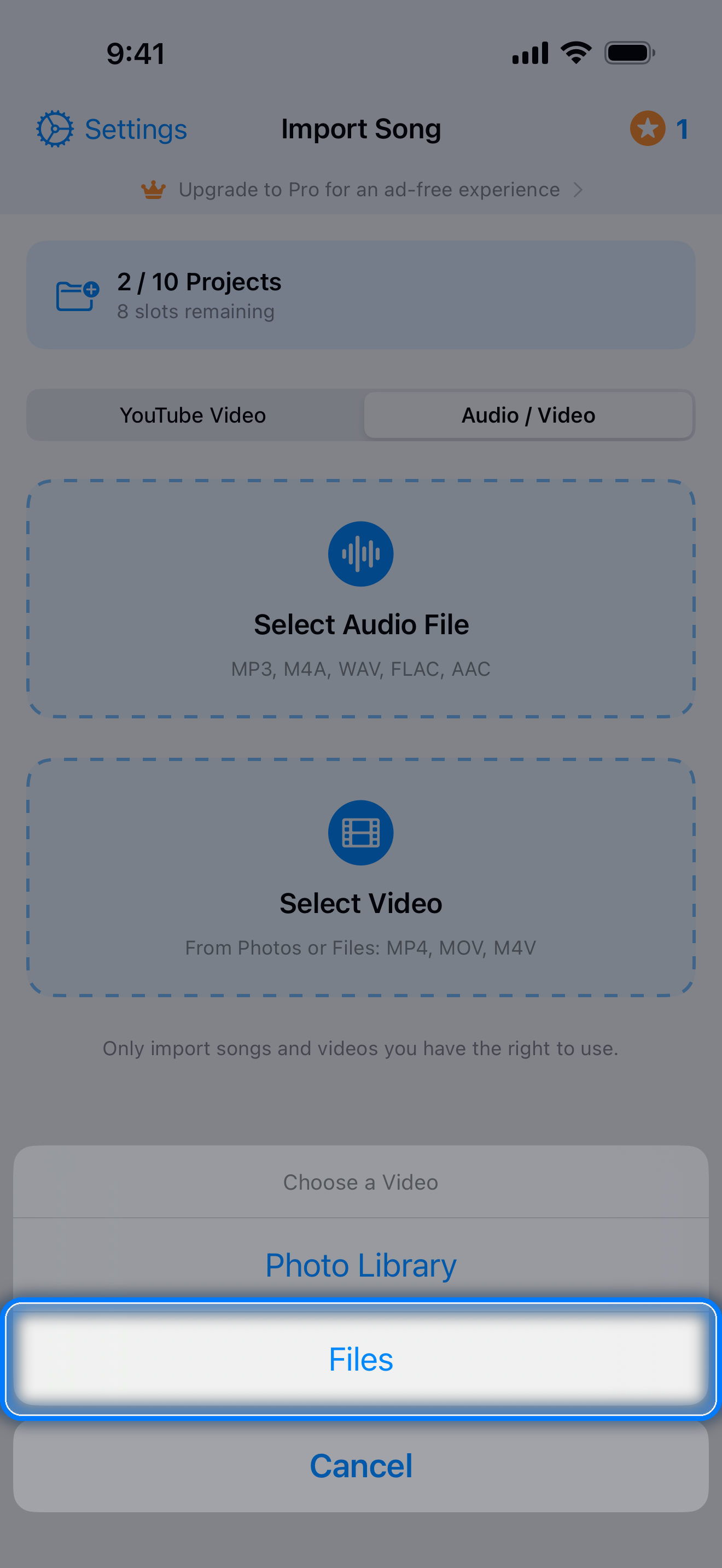
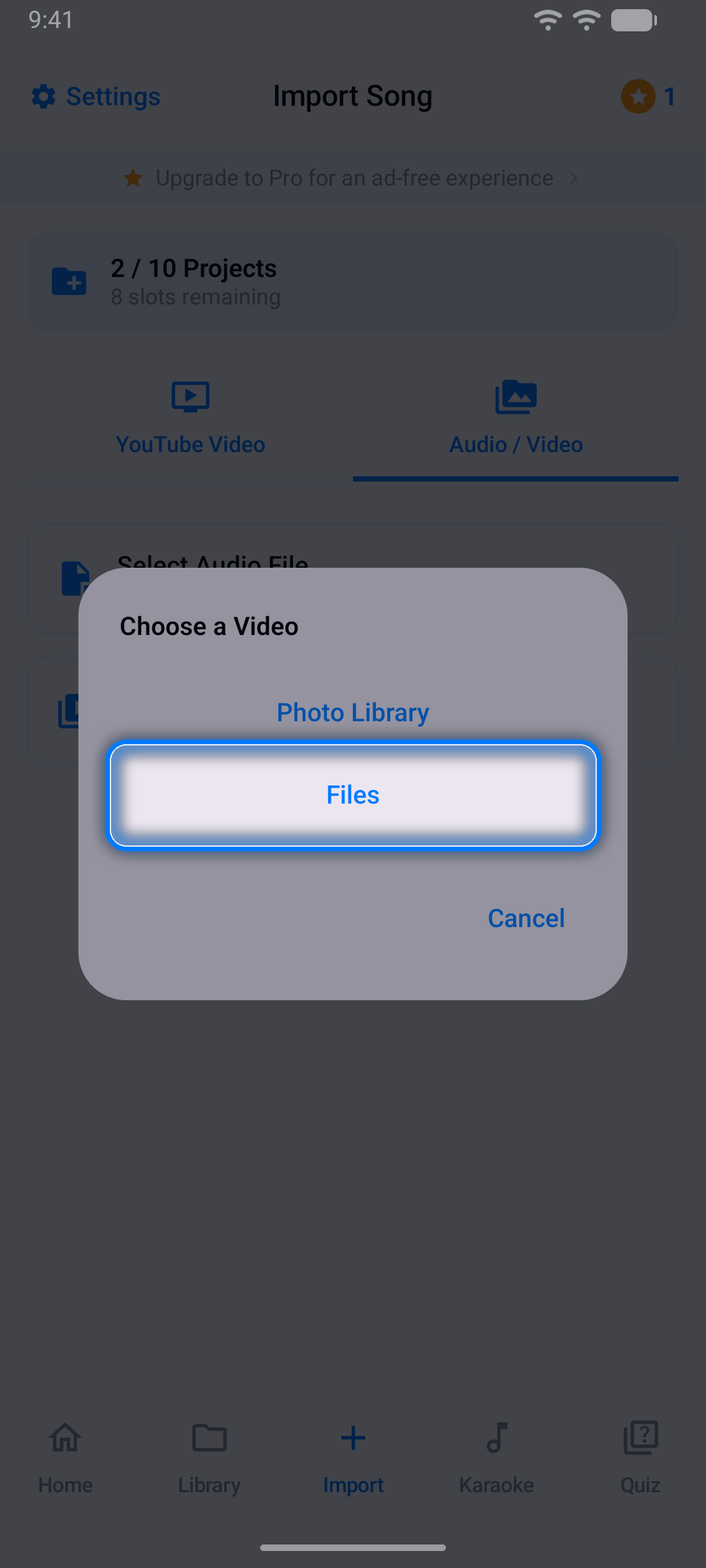
On the Import tab, choose Audio / Video and pick a song file (MP3, M4A, WAV, FLAC or AAC) or a video (MP4, MOV or M4V). If the subtitles are for a video, import that video, so the timing follows its sound.
Step 2: Paste the lyrics
The lyrics importer opens by itself. Paste the lyrics, one line per line; each line becomes one subtitle. Tap Import Lyrics.
Step 3: Time each line
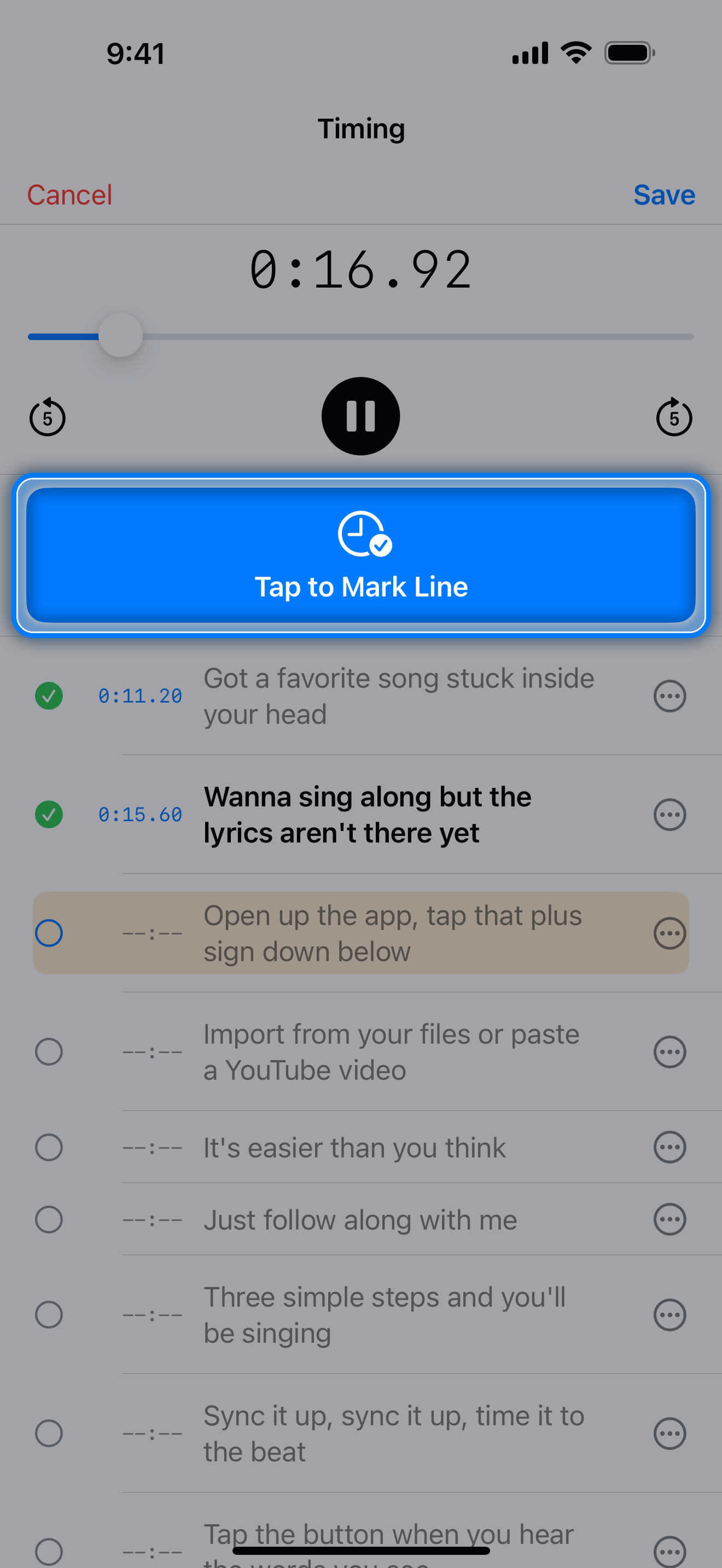
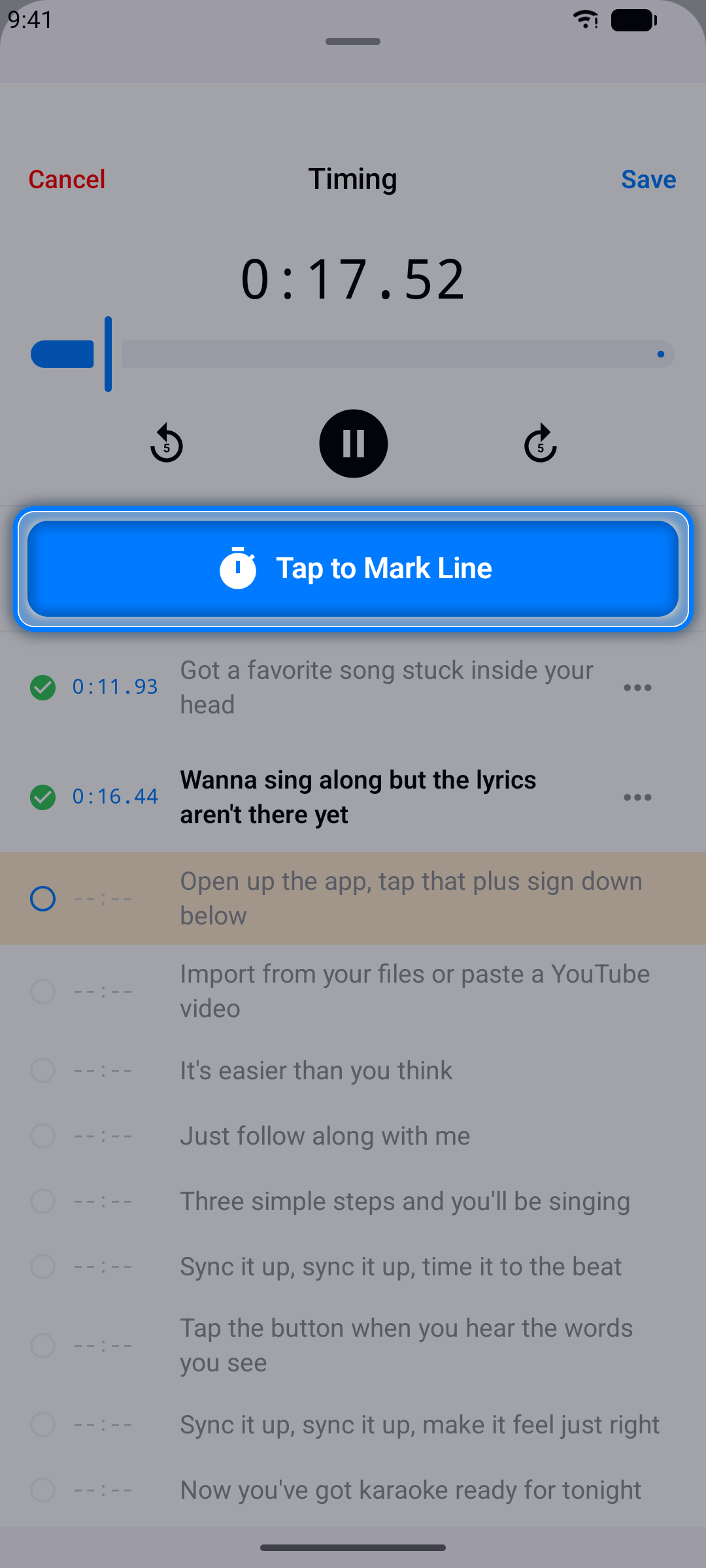
Tap Timing, then Start Timing, and tap Tap to Mark Line the moment each line begins. Tap Save when every line is timed. How to sync lyrics to a song walks through it step by step.
Step 4: Fine-tune
Move any line earlier or later in 0.1-second steps: tap the ... button next to it and choose Adjust Timing.
Step 5: Export SRT
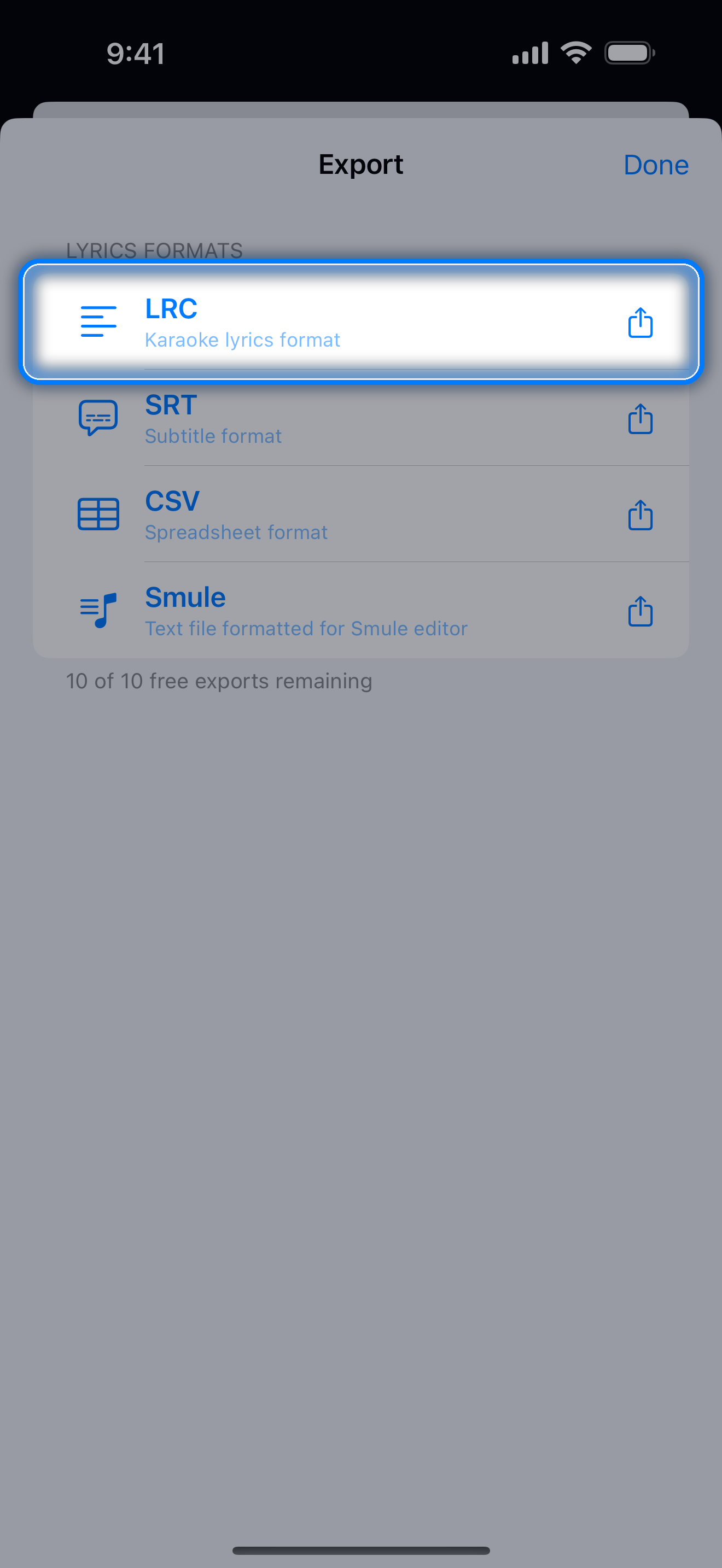
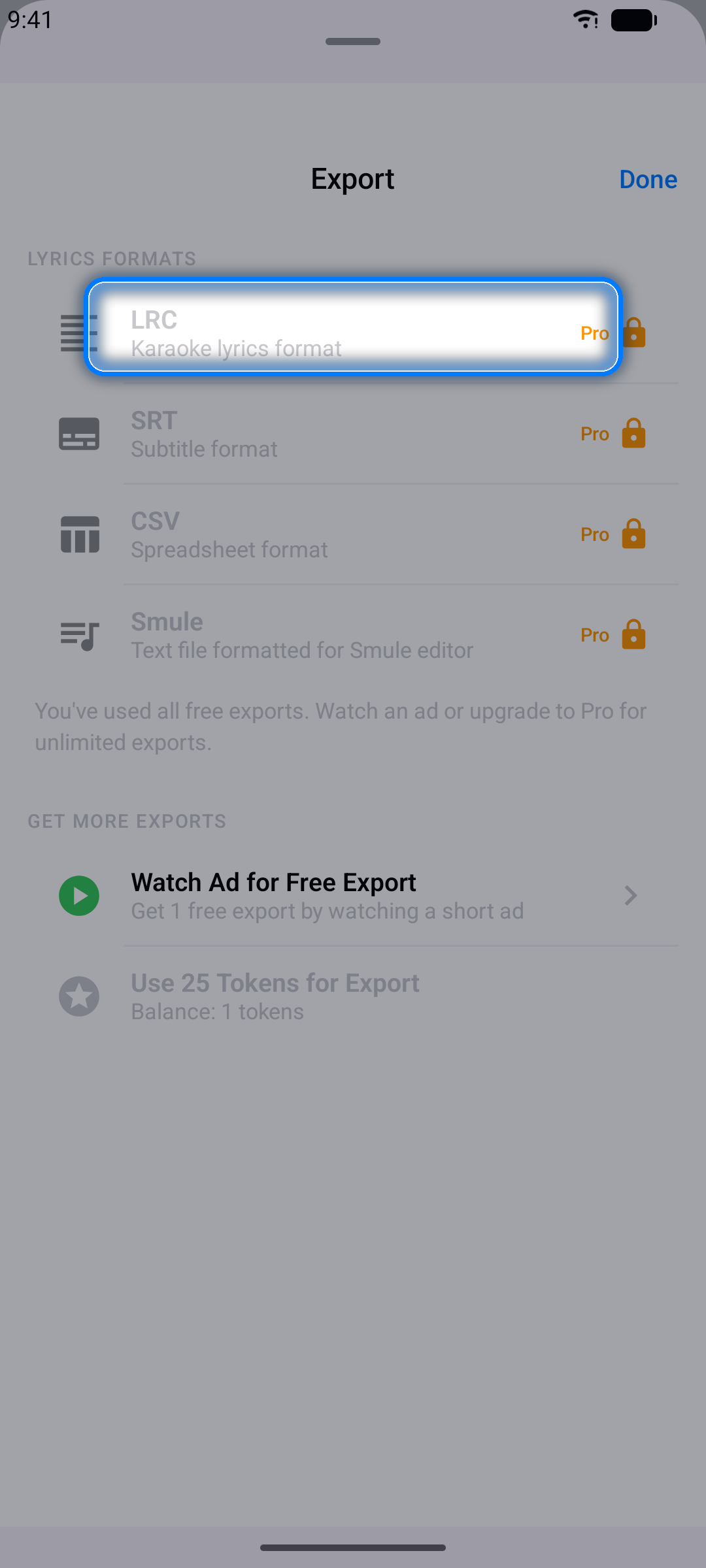
Tap Export in the top-right corner of the project editor and choose SRT. On iPhone and iPad the share sheet opens (save to Files, AirDrop, or send to another app); on Android the file is saved to your Downloads folder.
How line end times are set
SRT needs an end time for every subtitle. You only tap where each line starts, so Karaoke Sync works out the end:
- If you set where a line ends (with the last word's right-edge knob in word timing, or from an Enhanced LRC end tag you pasted in), that time is used.
- Otherwise the subtitle ends half a second before the next line starts, and stays on screen for at least half a second.
- The last line, unless you set its end, stays up for 3 seconds.
Times are written to the millisecond. A Karaoke Sync SRT file starts like this:
1
00:00:12,400 --> 00:00:15,000
First line of the song

2
00:00:15,500 --> 00:00:18,550
Second line of the song
Other formats from the same project
The timing you made exports to every format, with no extra work: LRC and Enhanced LRC for music players and karaoke apps, CSV for spreadsheets, and Smule format.
Burning the lyrics into the video instead
If you want the lyrics on the picture itself rather than in a separate subtitle file, record a take and export it with Lyrics on video switched on. See Make a lyric video on your phone.
Questions and answers
Can I make subtitles for a video I filmed?
Yes, if the video has the music in it. Import it from your photo library or Files, time the lyrics, and export SRT. The subtitle times follow the video's sound.
Do I have to time the song again for SRT?
No. One timing pass exports to SRT, LRC, Enhanced LRC, CSV and Smule format.
Is it free?
Yes, to start. The free version includes up to 10 projects, every export format, and 10 exports without ads. After that, each export takes a short ad or 25 tokens earned in the app. Pro ($0.99 a month or $5.99 a year) removes the ads and the project and export limits.
Make your first SRT file free on iPhone or Android.
More guides
- How to sync lyrics: time lyrics to any song, line by line or word by word
- LRC maker: make an LRC or Enhanced LRC lyrics file
- Lyric video maker: record yourself singing and export an MP4 with your lyrics on screen
- Karaoke Sync tutorial: the complete user guide, in 33 languages
- Karaoke Sync home: features, pricing and questions