Karaoke Sync® - 使用者教學
Karaoke Sync iOS 和 Android 完整使用指南 — 從建立第一個專案到逐行與逐字歌詞計時、錄音、卡拉OK之夜、遊戲等更多功能。
入門指南
Karaoke Sync 能將任何歌曲轉換為帶有精確計時歌詞的卡拉OK音軌。您匯入歌曲、新增歌詞、點按節拍為每一行計時,然後就可以練習、演唱、錄音、匯出,或用您的成果來玩遊戲。
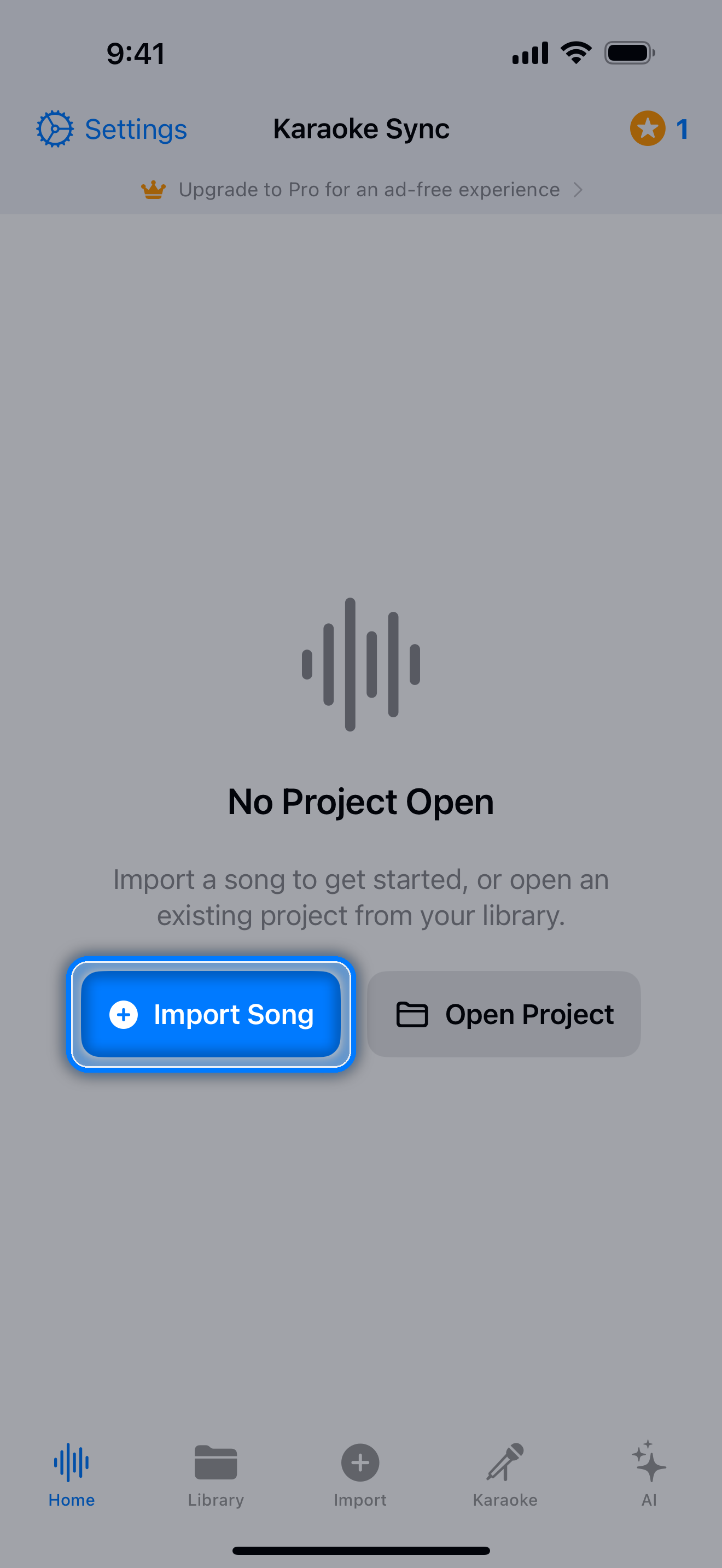
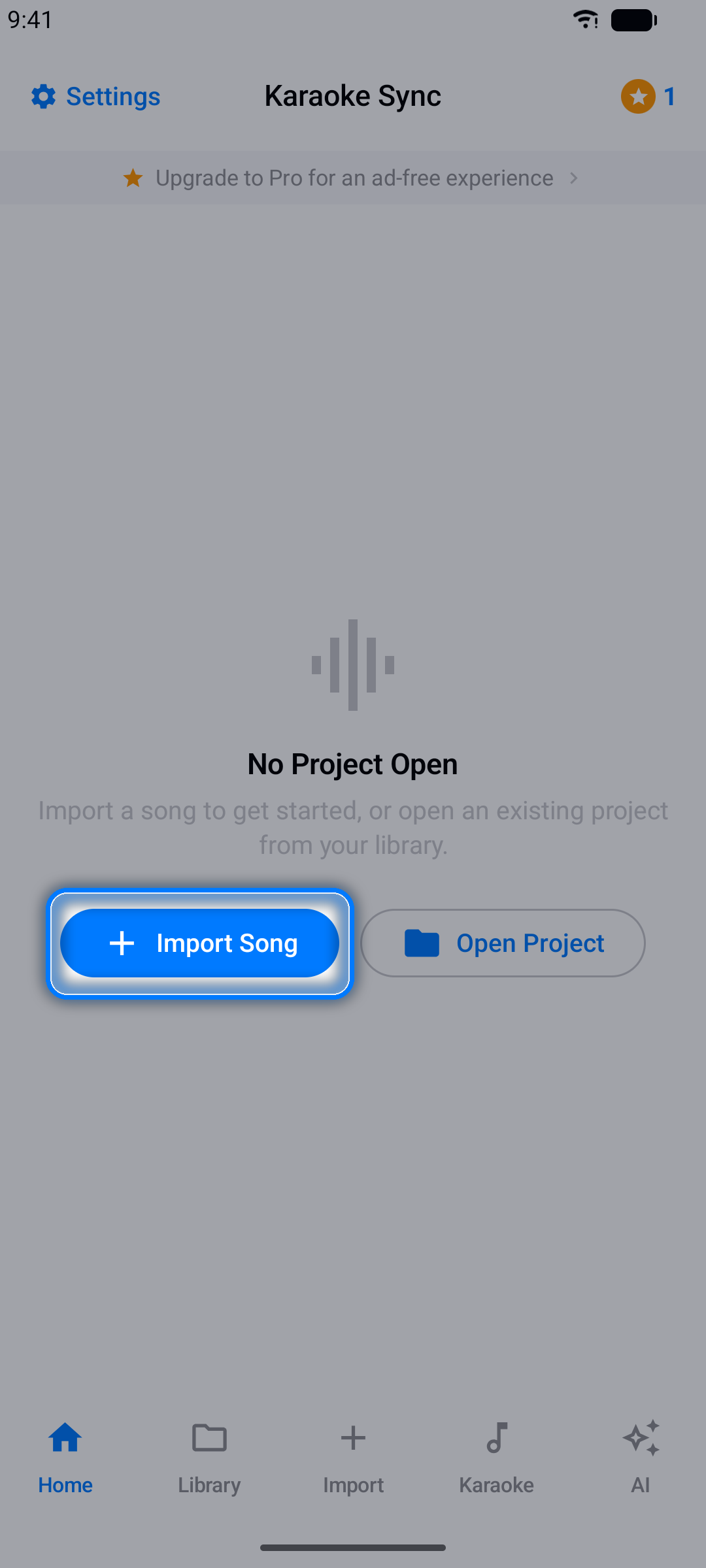
App 底部以五個標籤頁進行組織:
- 首頁 - 您的專案編輯器,目前開啟的專案就在這裡
- 資料庫 - 所有已儲存的專案
- 匯入 - 從音訊檔案或 YouTube 影片建立新專案
- 卡拉OK - 備有同步歌詞的即唱歌曲目錄
- AI - 由 AI 驅動的歌曲問答和趣聞
點按右上角的齒輪圖示,隨時開啟設定。
免費版 vs Pro 版
- 免費版:最多 10 個專案和 10 次終身匯出,另加每月 AI 問答和趣聞配額
- Pro 版:無限專案和匯出,以及大幅提升的每月 AI 配額
您可以隨時升級 — 請參閱 Pro 訂閱。
內建互動式教學
學習 Karaoke Sync 最快的方式就是在 App 內部體驗。第一次開啟時,歡迎畫面會提供引導導覽。
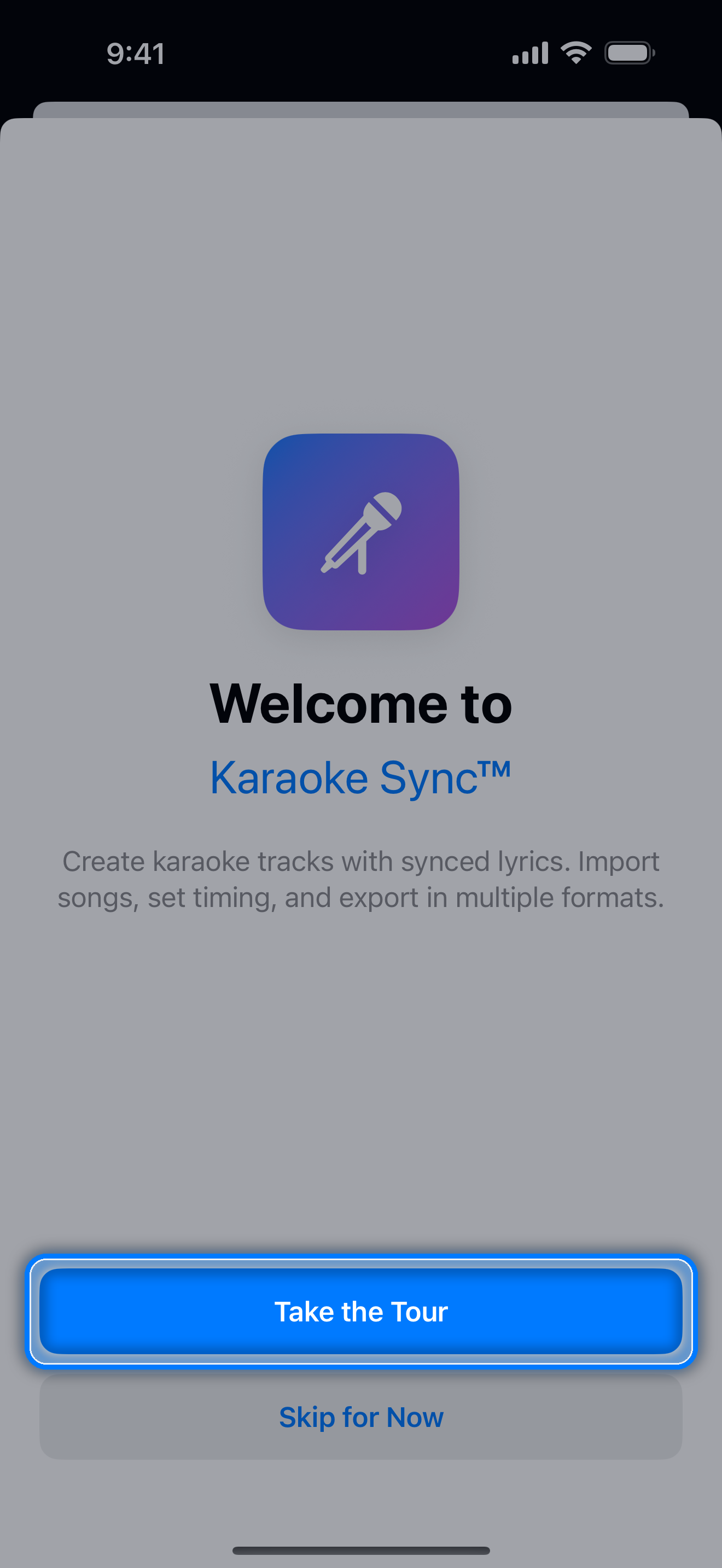
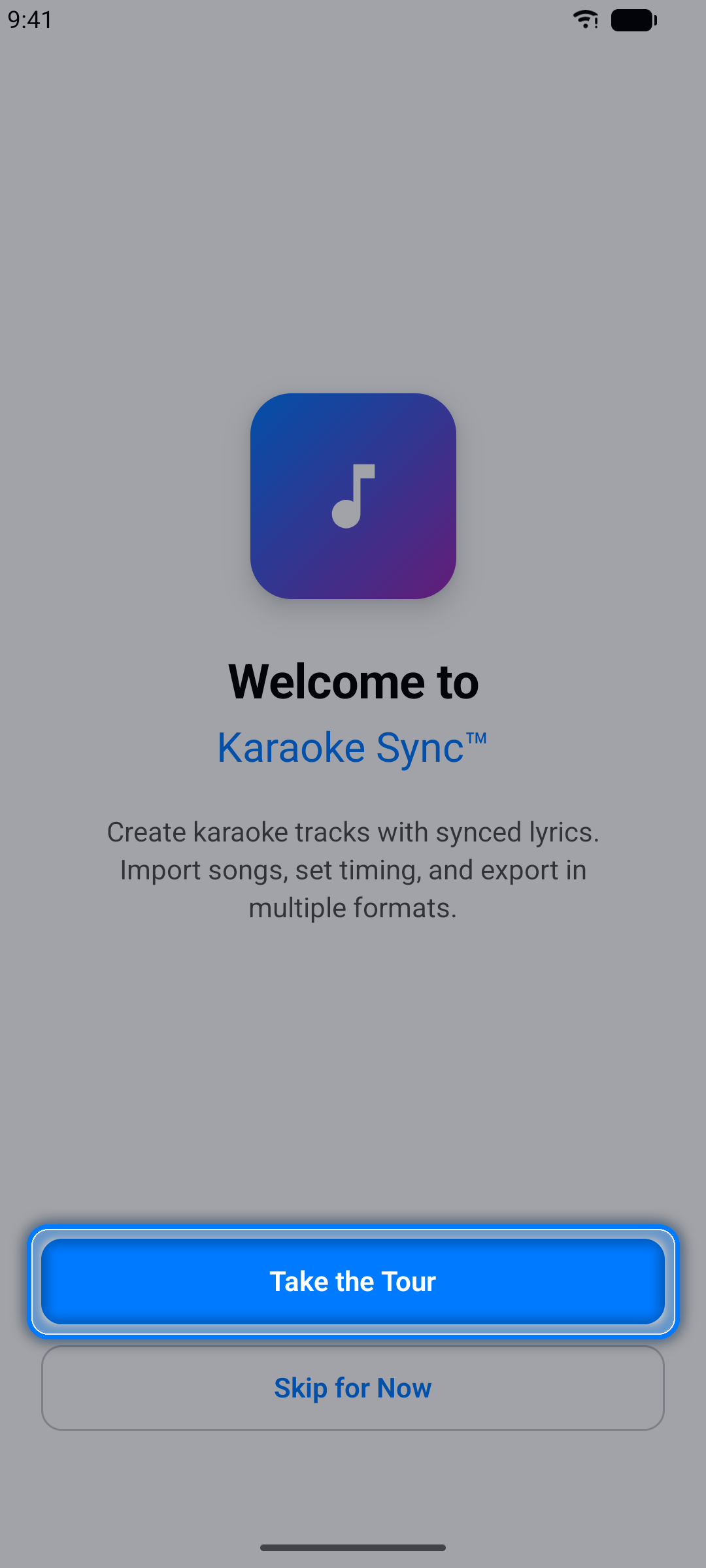
選擇開始導覽,App 就會引導您逐步建立第一個專案 — 發光的聚光燈會在每個步驟精確標示您需要點按的位置,從匯入歌曲到為第一行歌詞計時。
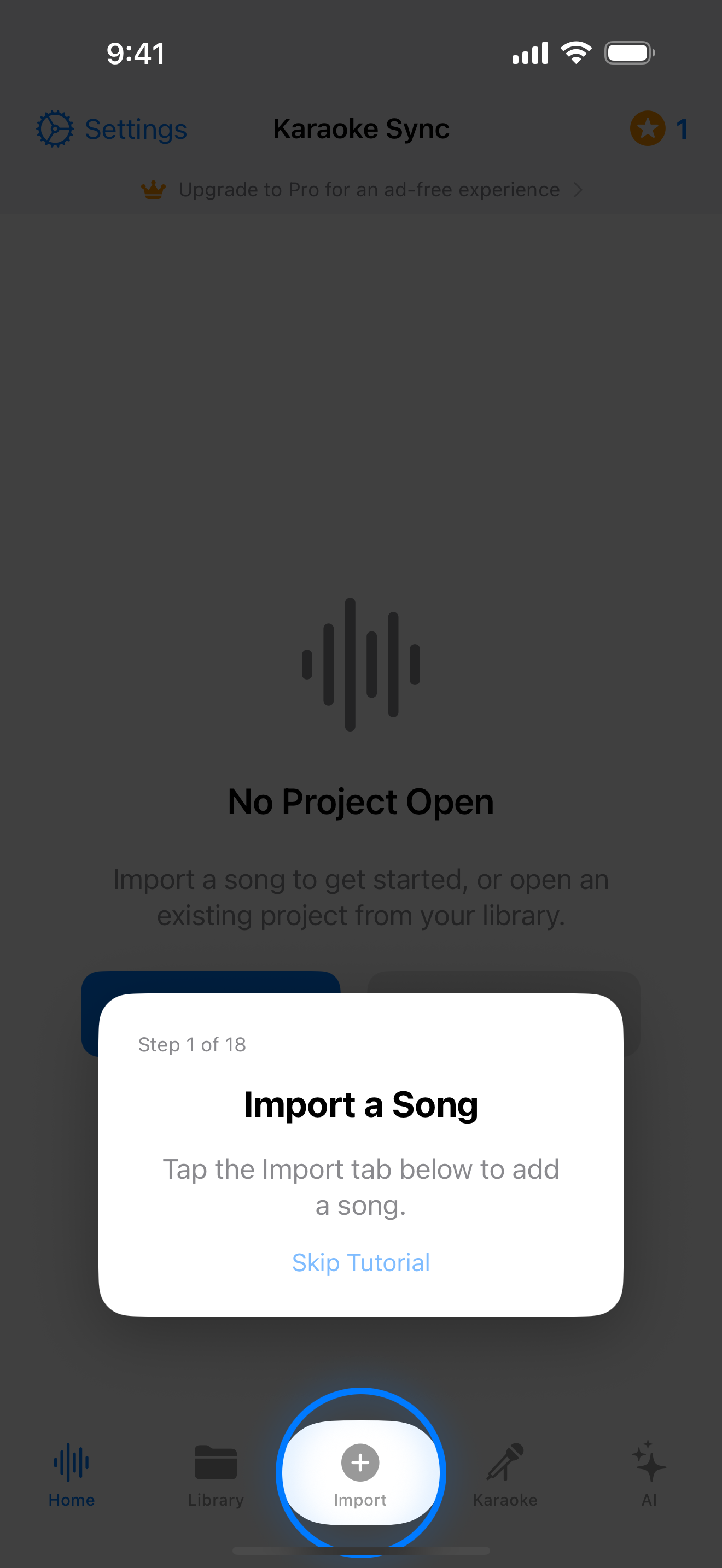
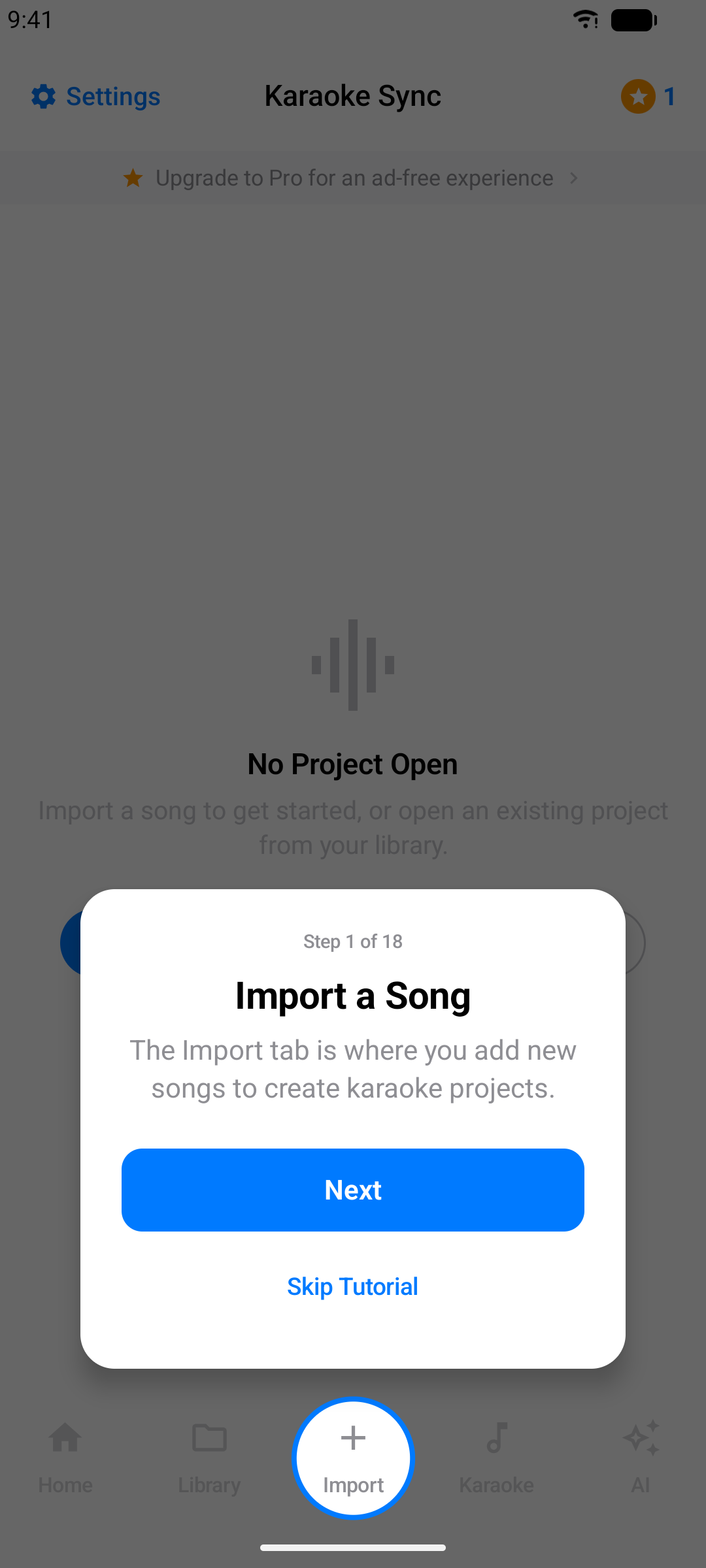
提示: 您可以跳過導覽,之後再進行,或隨時從設定重新執行。
本網頁教學涵蓋相同內容,並提供更深入的說明,方便您在另一個螢幕上邊看邊操作。
從音訊建立專案
當您的裝置上有歌曲檔案(MP3、M4A、WAV、FLAC 或 AAC)時,請使用此選項。
步驟 1:開啟匯入標籤
點按底部標籤列的匯入。
步驟 2:選擇「音訊檔案」
確認畫面頂部已選取音訊檔案作為來源。
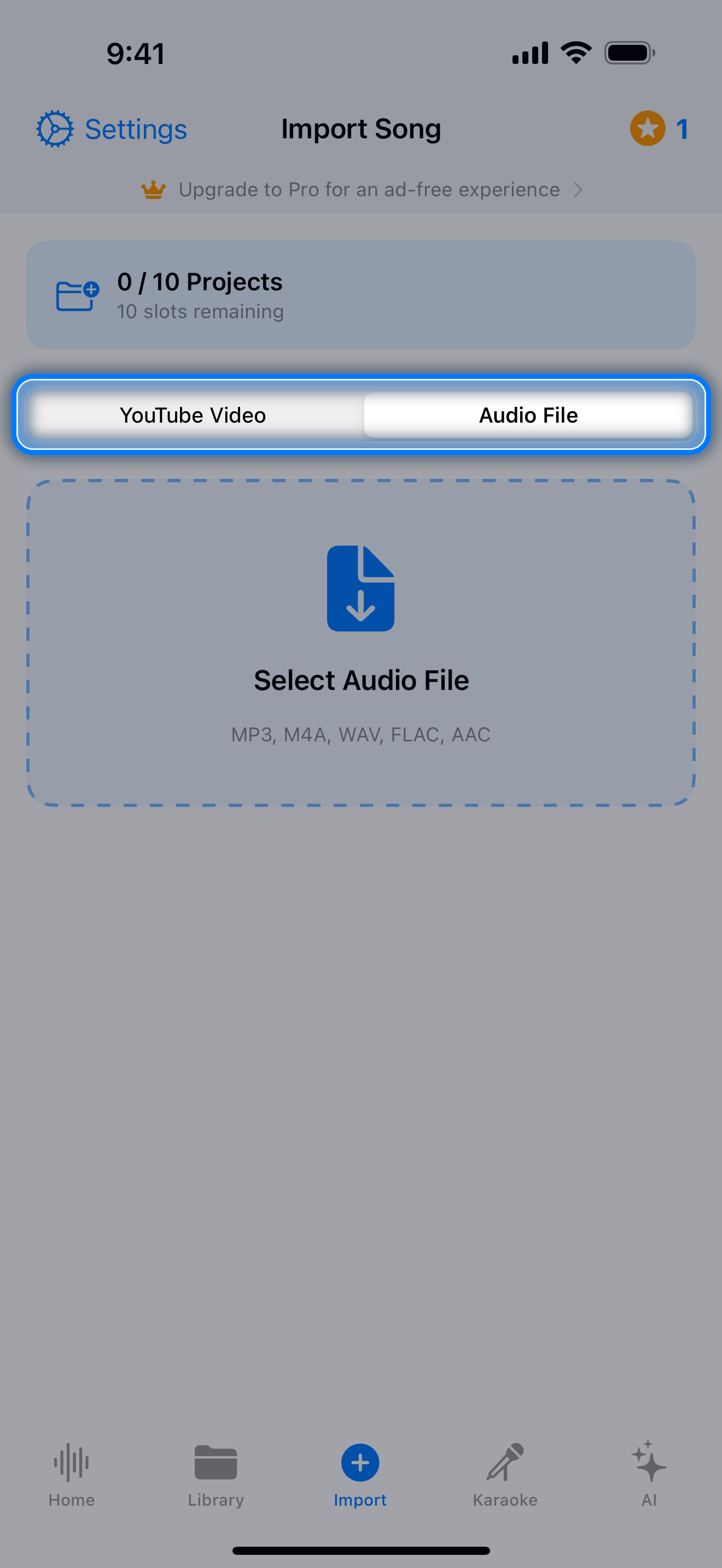
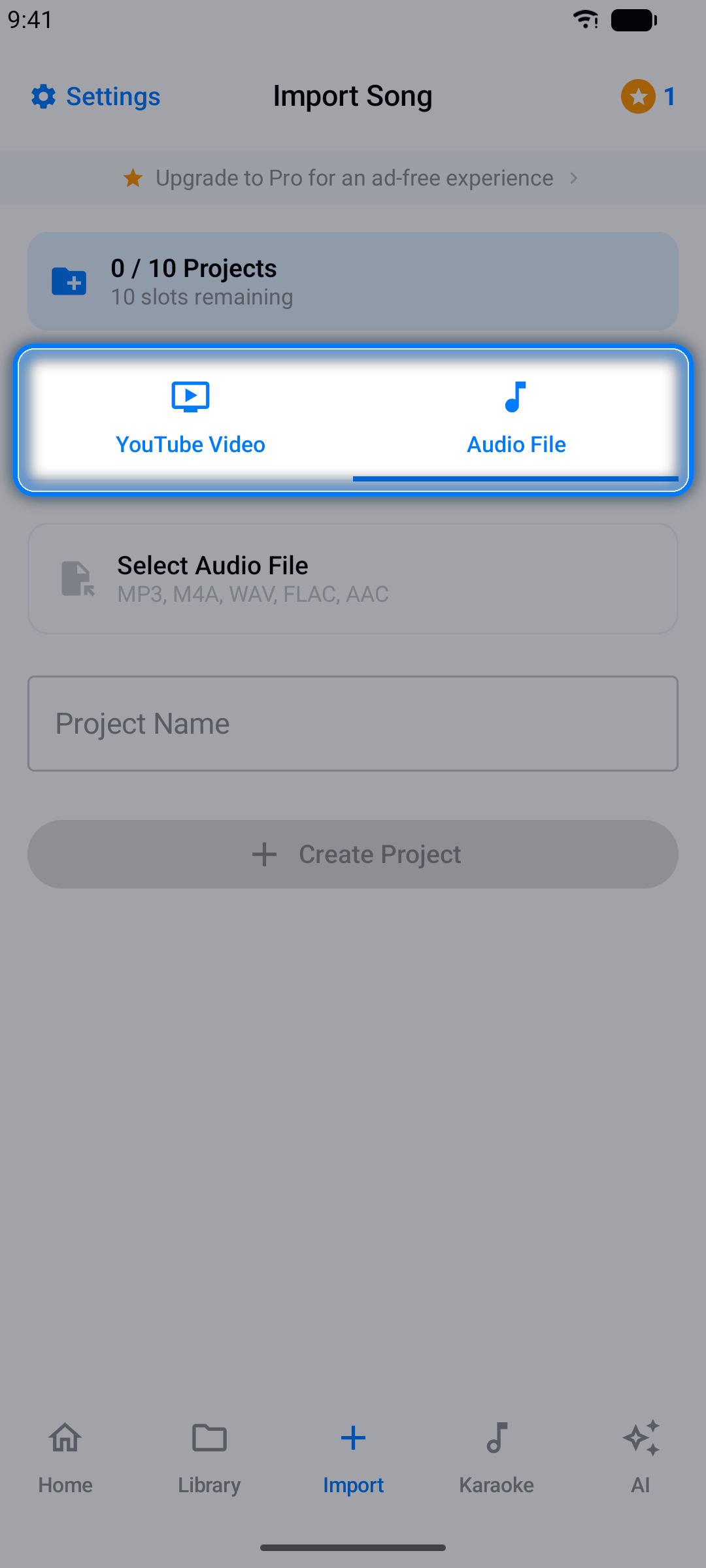
步驟 3:選擇您的歌曲
點按檔案選擇按鈕,瀏覽找到您的歌曲。
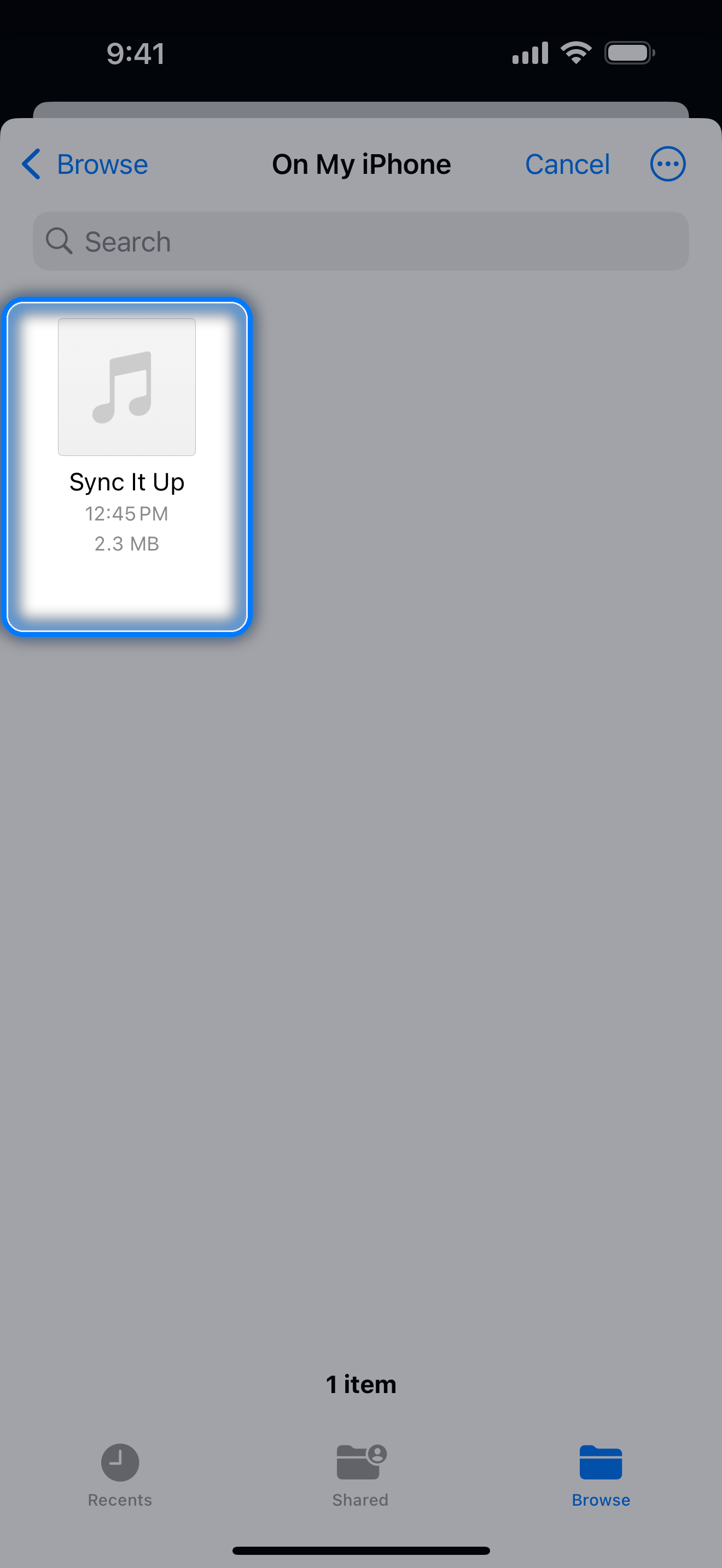
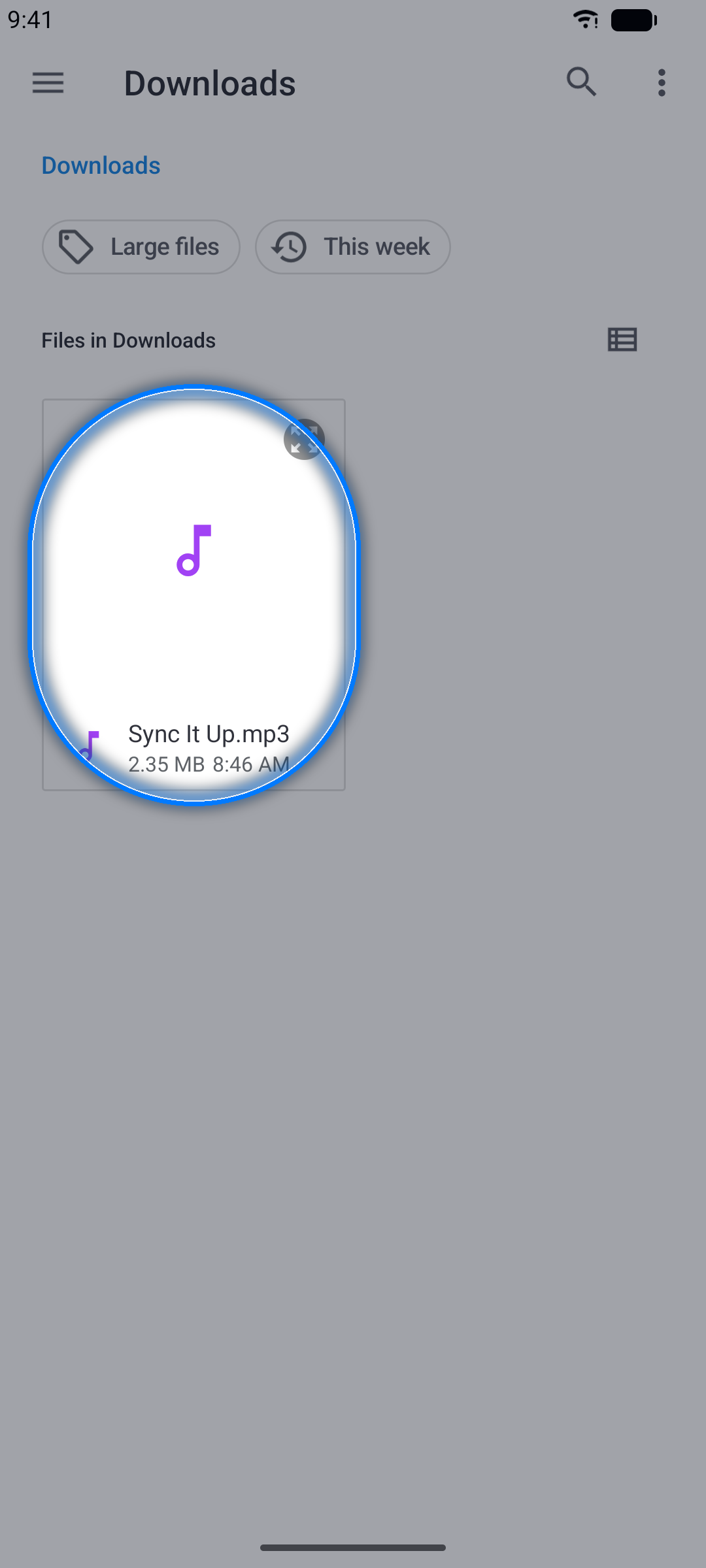
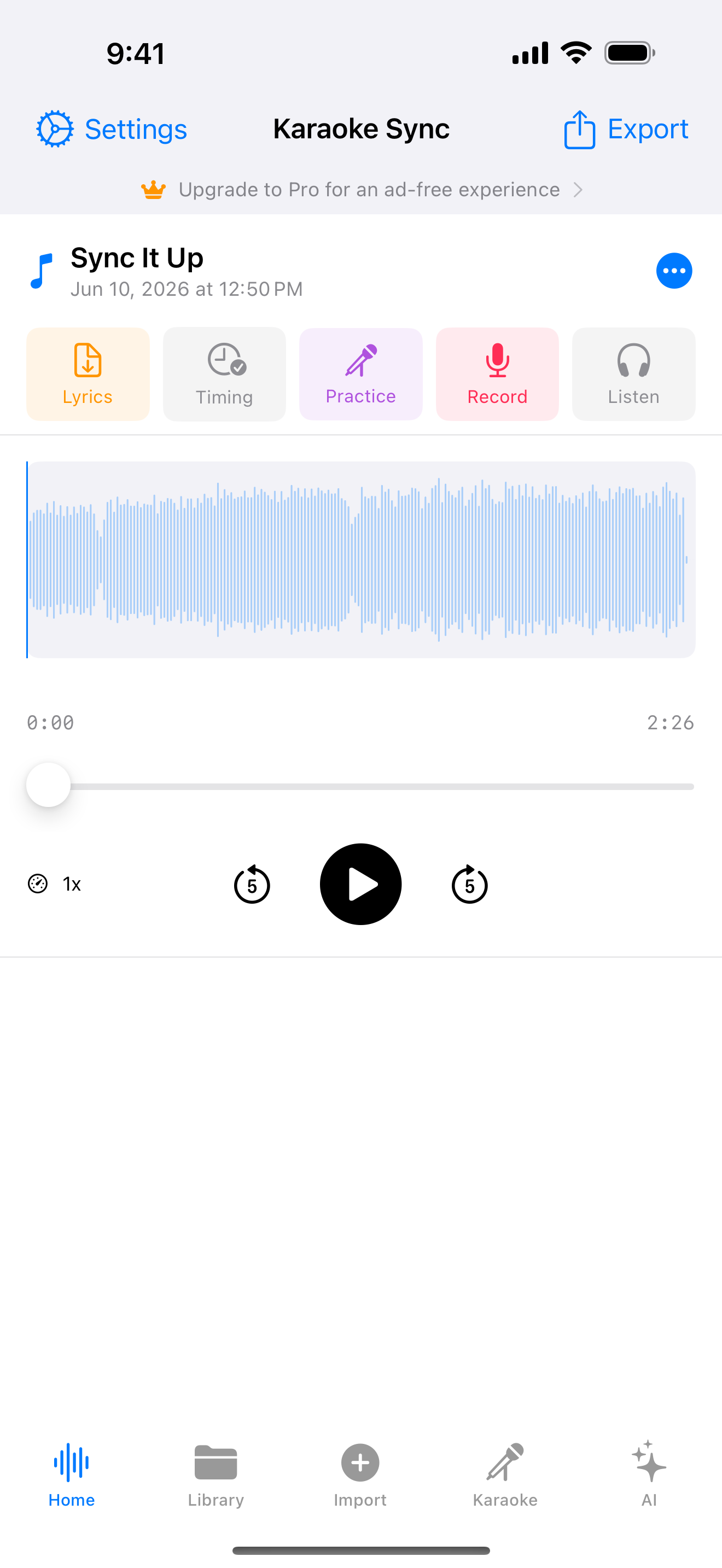
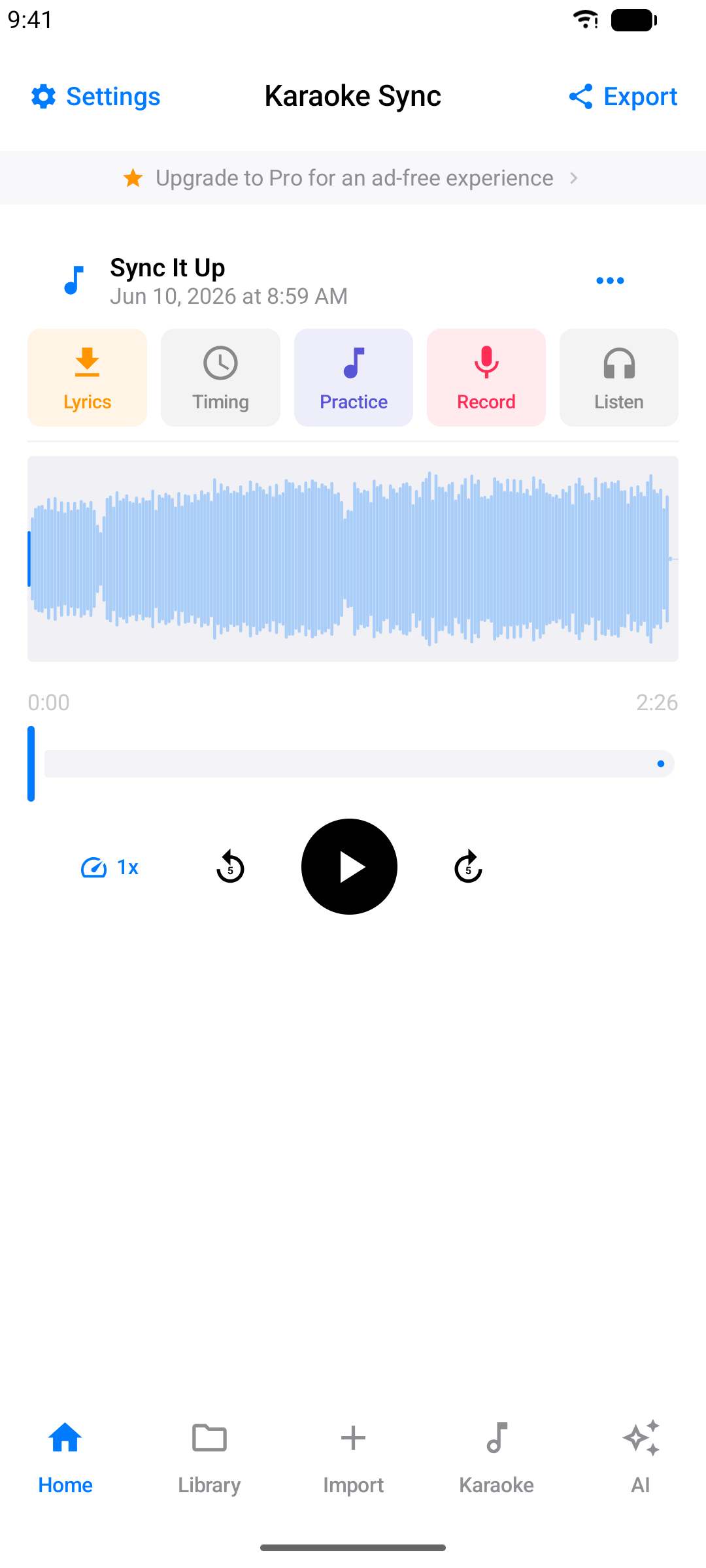
步驟 4:專案已建立
專案會自動建立,並以音訊檔案名稱命名。您會進入編輯器,歌曲波形已準備好播放。
從 YouTube 建立專案
您也可以為任何 YouTube 影片建立卡拉OK計時 — 非常適合搭配 MV 練唱。
步驟 1:選擇「YouTube 影片」
在匯入標籤,選擇 YouTube 影片作為來源。
步驟 2:貼上 YouTube 網址
從 YouTube App 或網站複製影片連結並貼上。支援的連結格式:
youtube.com/watch?v=...youtu.be/...
影片標題會自動取得。
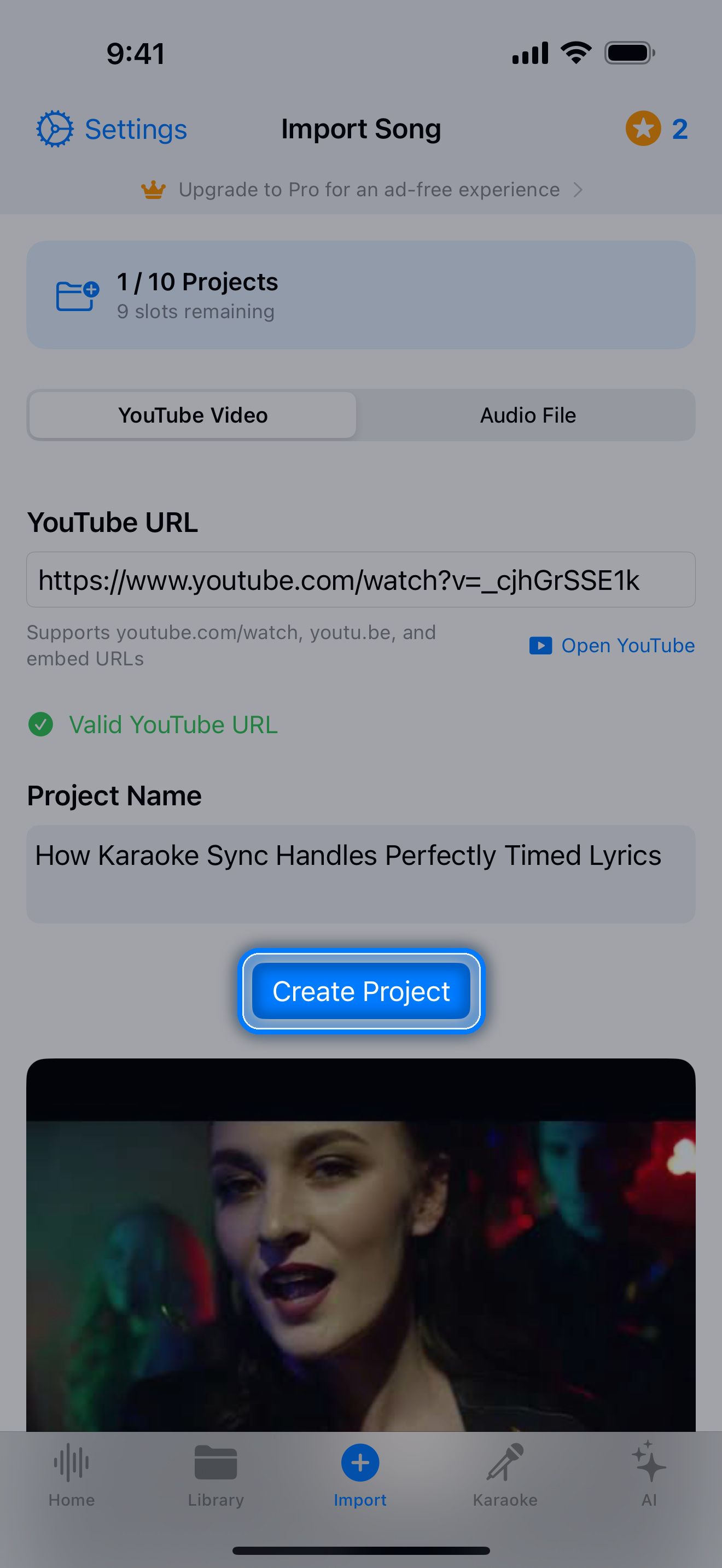
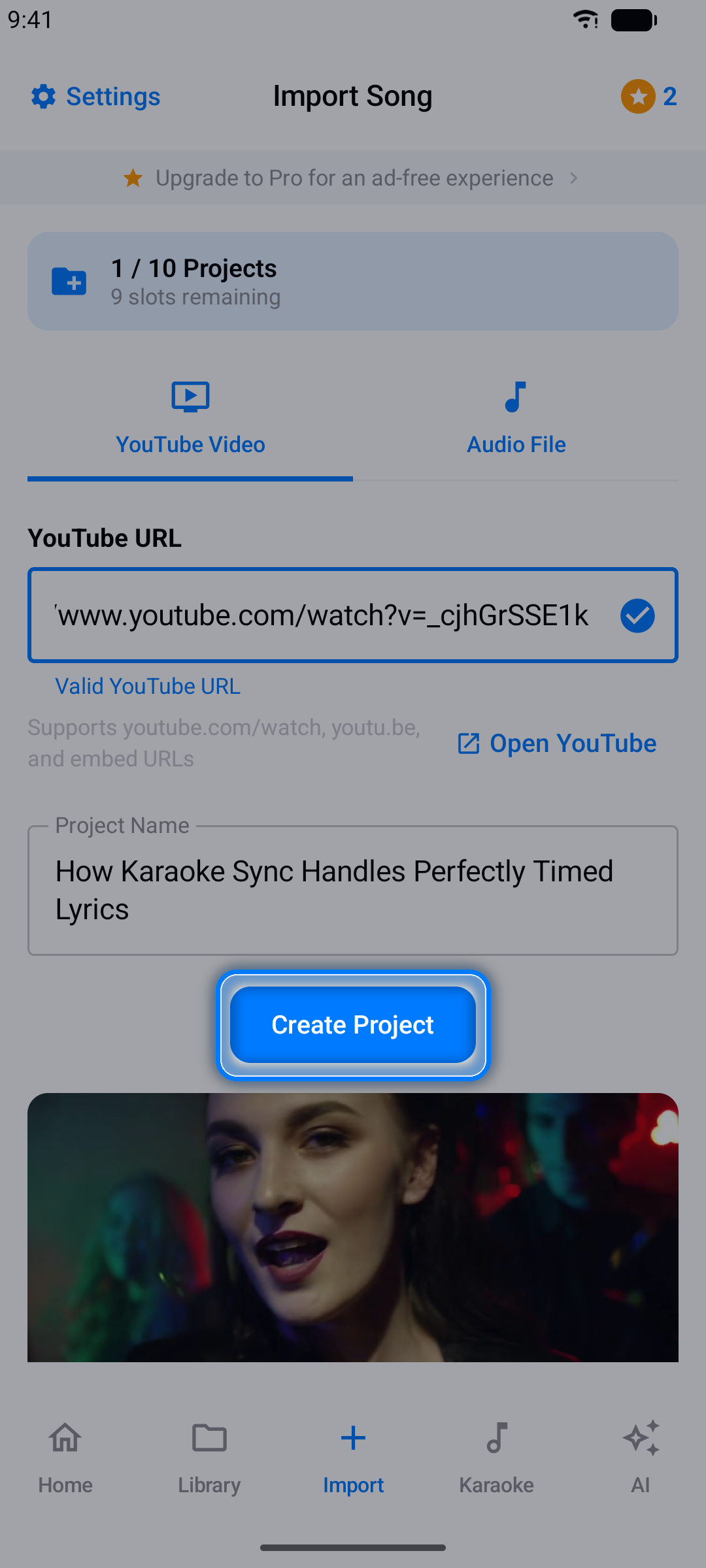
步驟 3:建立專案
點按建立專案。影片會出現在您的專案中,並附有內建播放器。
注意: YouTube 專案會串流原始影片,非常適合計時和練習 — 但在 YouTube 專案中錄製人聲並匯出音訊的功能僅適用於音訊檔案專案。
新增歌詞
開啟專案後,就可以開始加入歌詞了。
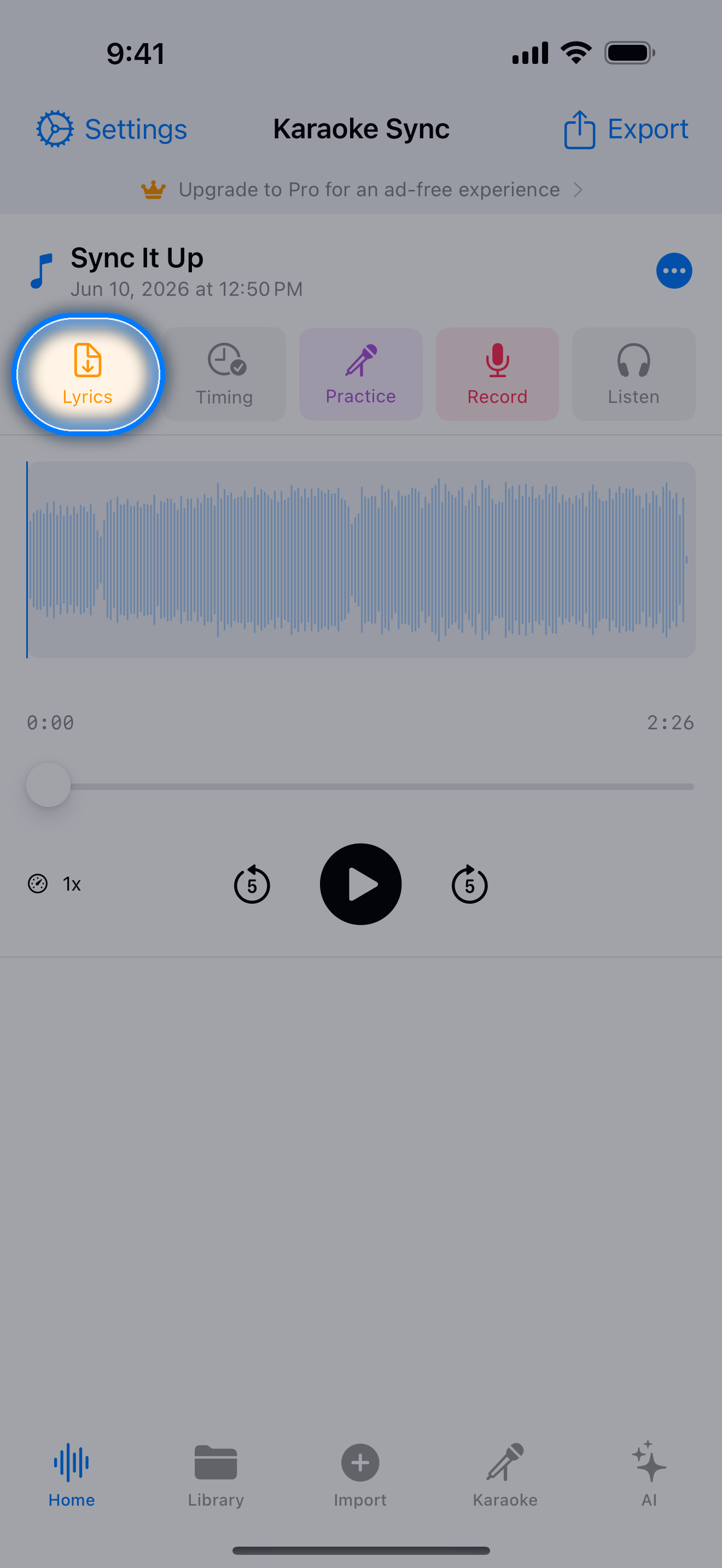
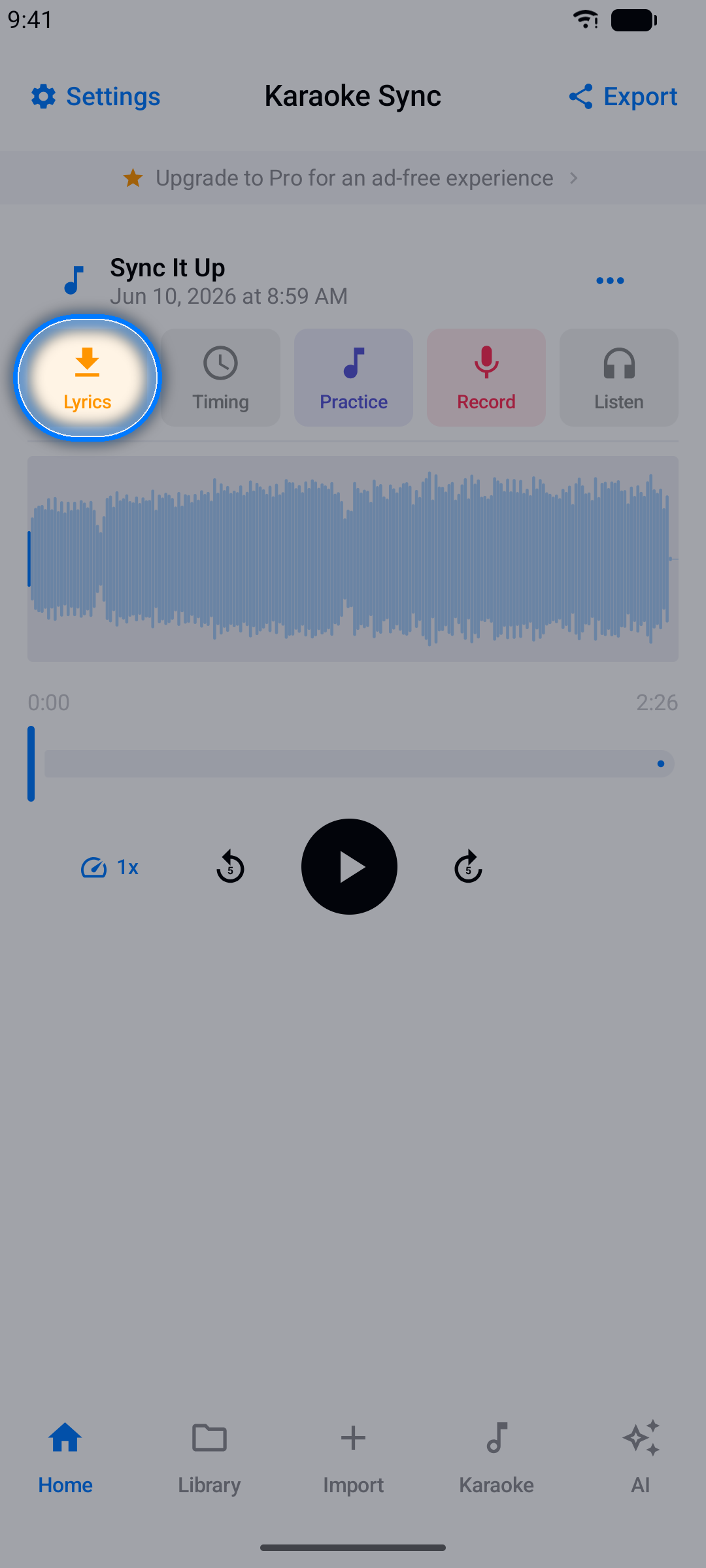
步驟 1:開啟歌詞匯入器
點按專案編輯器中的歌詞按鈕。
步驟 2:貼上歌詞
- 從歌詞網站複製歌詞
- 貼入文字欄位,每行一句
- App 會立即解析並顯示行數
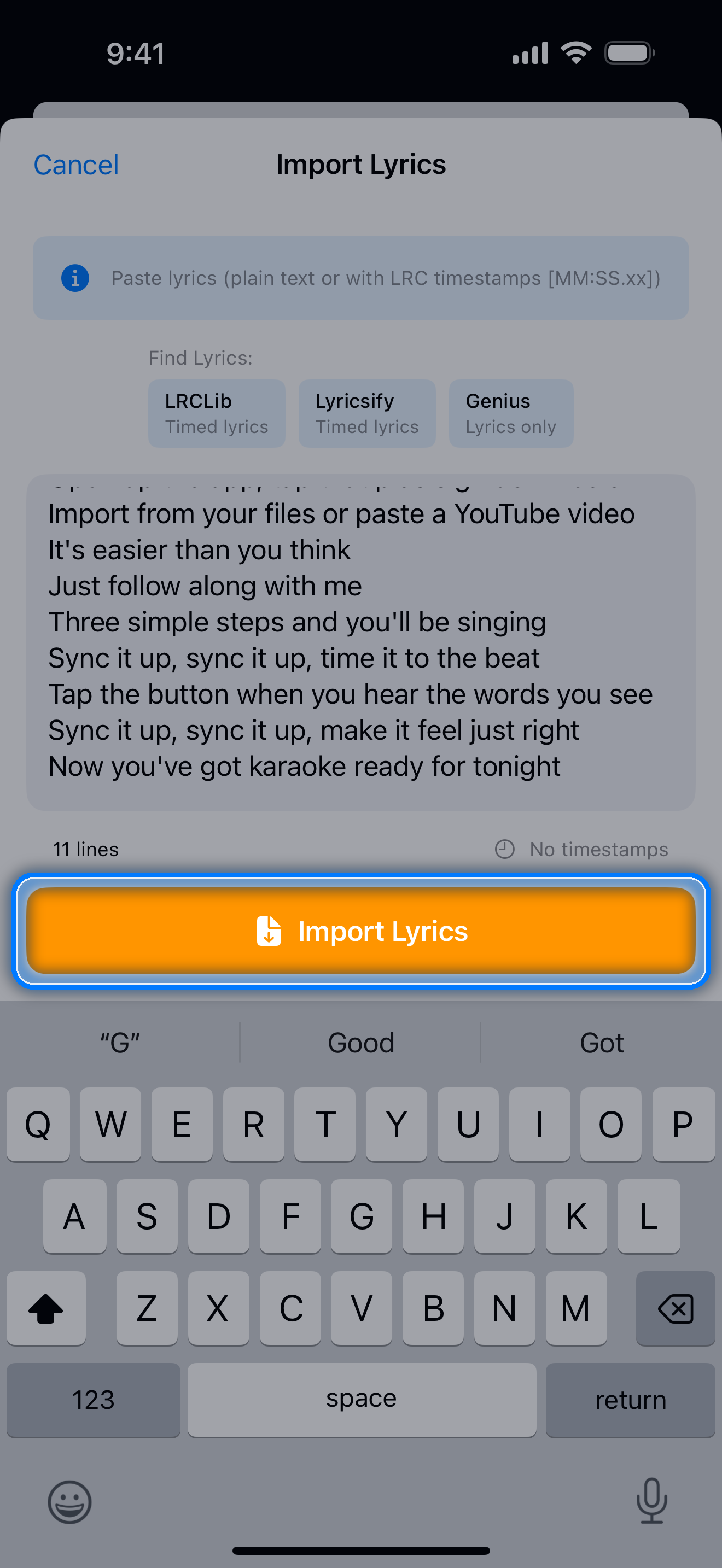
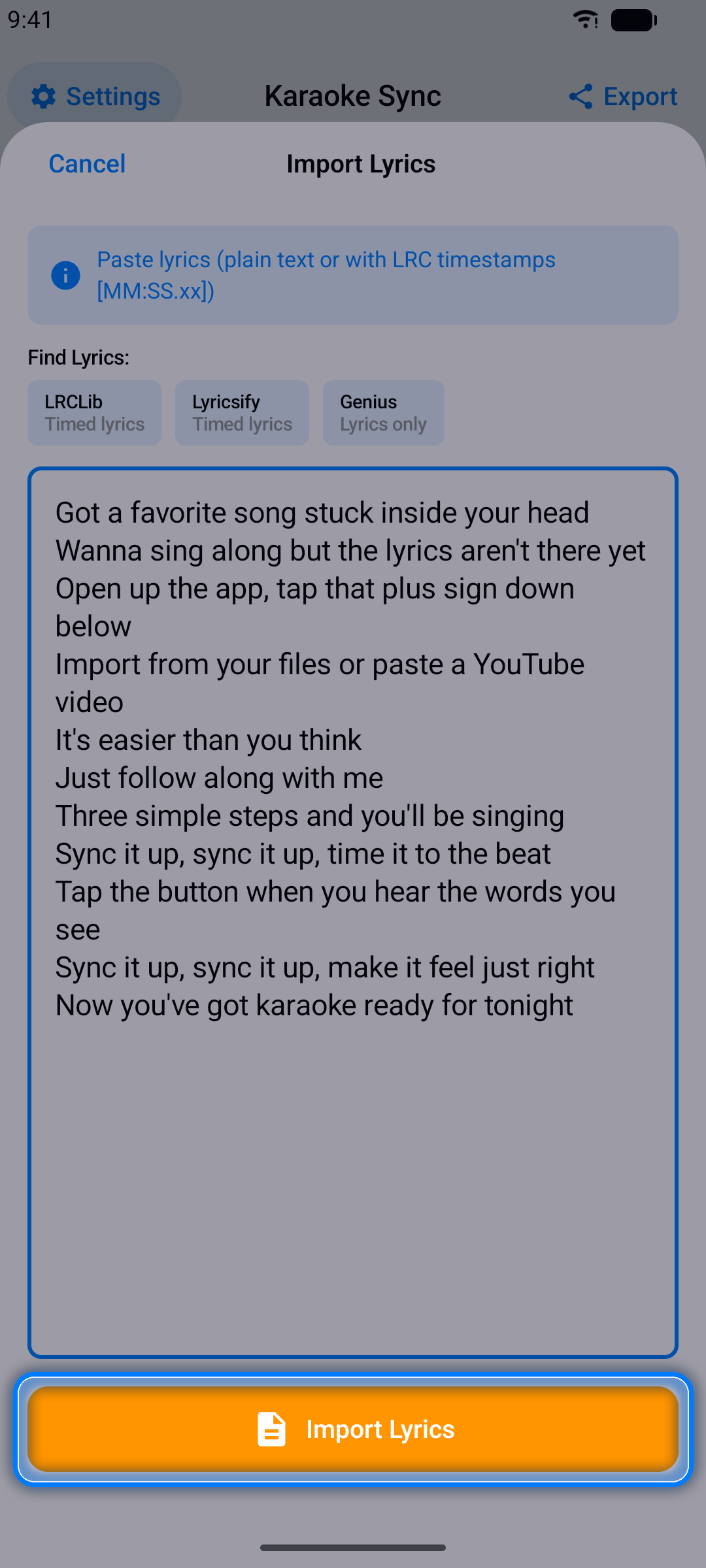
提示: 已有時間戳記?貼上 LRC 格式的歌詞(格式如 [00:15.50] Lyrics here),Karaoke Sync 會自動匯入計時資訊。帶有 <00:15.50> 單字標籤的 Enhanced LRC 也會一併帶入逐字計時。
步驟 3:匯入
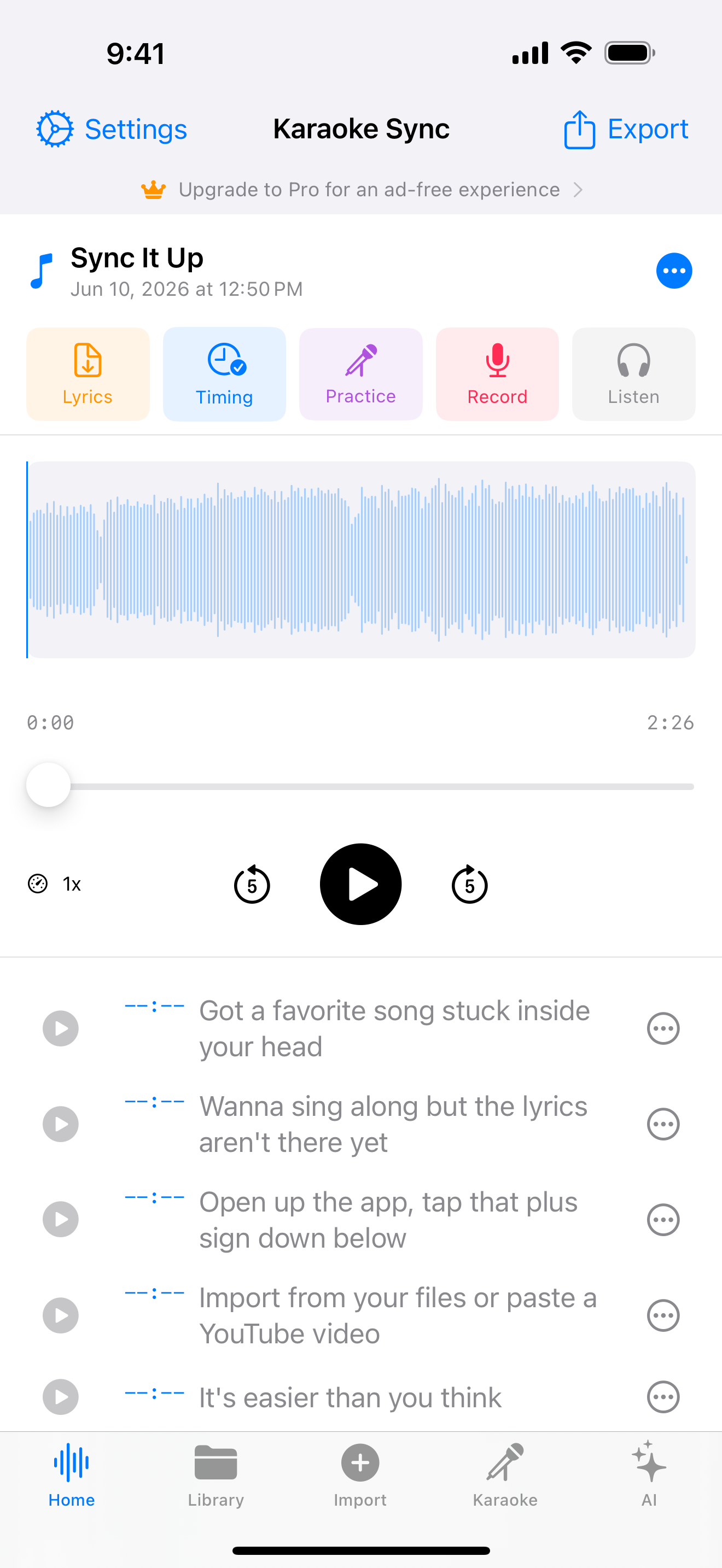
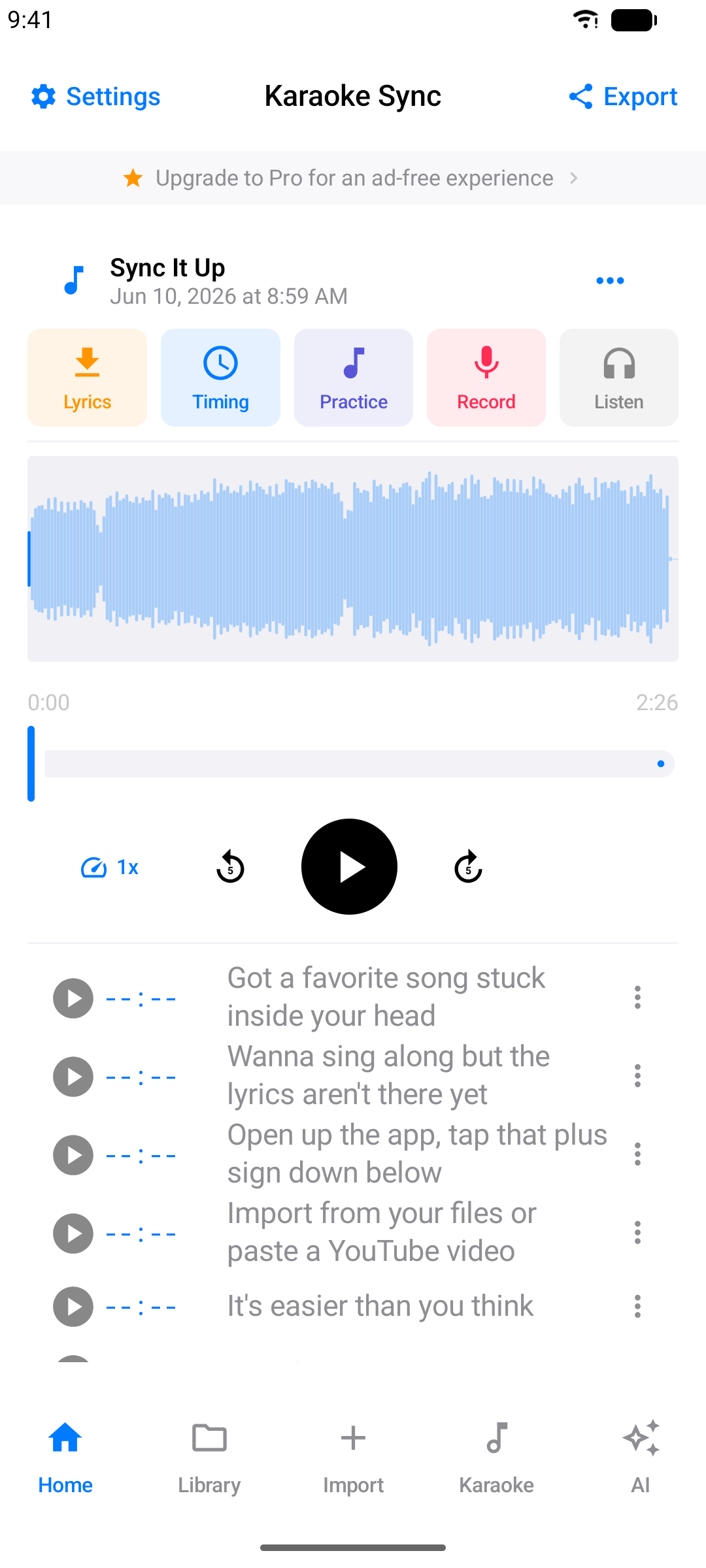
點按匯入歌詞。歌詞行會出現在編輯器中,等待計時。
歌詞計時
這是 Karaoke Sync 的核心功能:將每行歌詞與演唱的精確時刻同步。
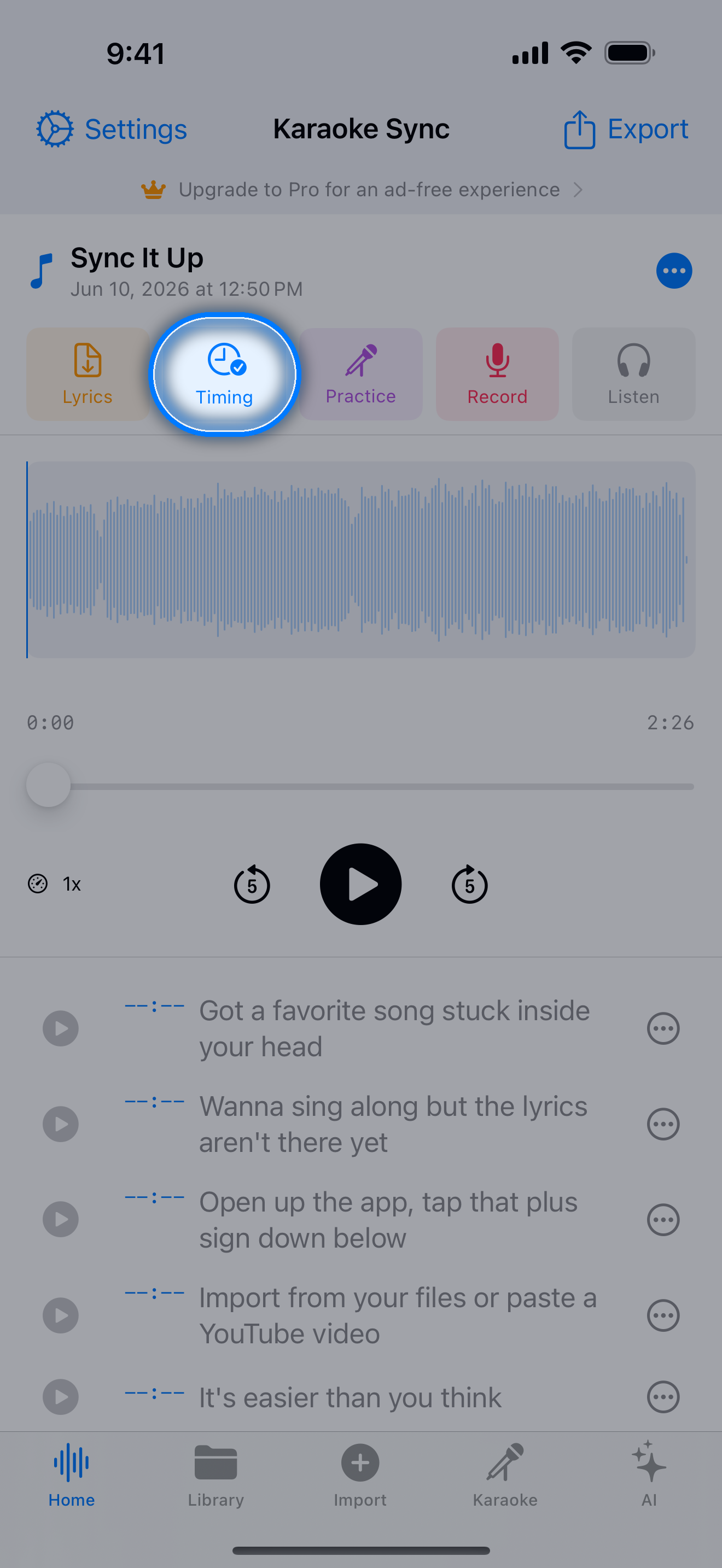
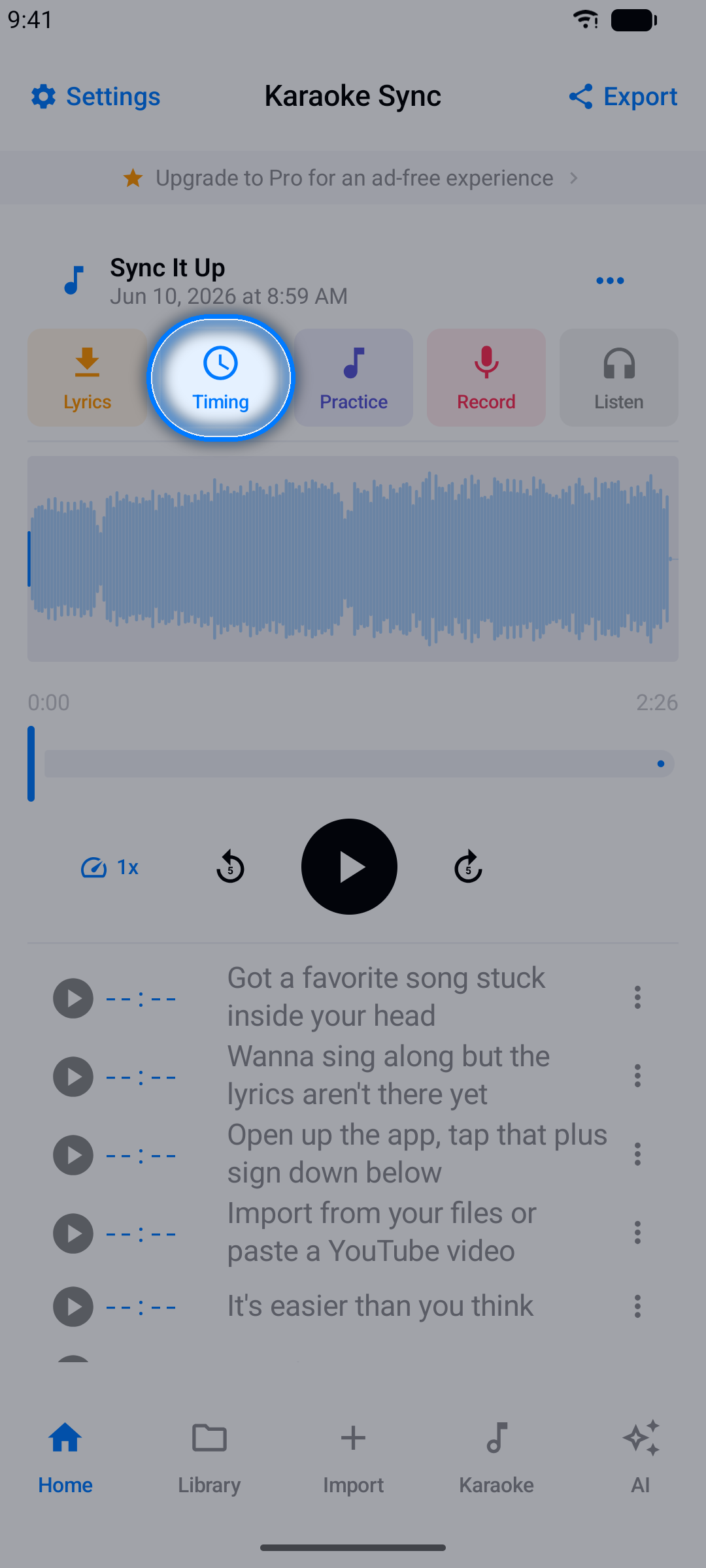
步驟 1:開啟計時畫面
點按時間軸按鈕。
步驟 2:開始計時
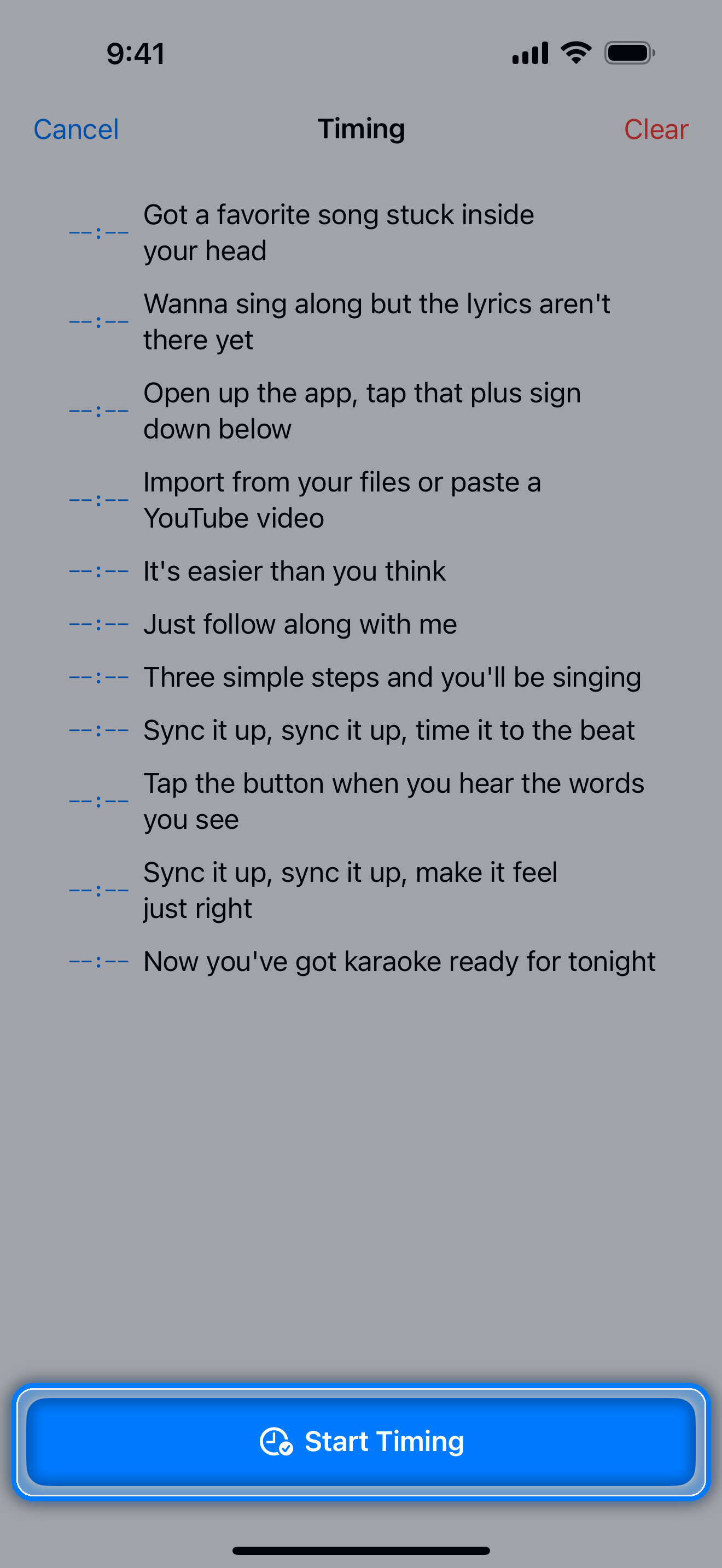
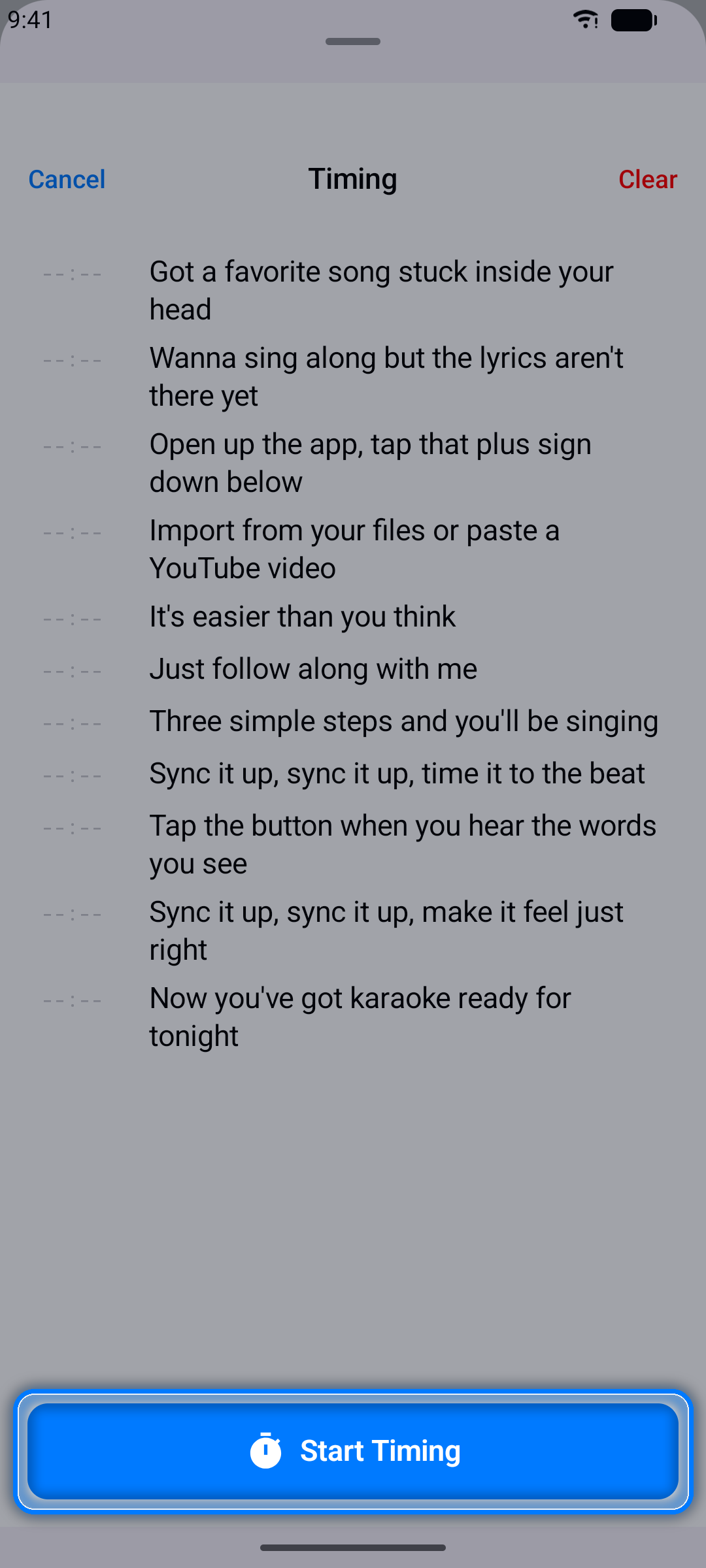
點按開始計時。歌曲開始播放。
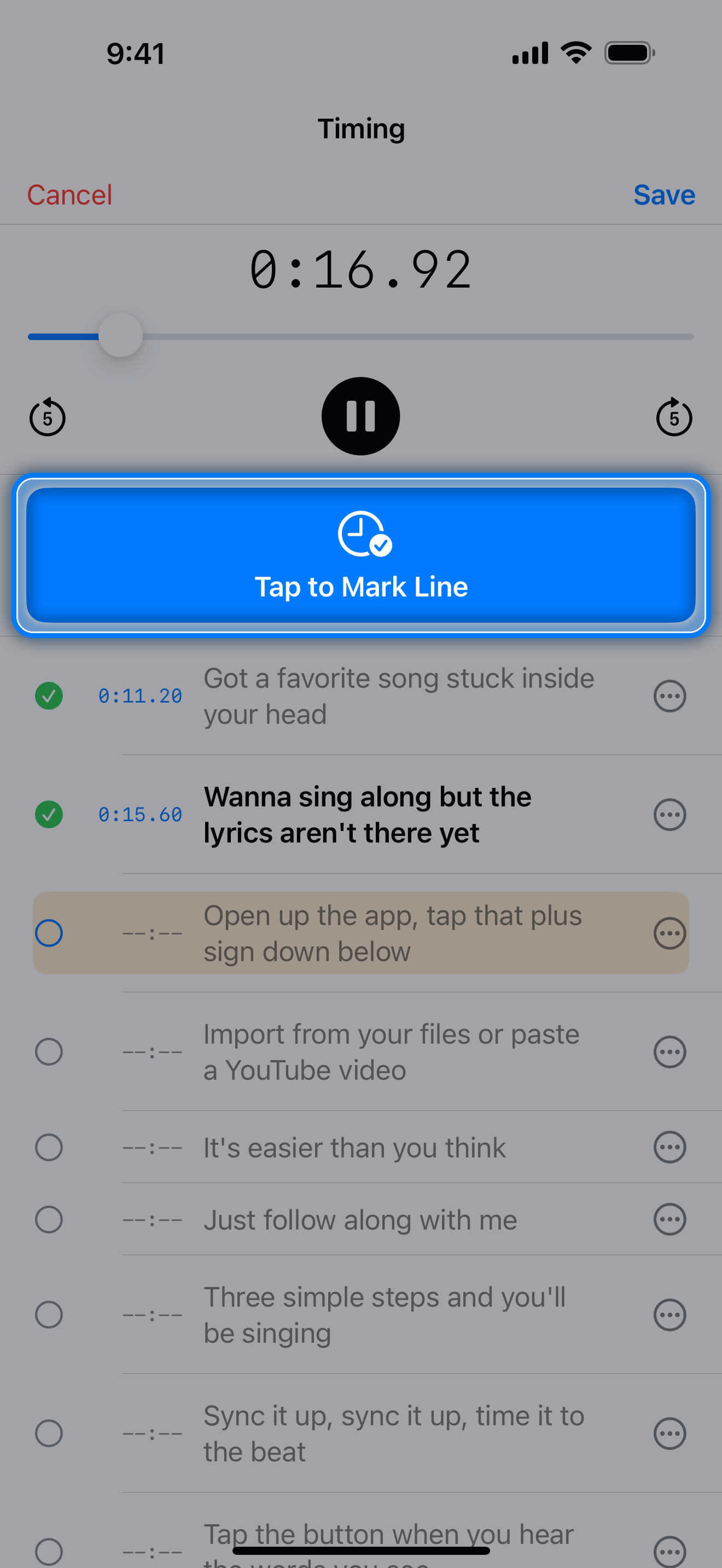
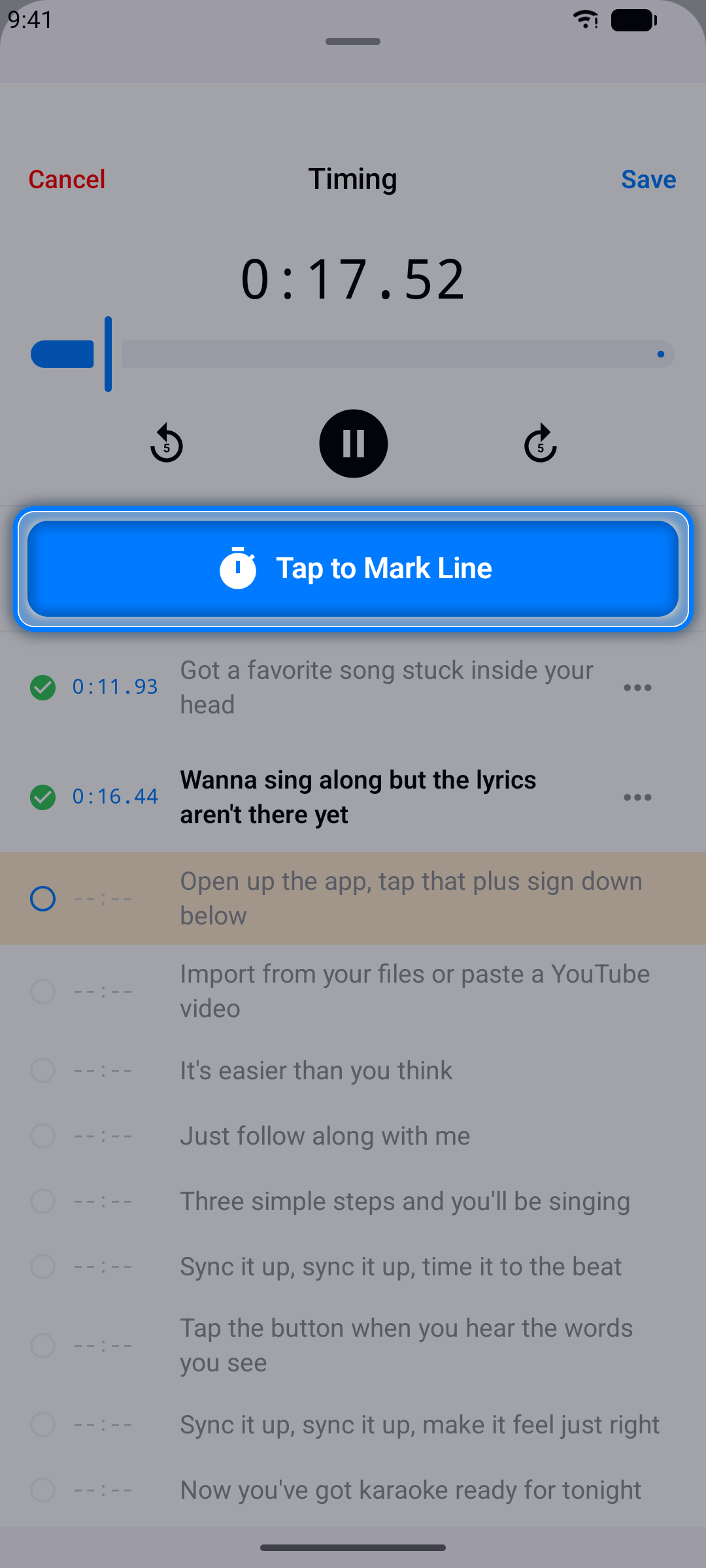
步驟 3:標記每一行
當您聽到某行歌詞開始時,點按大大的點擊標記行按鈕。目前播放時間會儲存到該行,App 自動前進到下一行。
步驟 4:完成並儲存
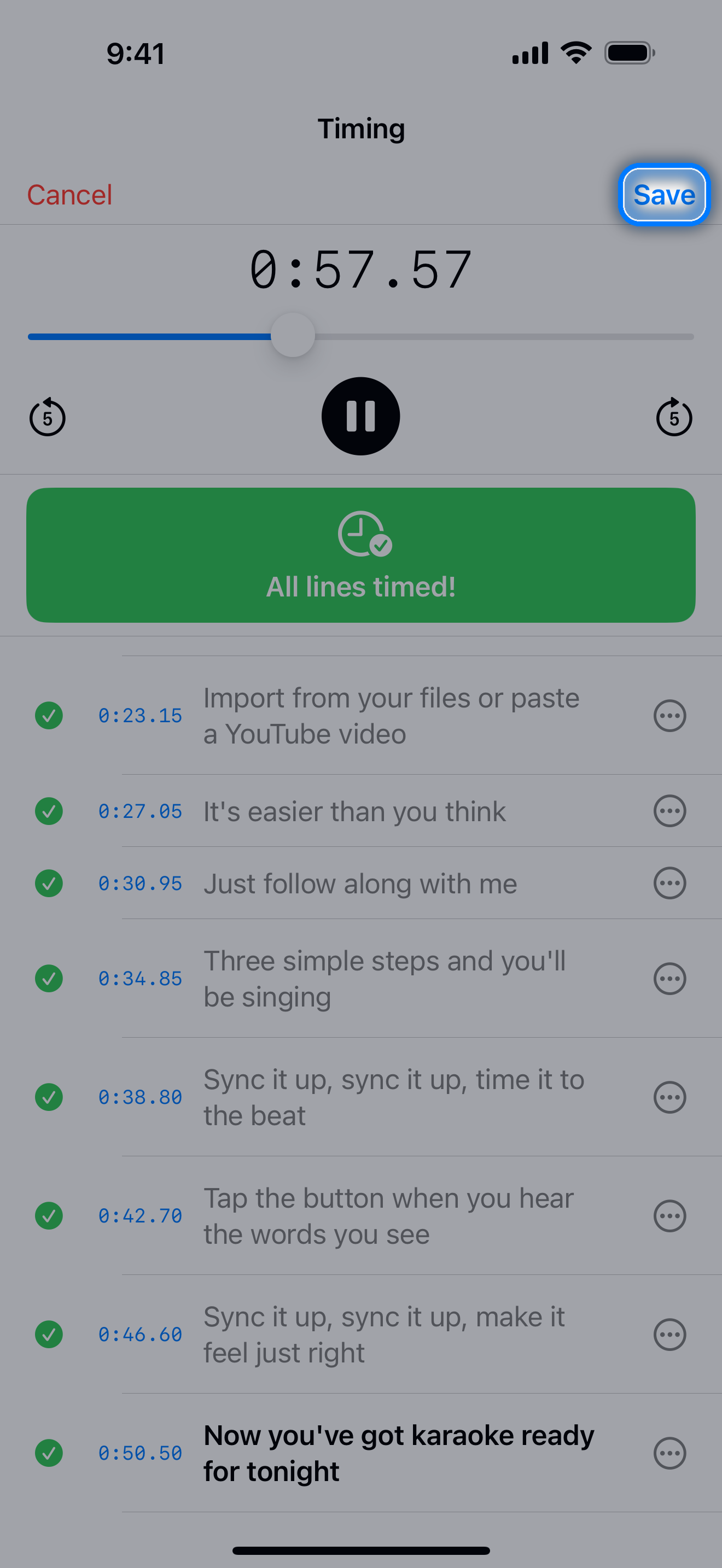
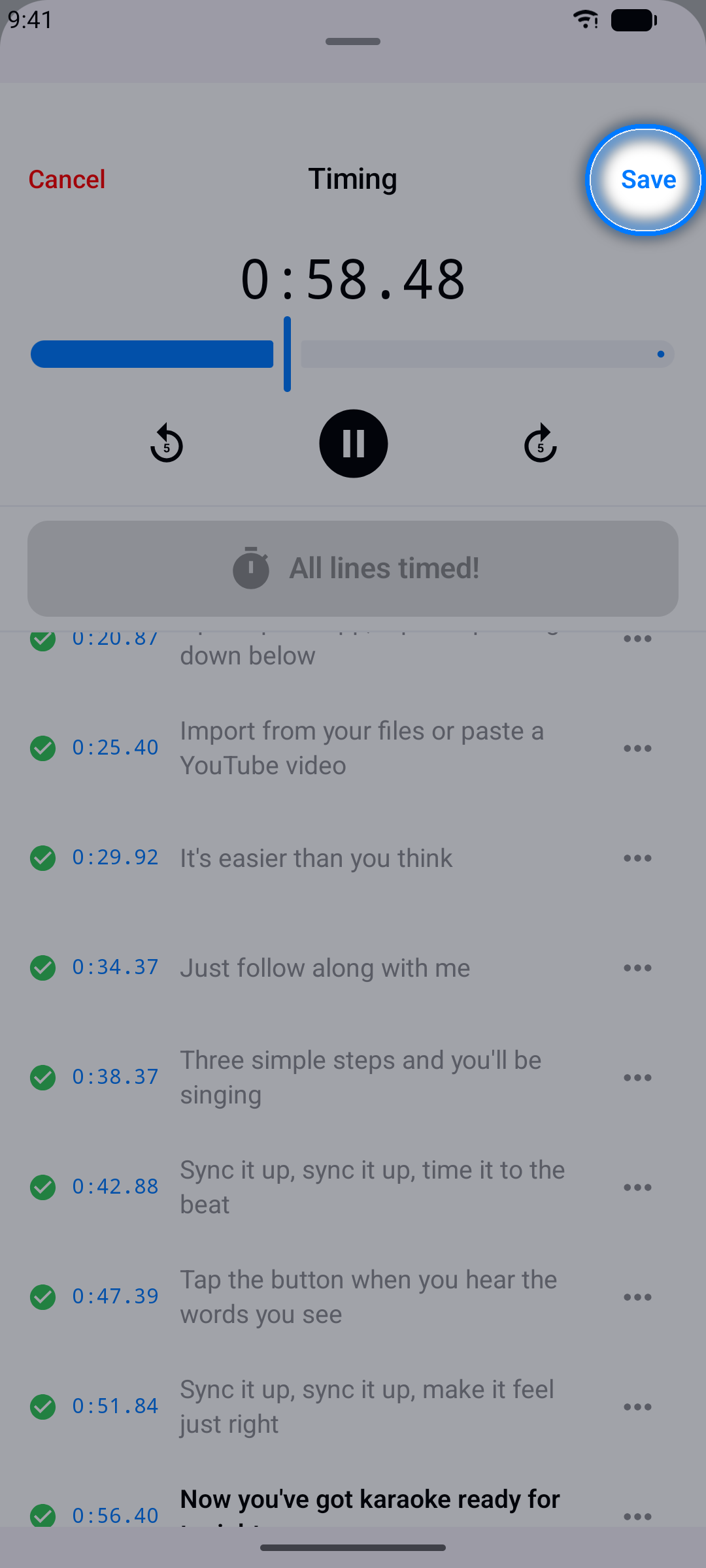
一路完成整首歌 — 所有行計時完畢後,點按儲存。
提示: 第一遍不必追求完美,之後可以對任意行進行微調。
逐字計時
想讓歌詞像卡拉OK一樣一個字一個字亮起來?只要各行計時完成,Karaoke Sync 就會為您把每個單字放到時間軸上 — 您只需拖曳那些位置不準的單字。
步驟 1:先為各行計時
逐字計時建立在逐行計時之上,所以切換之前,請先在逐行模式(上述步驟)完成一遍計時。尚未有起始時間的行會顯示一則提醒,而不是時間軸。
步驟 2:切換至「逐字」
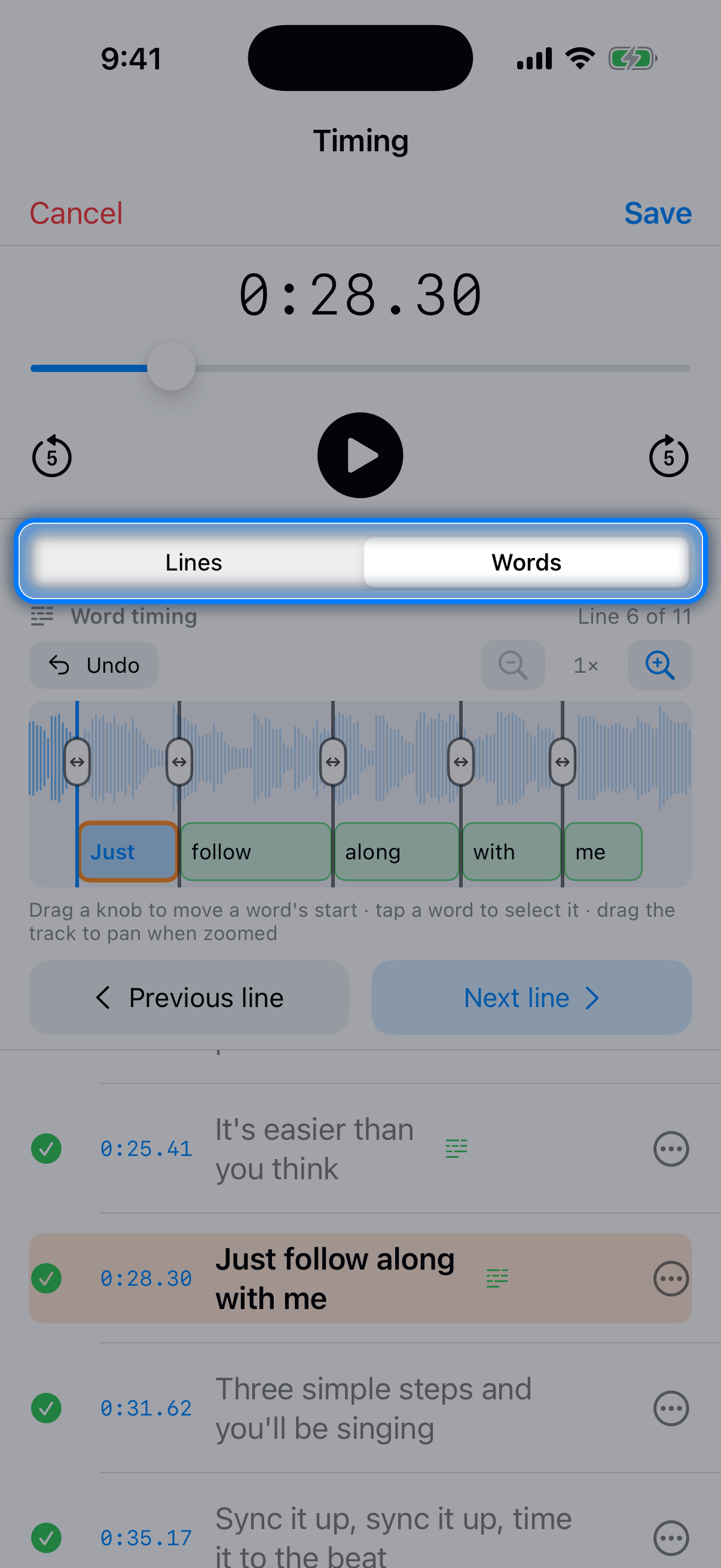
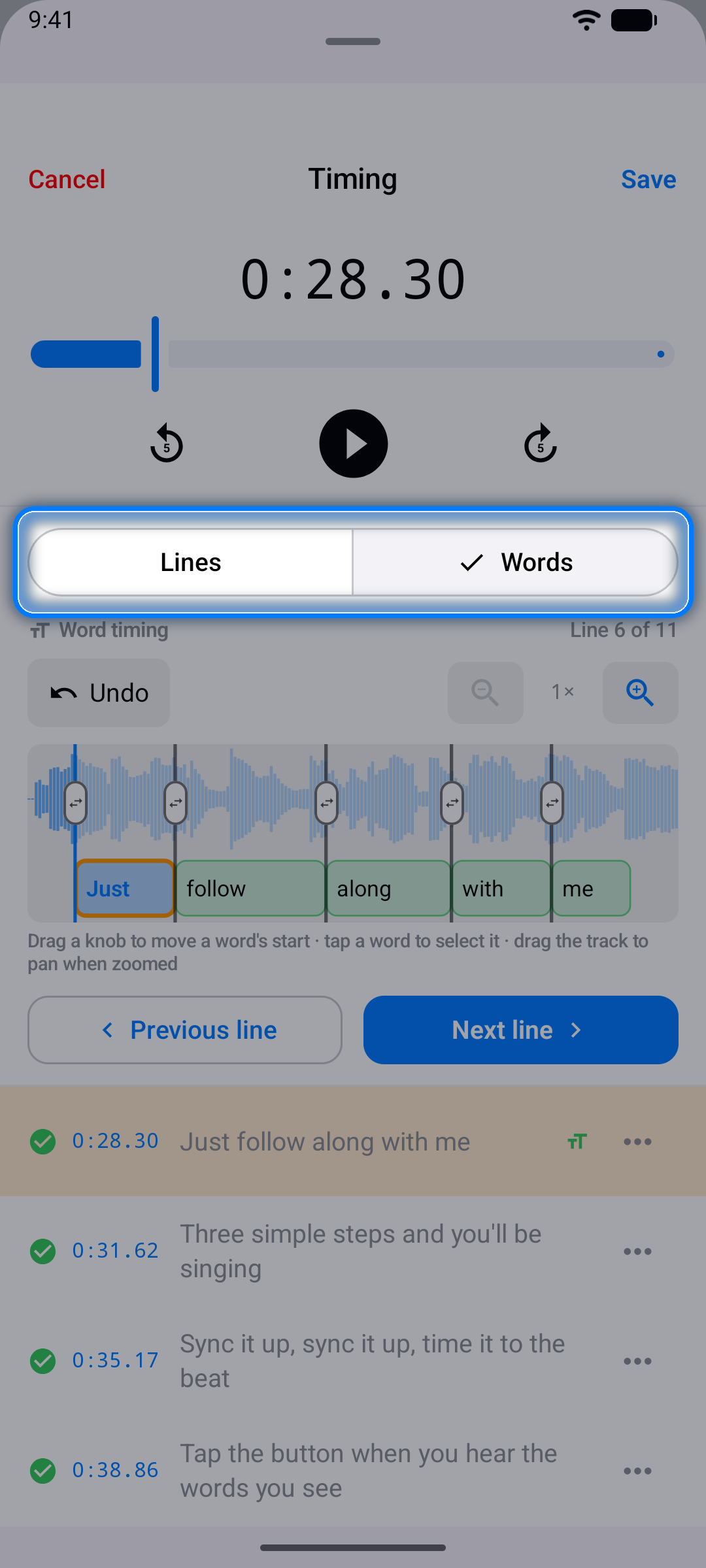
在計時畫面頂部的逐行 | 逐字選擇器中點按逐字。目前的行會顯示在時間軸上(音訊檔案專案會顯示歌曲波形),單字已經分布在上面,標題列也會告訴您目前在第幾行。
步驟 3:將單字拖曳到正確位置
每個單字的左緣都有一個把手。播放歌曲,把每個把手拖曳到該單字實際被唱出的那一刻 — 第一個把手就是該行的起點。
- 復原 - 撤回您上一次的移動
- -/+ - 遇到快速段落時放大;放大後左右拖曳時間軸即可平移
- 點按單字可選取並跳到該處;點按時間軸上的其他位置可移動播放頭
步驟 4:逐行走完整首歌
使用上一行和下一行在歌曲中前進 — 每一行出現時都會自動放置好。一切聽起來都對了,就點按儲存。
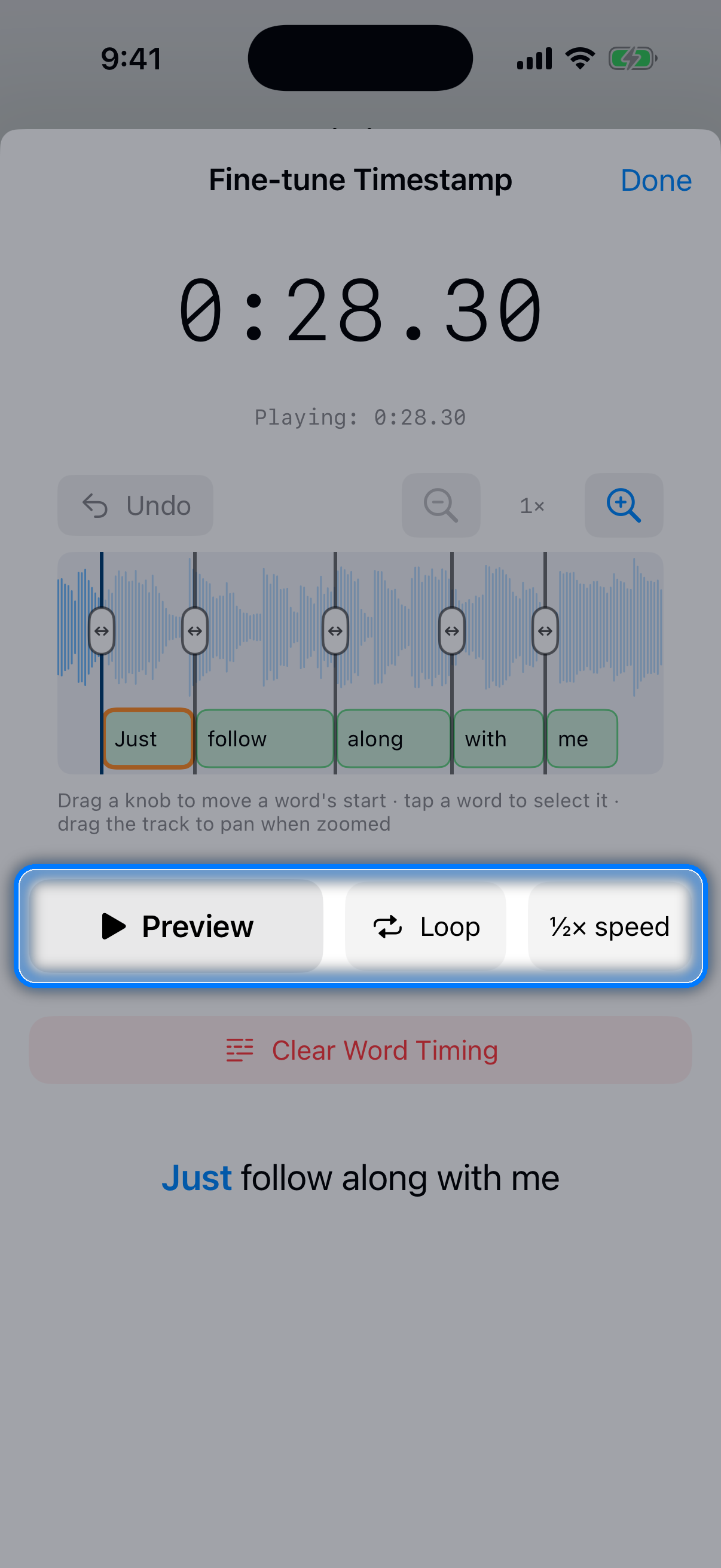
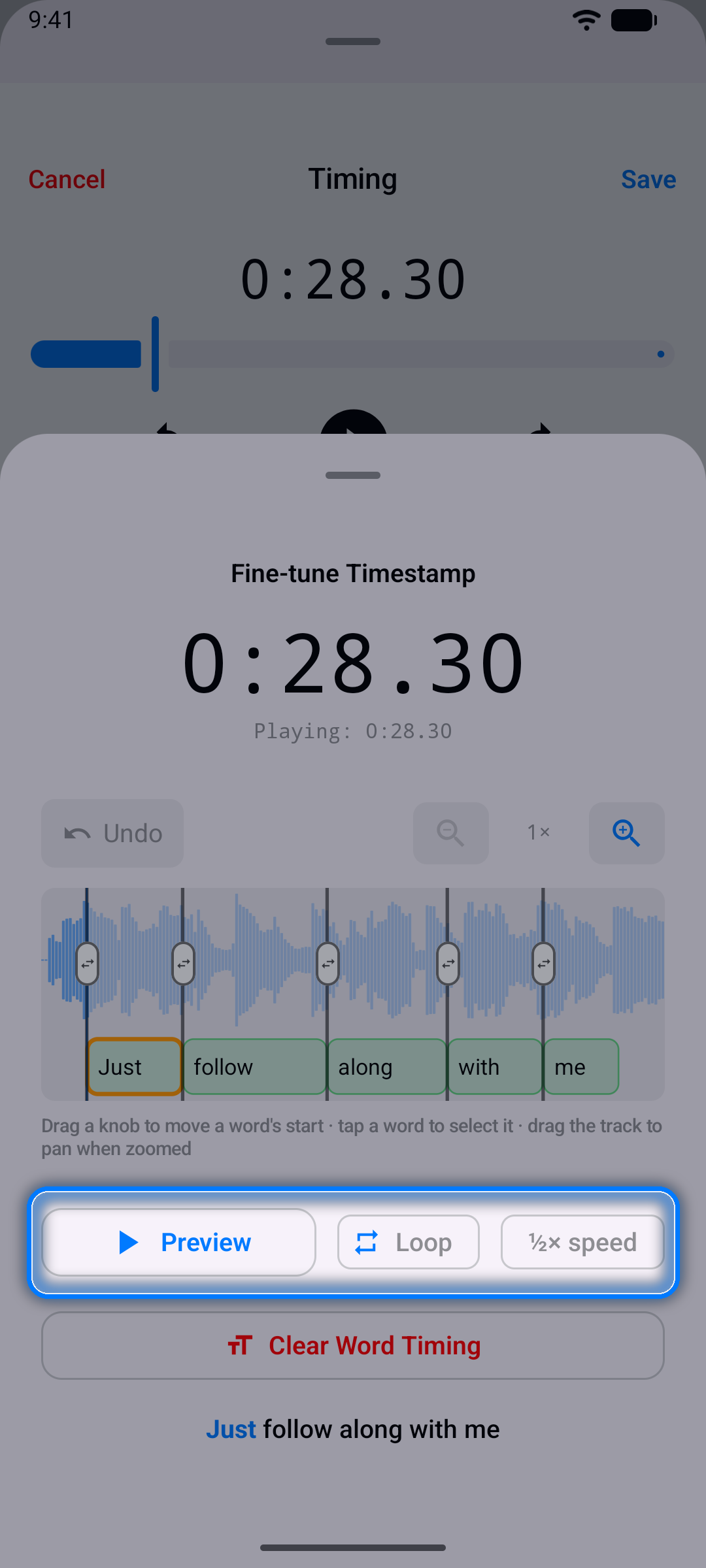
提示: 遇到棘手的行,點按它的 ... 按鈕並選擇調整時間:同樣的時間軸會在面板中開啟,並提供預覽(只播放該行,然後停止)、循環和 ½× 速度,歌曲播放時單字會隨之亮起 — 偏早或偏晚的單字一眼就能看出,輕輕一推即可修正。
逐字計時的行會在練習模式、演唱模式和歌詞清單中逐字亮起,您也可以將它們匯出為 Enhanced LRC(請參閱匯出專案)。各行可以混用 — 有些逐字計時、有些只有整行計時 — 而行的 ... 選單隨時提供清除逐字時間軸,讓您將該行重新來過。
微調時間戳記
完成第一遍計時後,可以精修個別行,直到同步感覺完美為止。
步驟 1:開啟行的選項
點按任意歌詞行旁的 ... 按鈕。
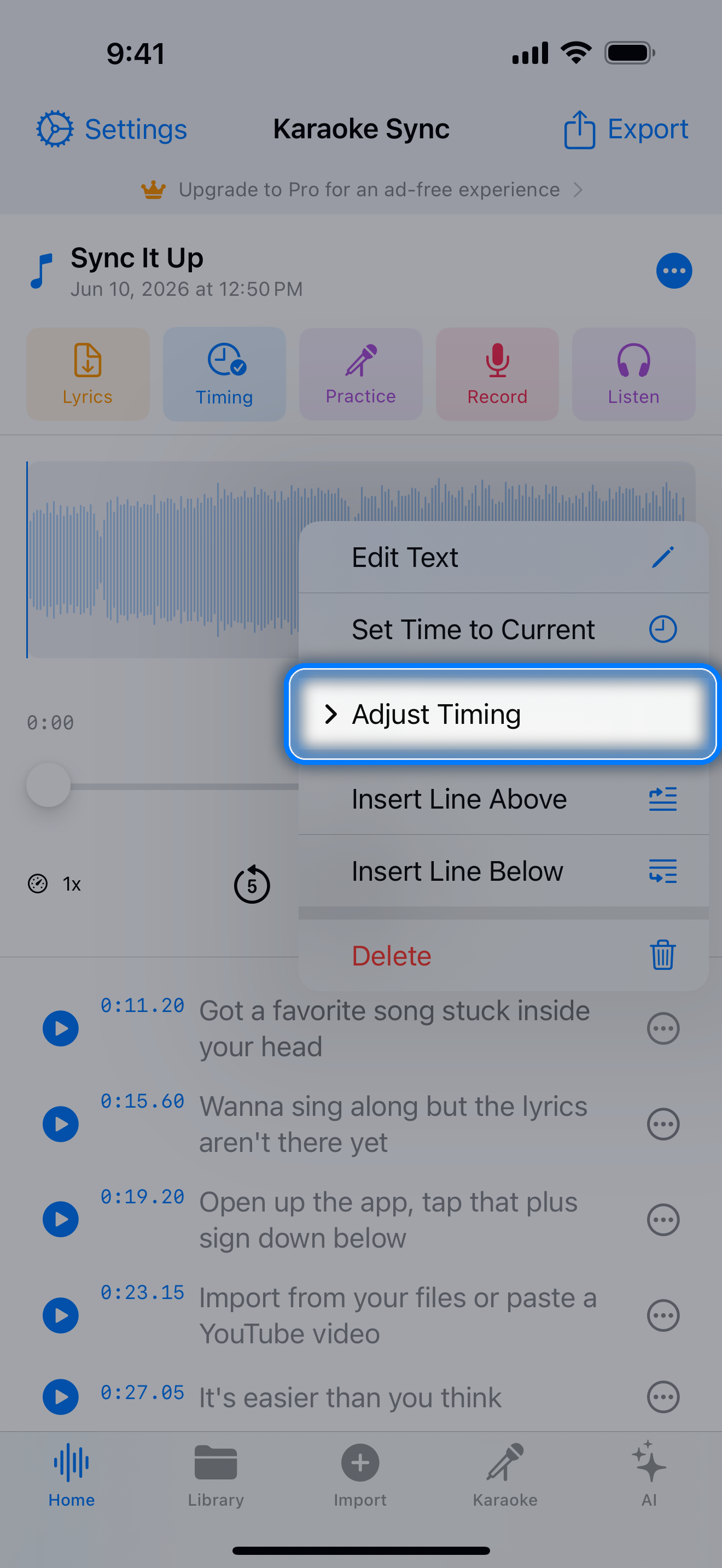
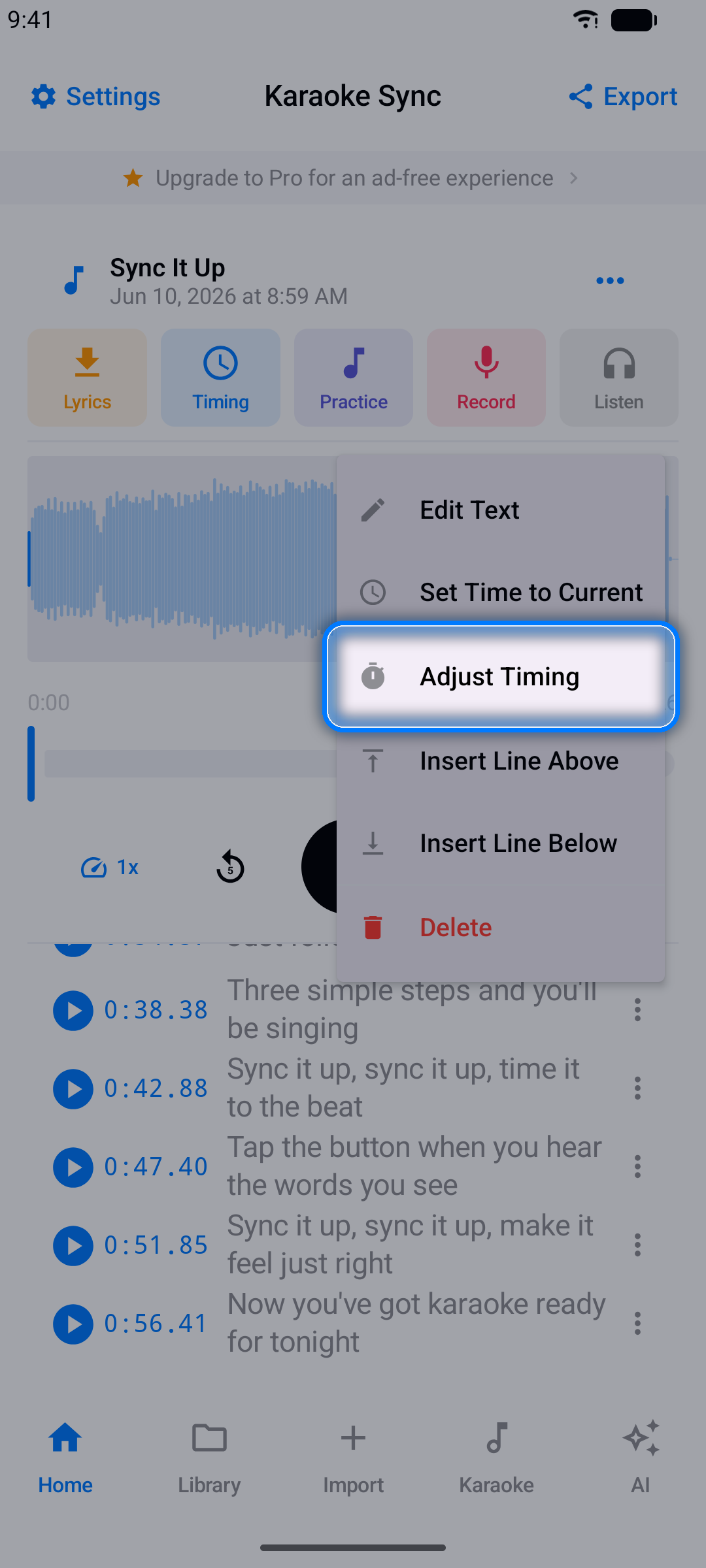
步驟 2:微移時間戳記
使用 +/- 按鈕調整該行的偏移量:
- 0.1 秒 - 細微微調
- 0.5 秒 - 中等調整
- 1.0 秒 - 大幅移動
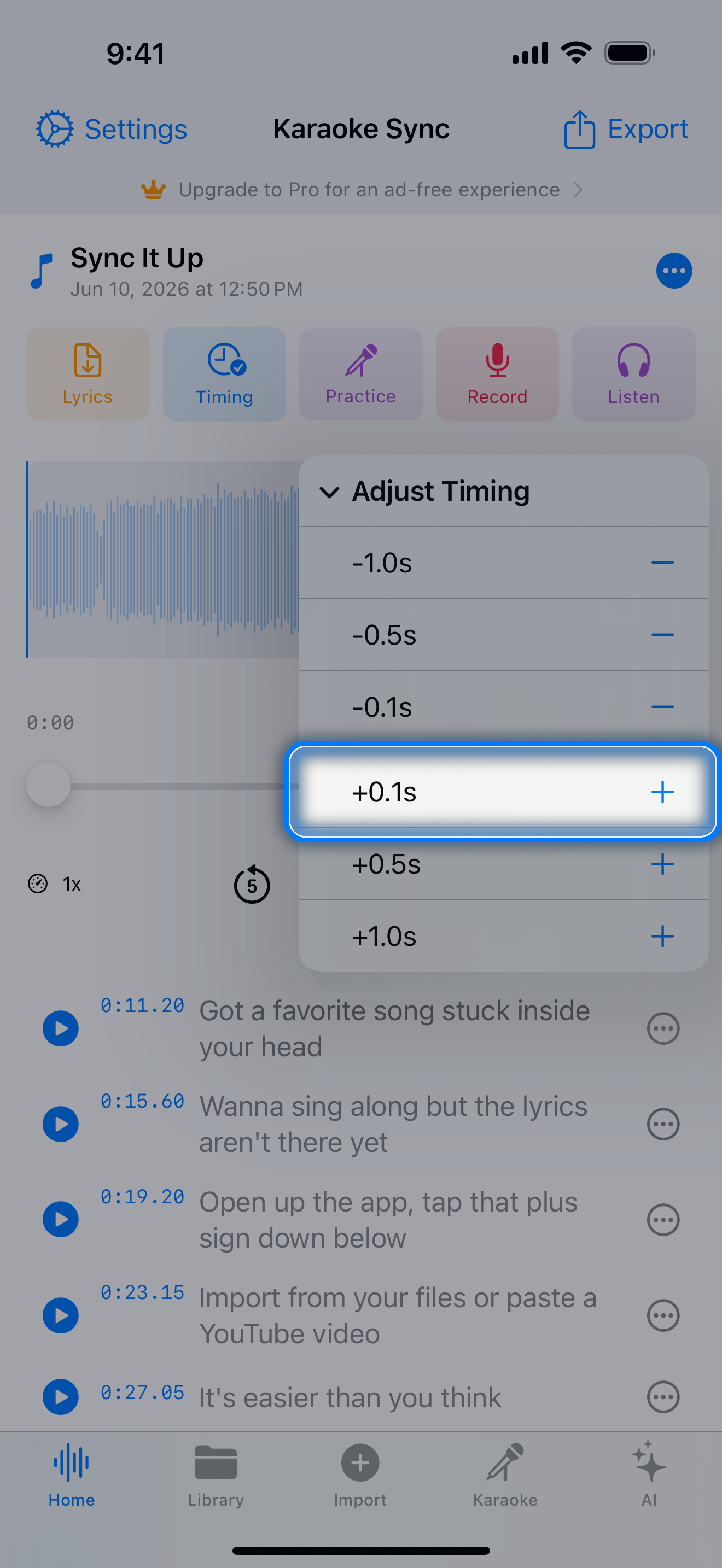
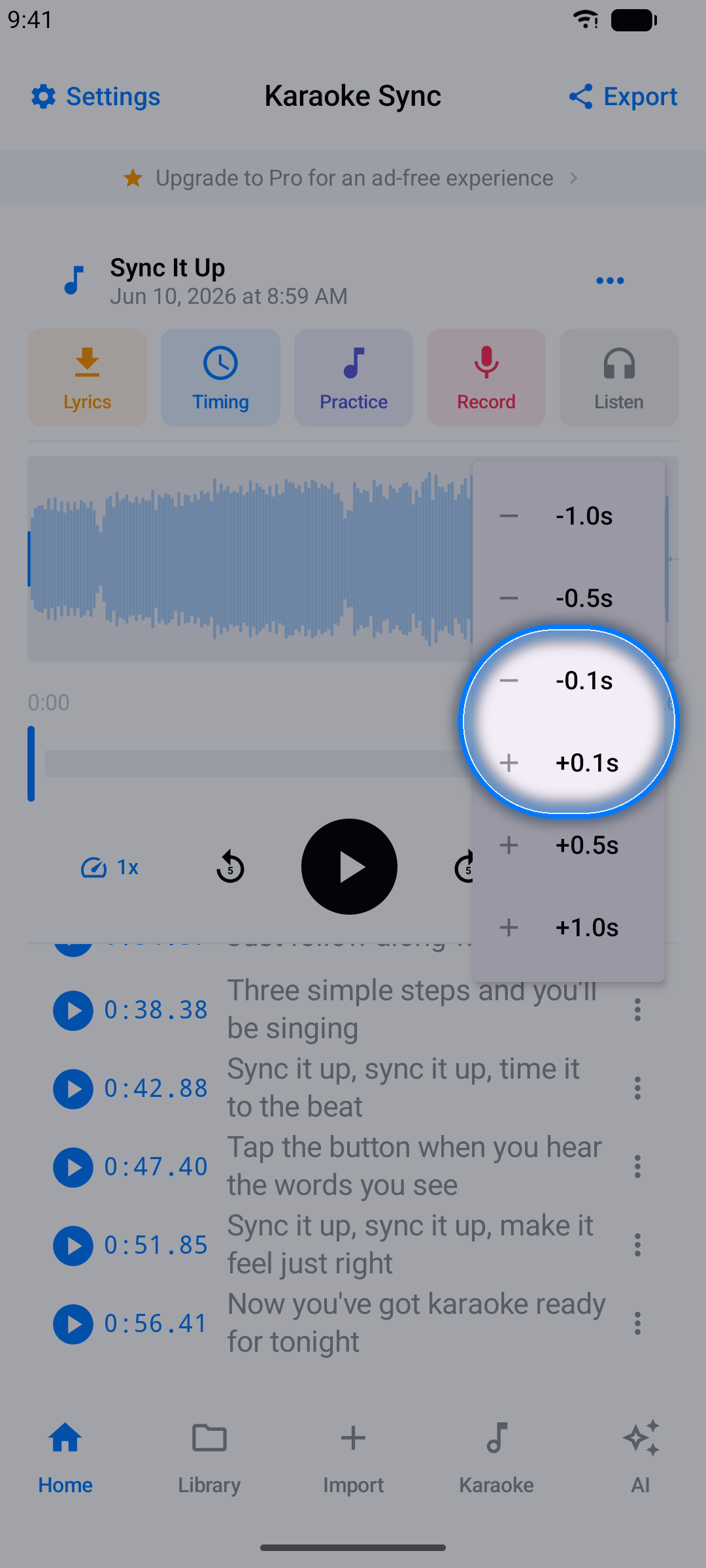
對於逐字計時的行,這裡會顯示 逐字計時 中的時間軸,而不是這些按鈕 — 拖曳把手即可,或選擇清除逐字時間軸回到單一的整行時間。
步驟 3:預覽
點按某行的時間戳記,跳轉到該處聆聽對齊效果是否正確。
提示: 如果整首歌都有偏差(例如每行都晚了半秒),可以使用批次調整選項,同時移動之前的行或之後的行,不必逐行修正。
專案編輯器
歌詞周圍工具的快速導覽:
- 波形 - 音訊專案會顯示歌曲波形,讓您一眼看出主歌、副歌和安靜段落;點按或拖曳可跳轉位置
- 播放控制 - 播放、暫停和快進;調整播放速度(計時困難的快速段落時可先放慢,再以全速確認效果)
- 歌詞清單 - 點按某行選取它;使用其 ... 選單編輯文字、調整計時或刪除
- 專案選單 - 從工具列重新命名專案或開啟匯出選項
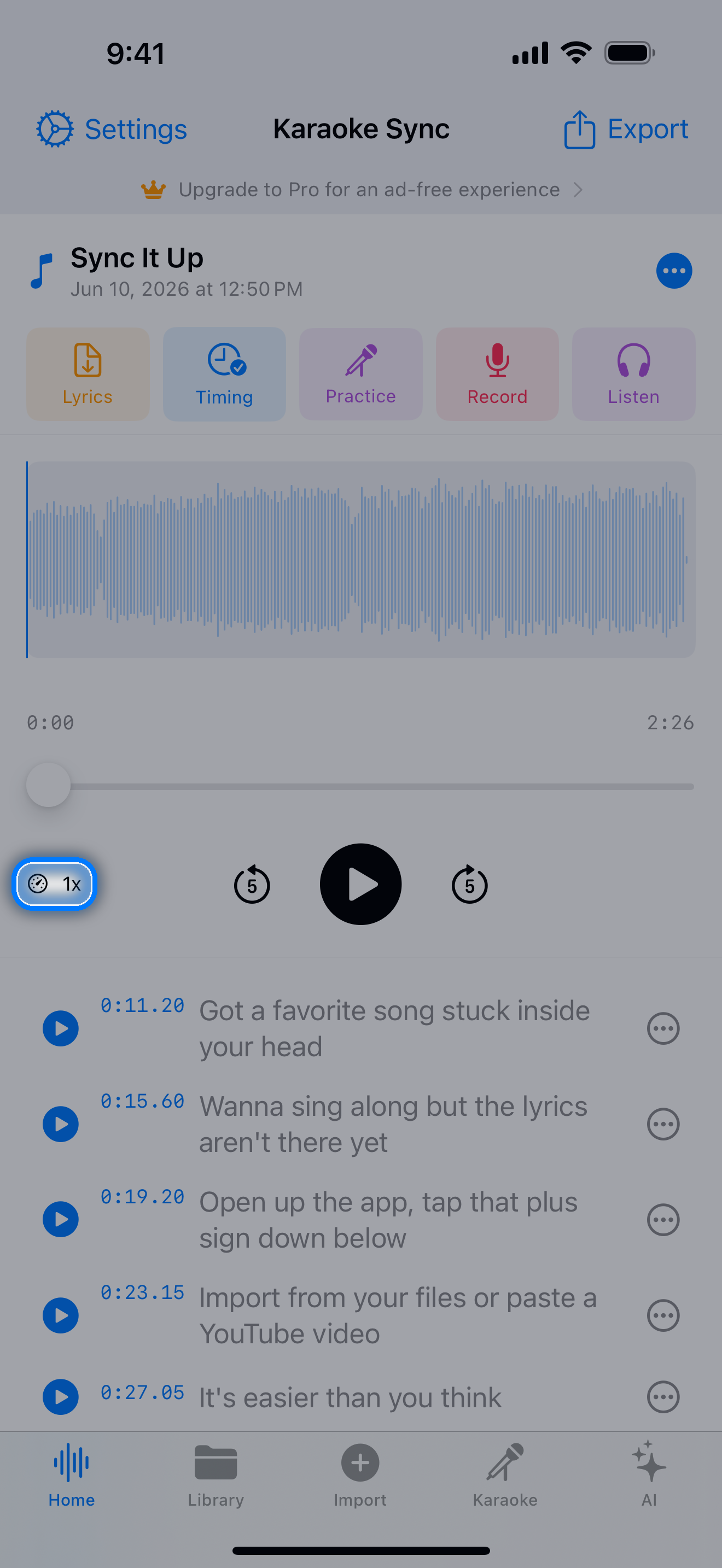
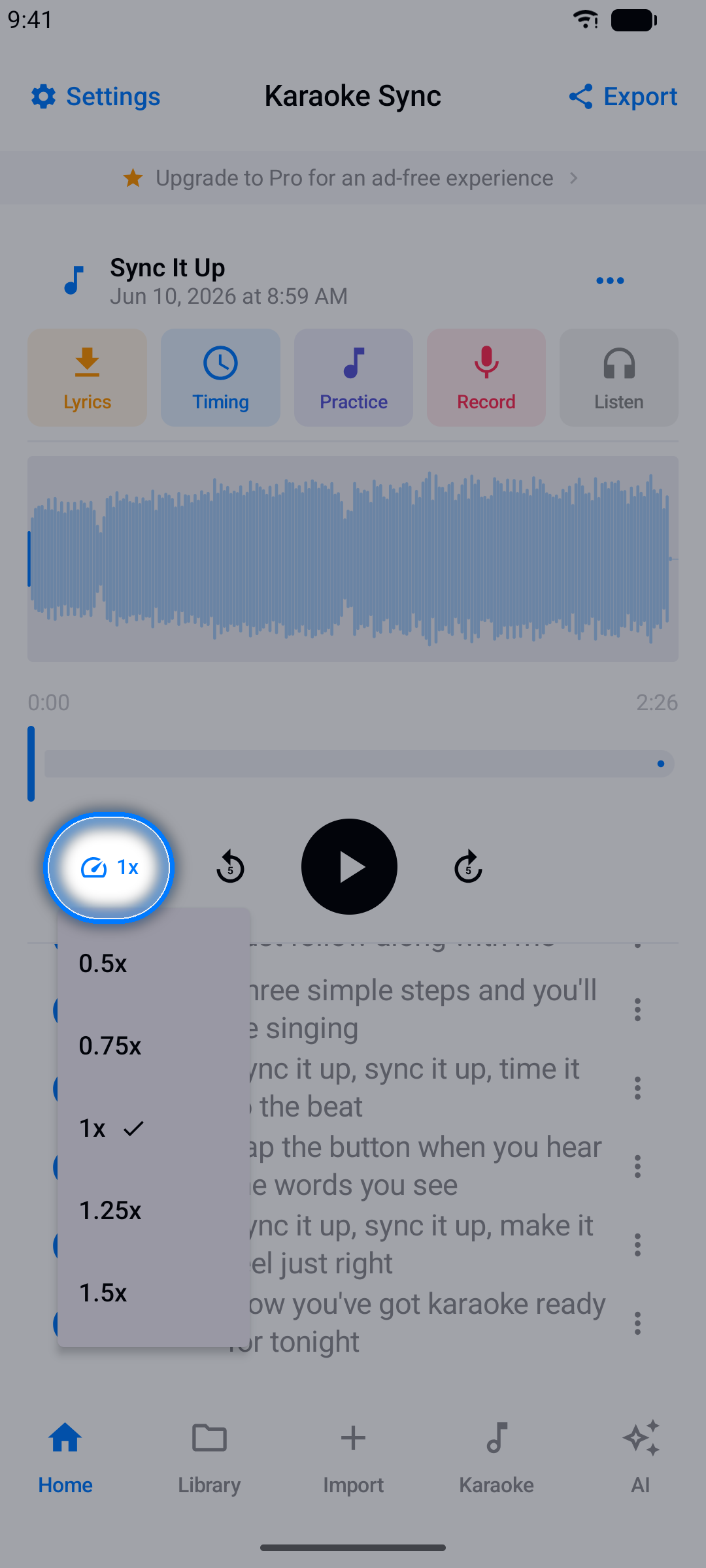
練習模式
跟著計時歌詞一起唱 — 不錄音、沒有壓力。
步驟 1:開啟練習
開啟專案後,點按練習模式。
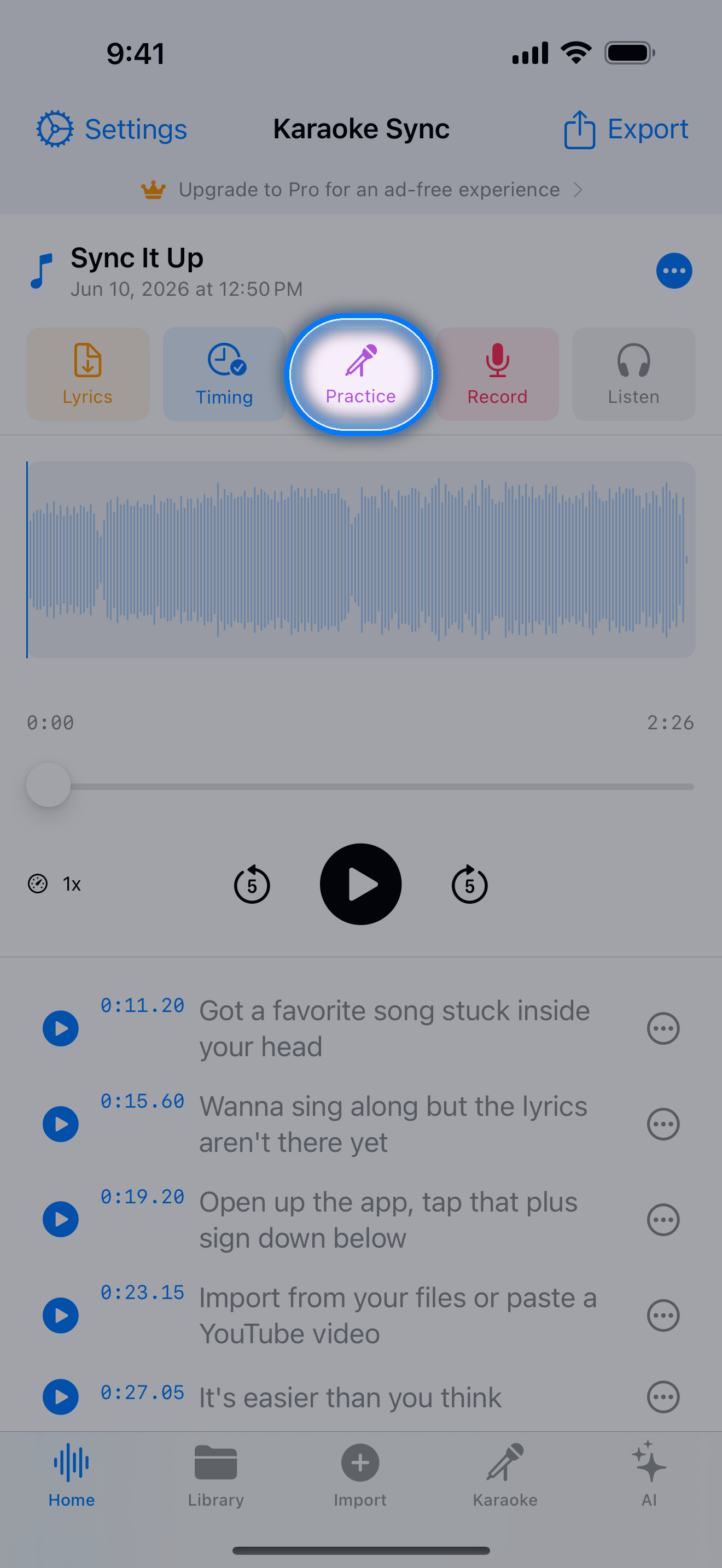
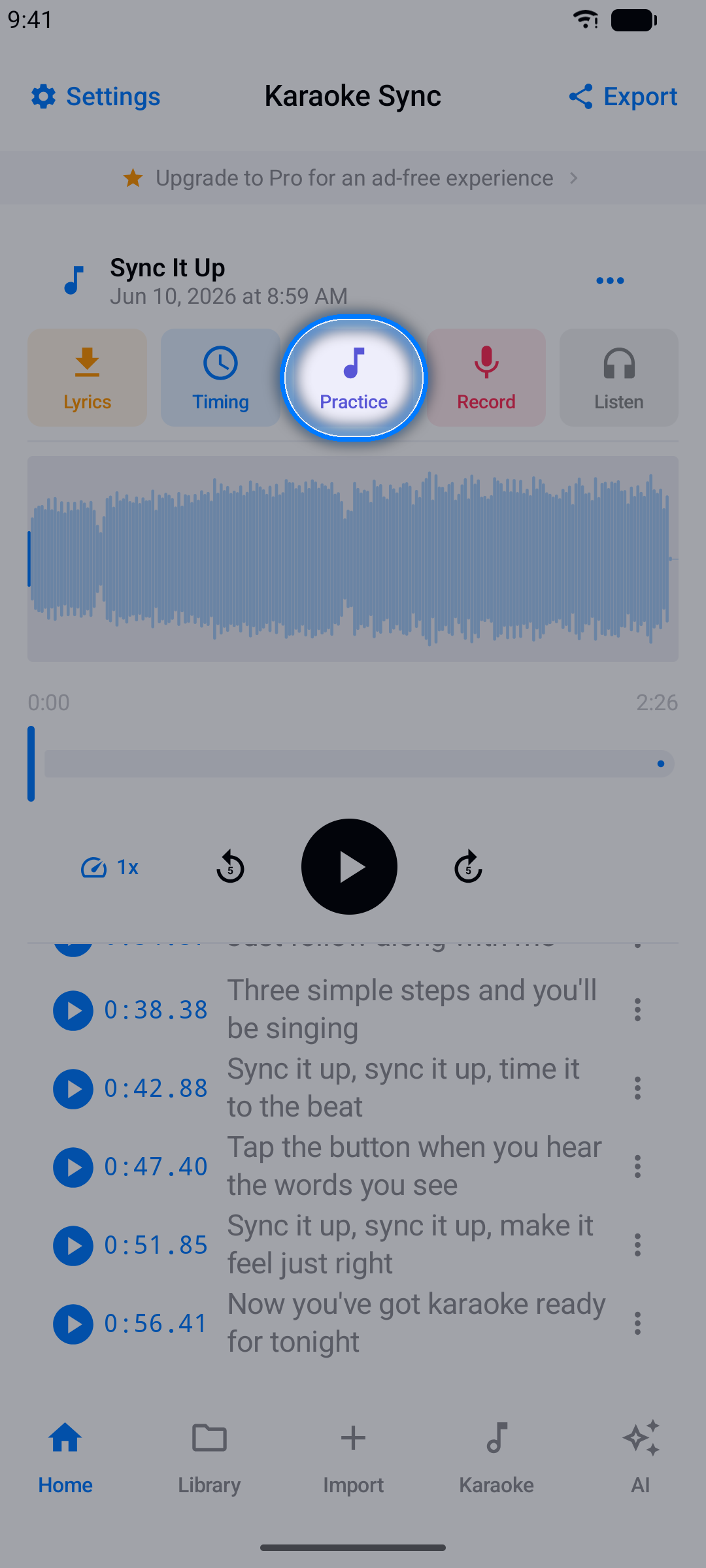
步驟 2:跟唱
- 歌詞自動捲動,目前行高亮顯示 — 逐字計時的行會逐字高亮
- 點按任意行可直接跳到歌曲的那個段落
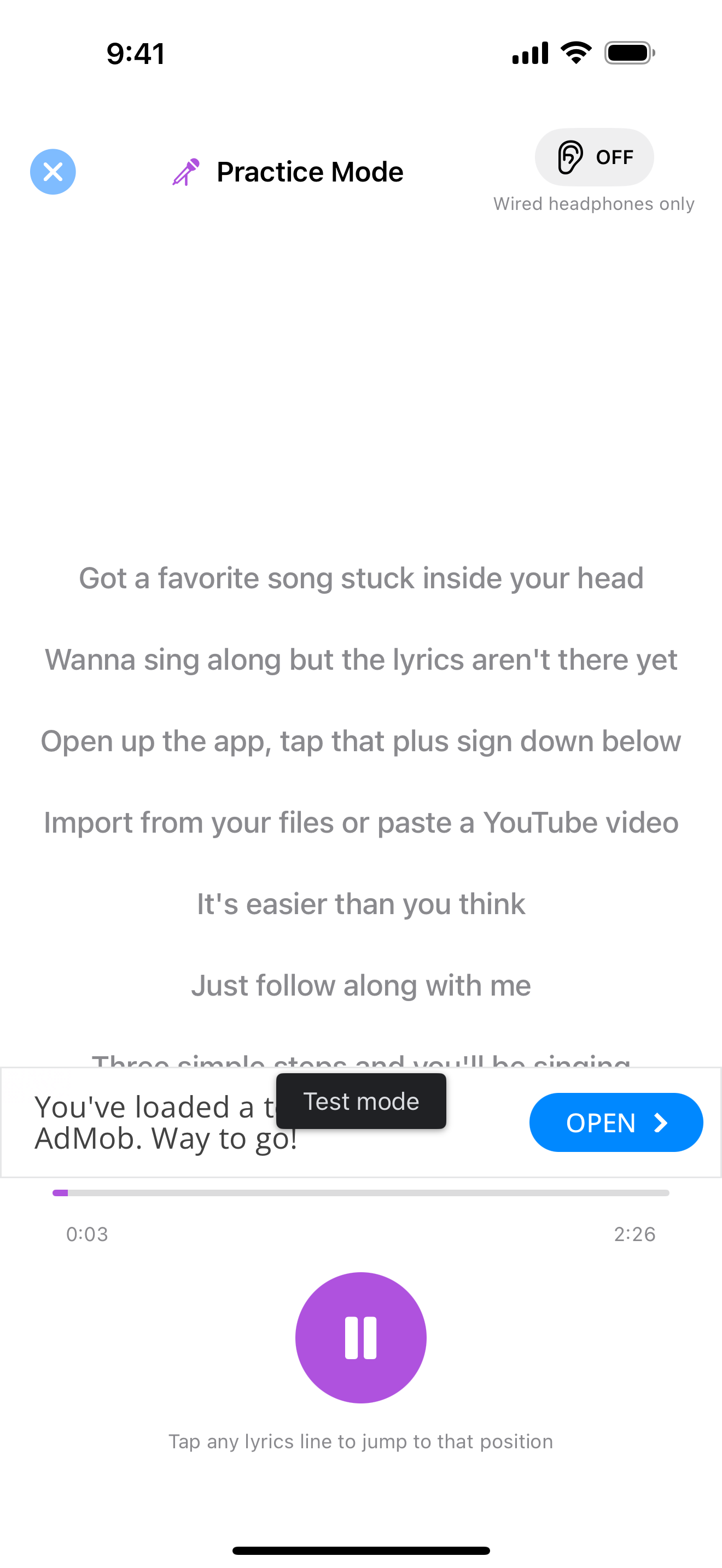
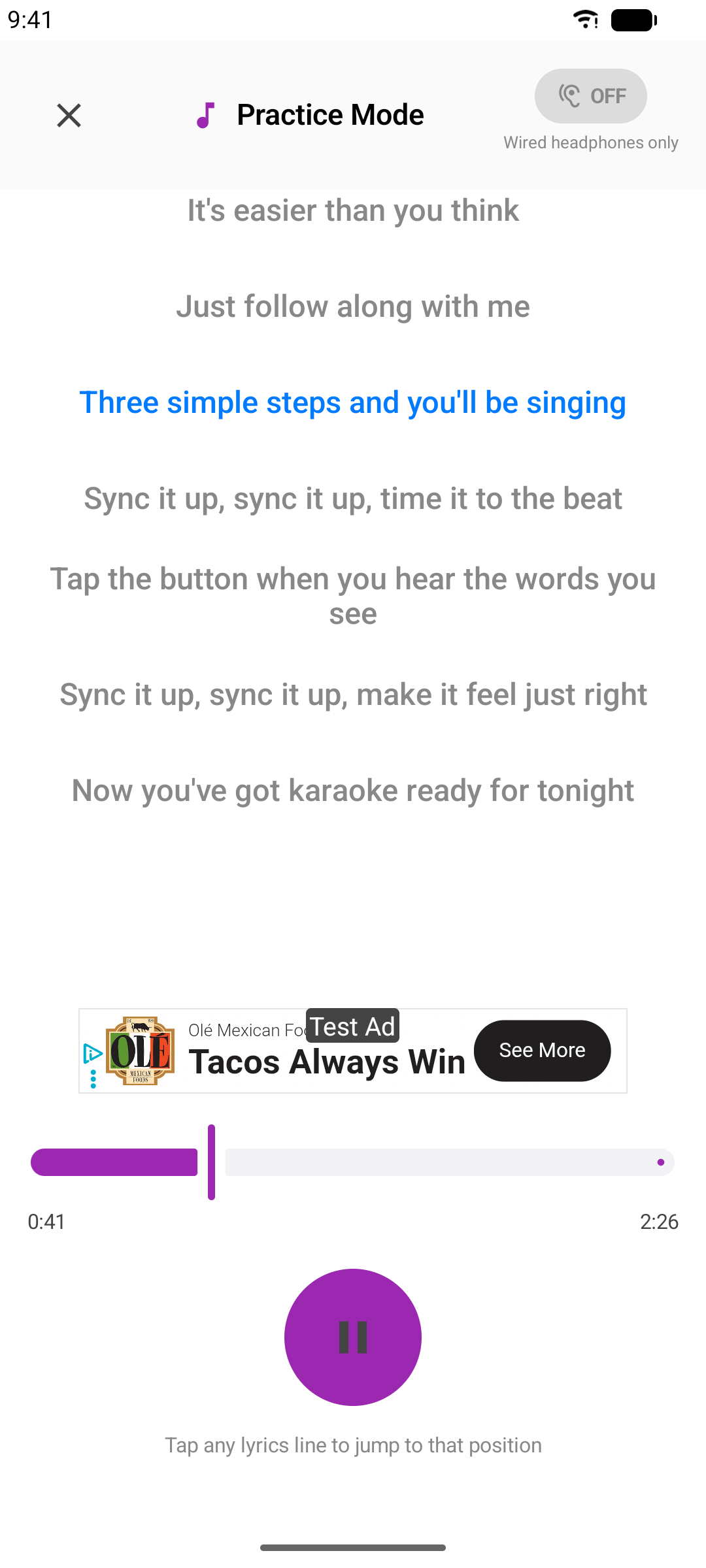
提示: 插入有線耳機可即時聆聽自己的聲音混入(直通)。藍牙耳機延遲太高,無法進行即時監聽。
演唱模式(錄音)
為真實的卡拉OK演出錄製您的人聲。
步驟 1:開始錄音
開啟音訊檔案專案,點按錄音。如果 App 詢問,選擇純音訊錄製,或選擇影片同時用鏡頭錄影。若系統要求,請允許麥克風存取。
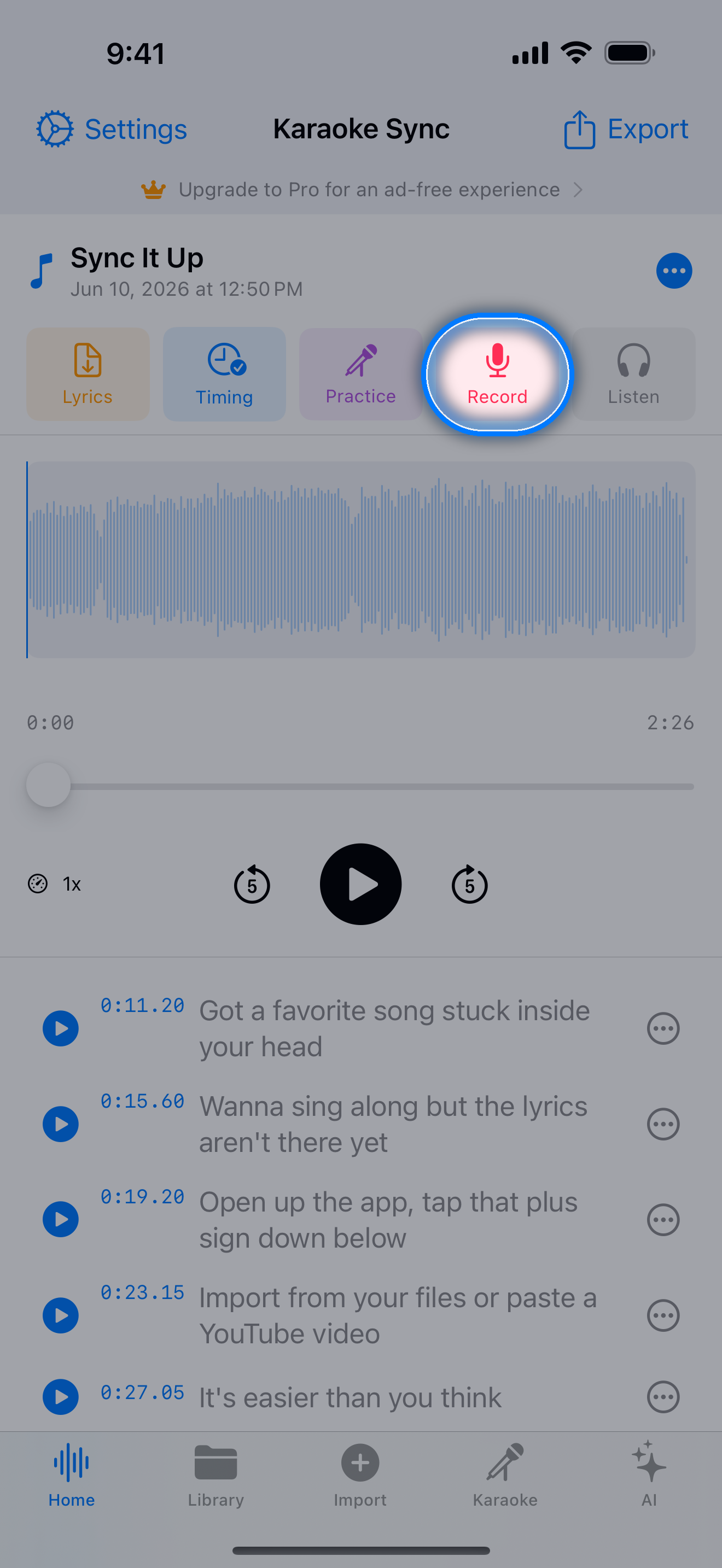
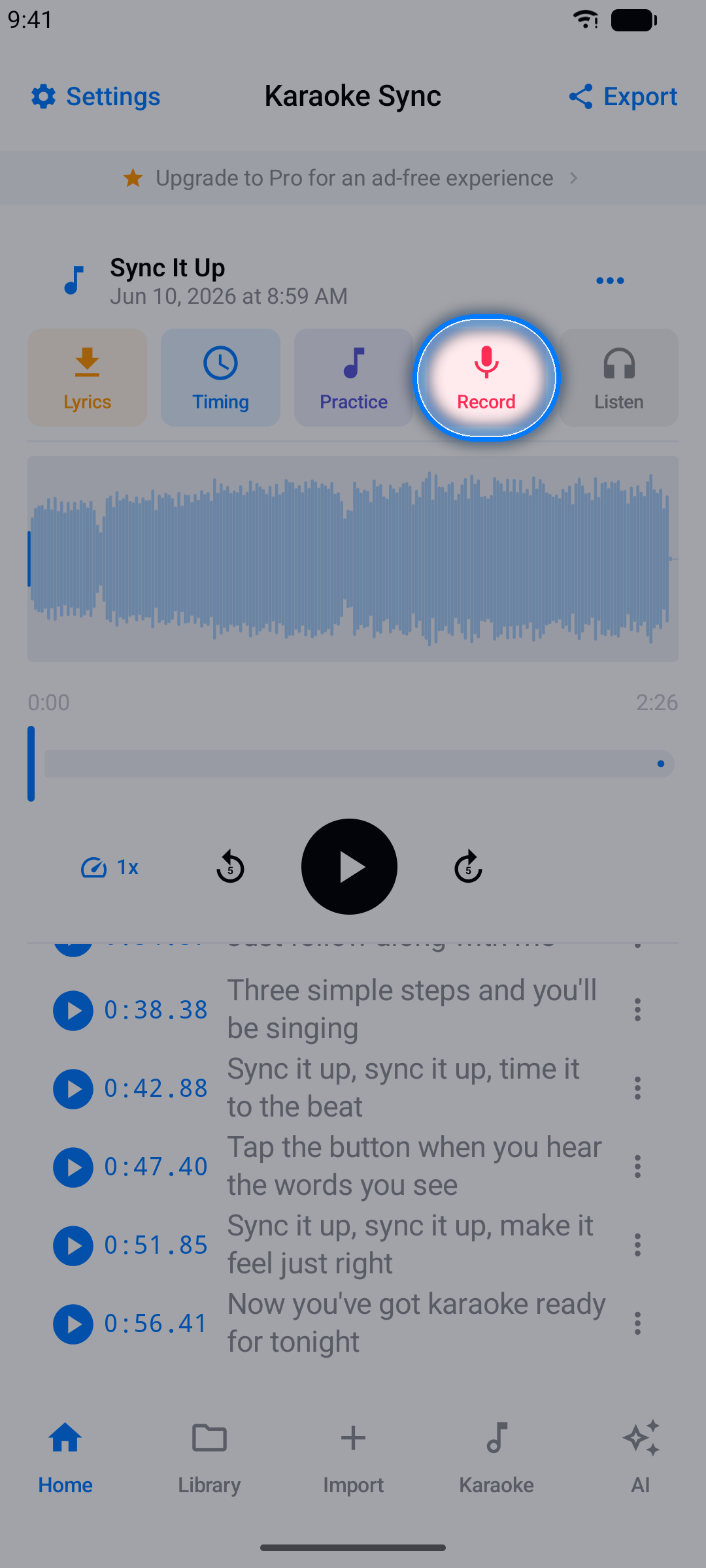
步驟 2:準備就緒
3-2-1 倒數給您一點緩衝時間。
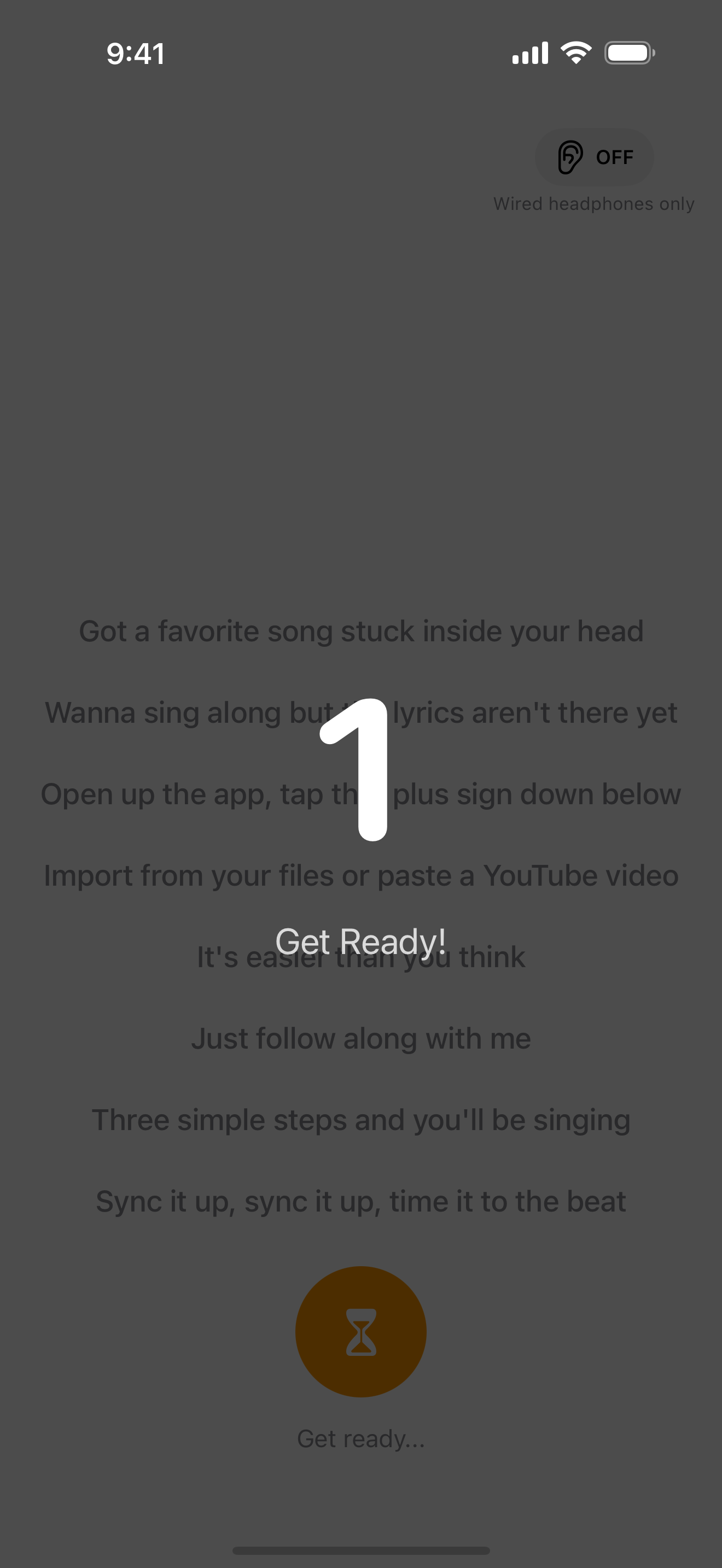
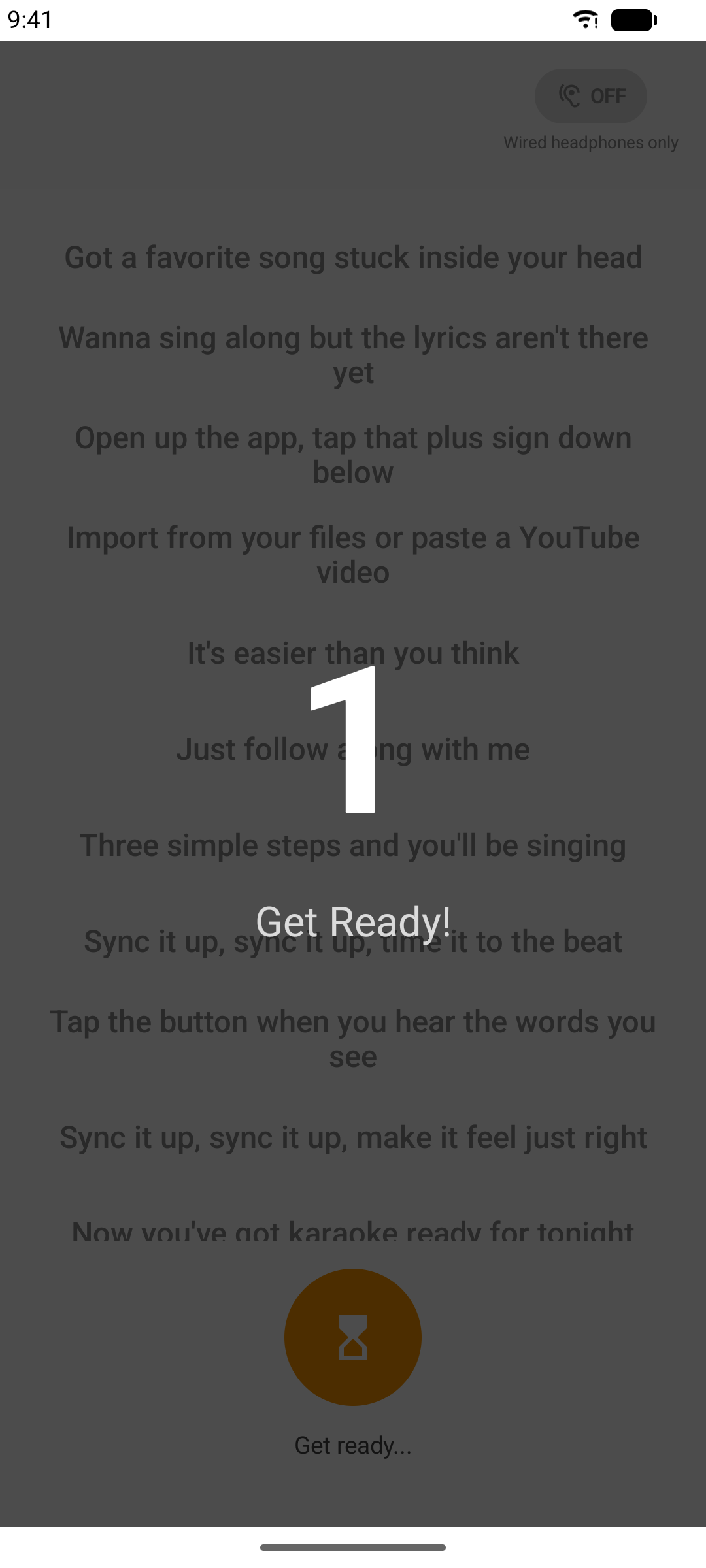
步驟 3:開唱!
音樂播放的同時錄製您的人聲,歌詞以卡拉OK方式捲動。
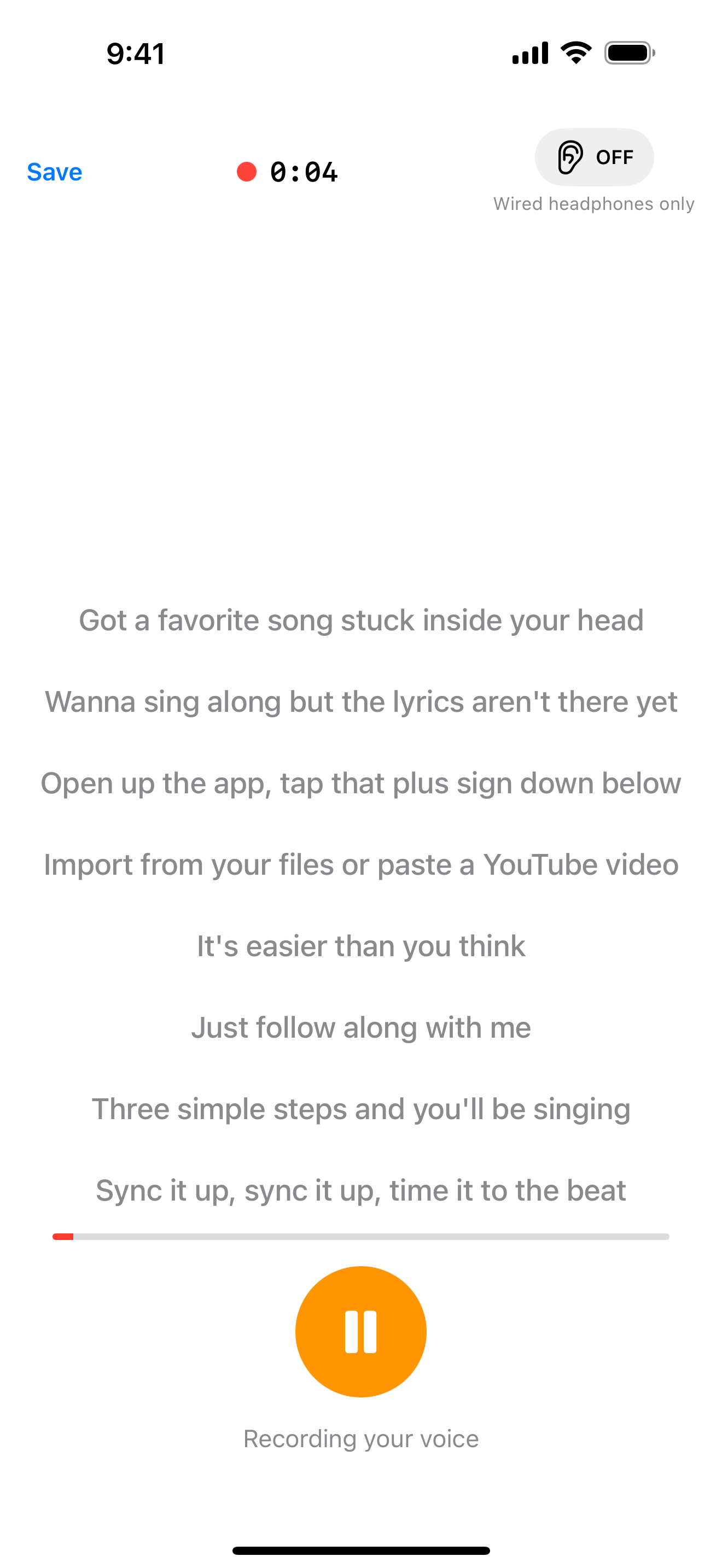
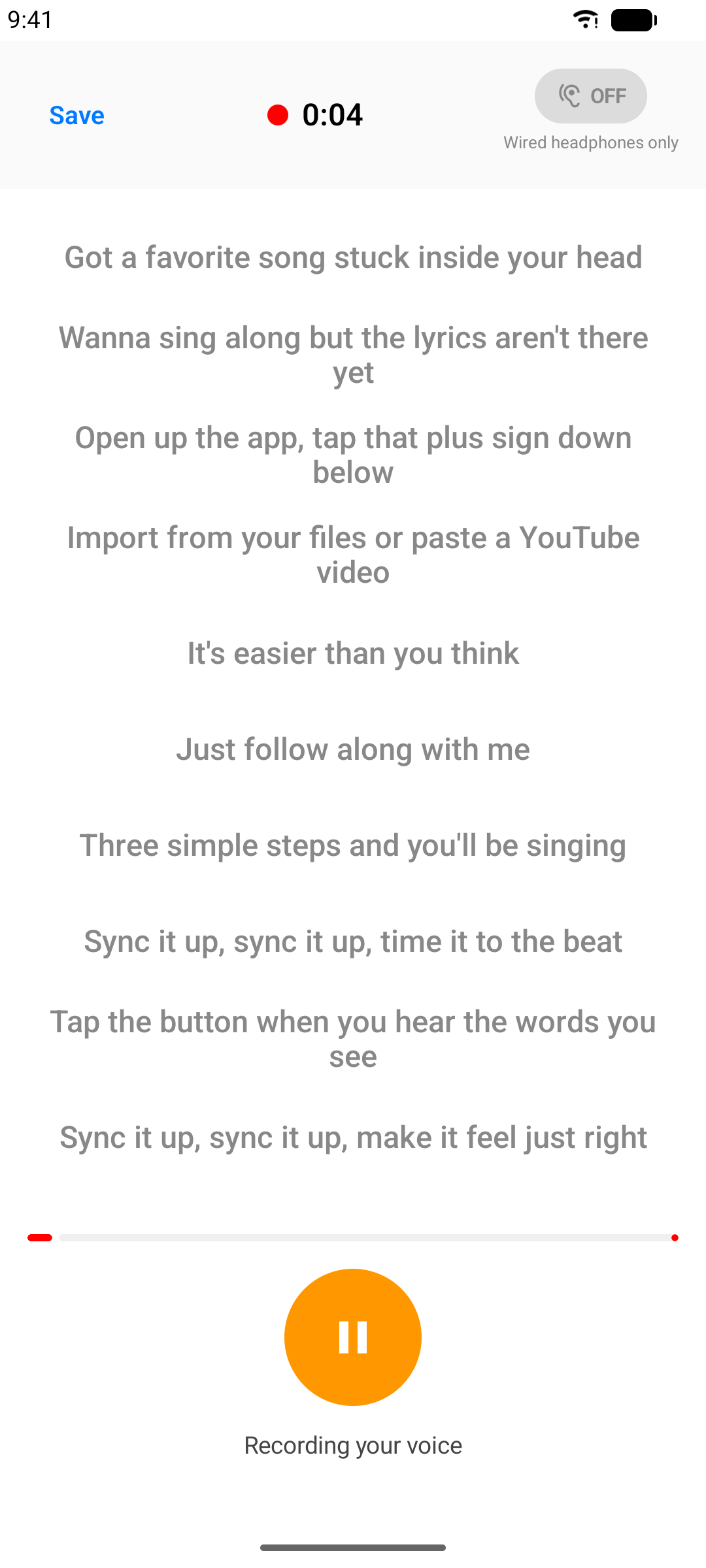
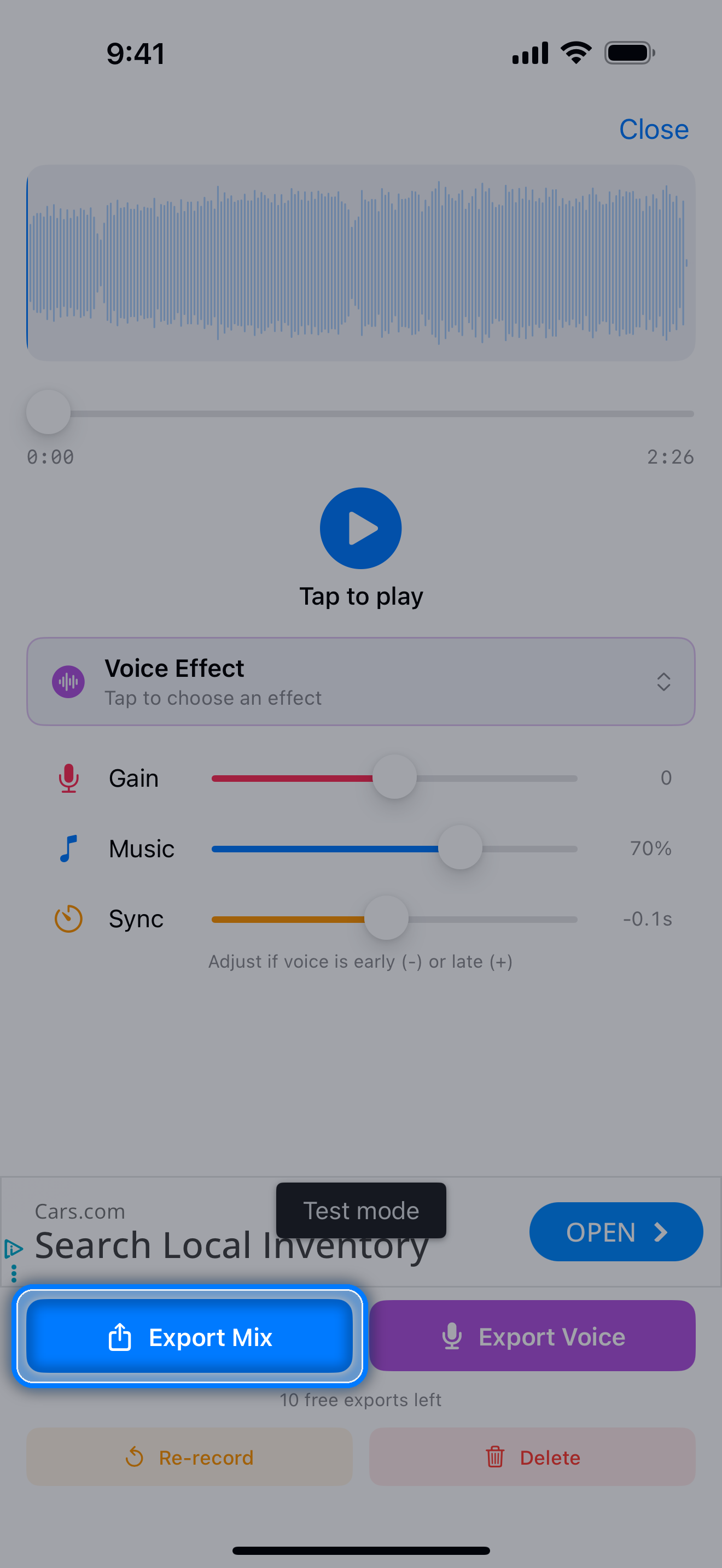
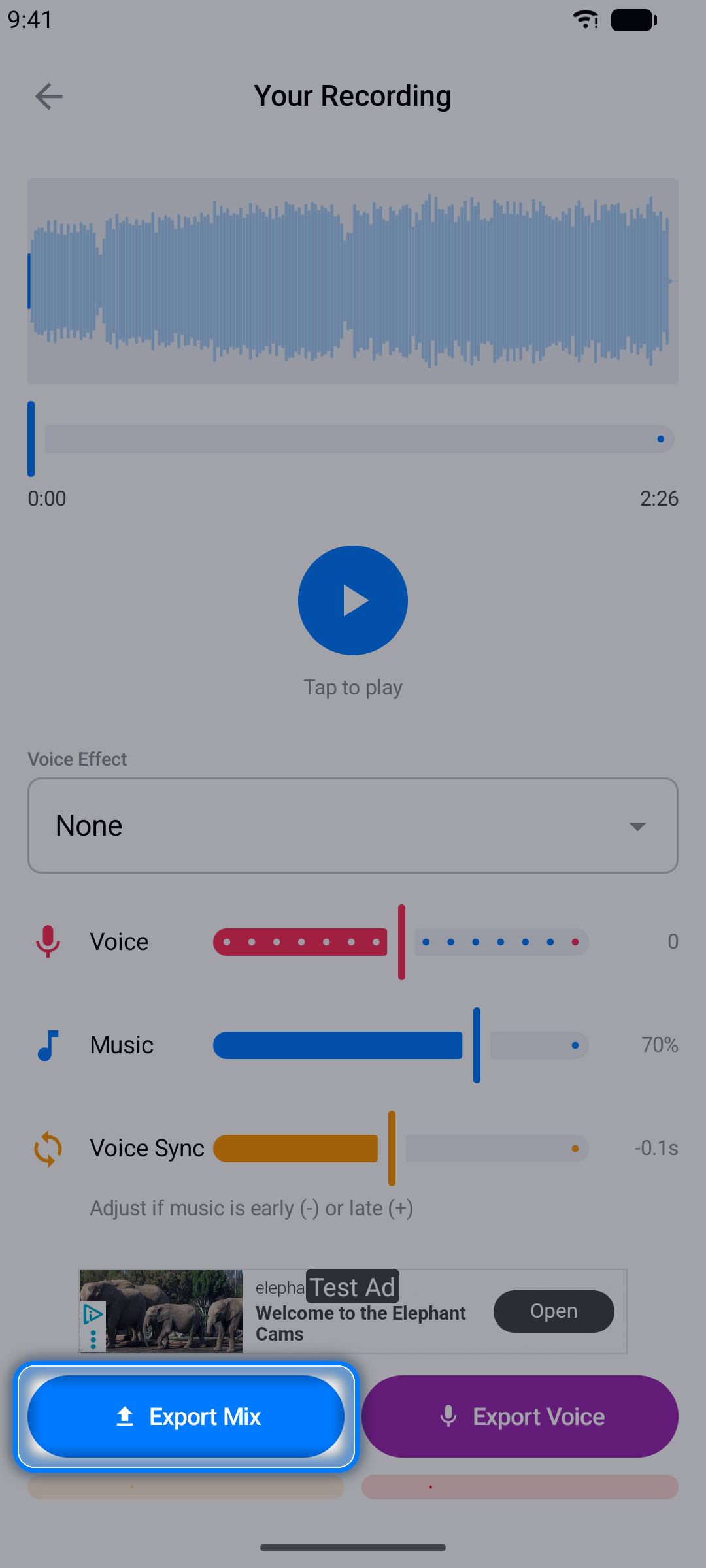
步驟 4:回聽您的演出
停止後,播放畫面可讓您聆聽人聲與音樂的混音:
- 調整人聲同步偏移,修正人聲偏早或偏晚的問題
- 重新錄音重新來過
- 將完成的混音匯出為 M4A 音訊檔案
聲音特效
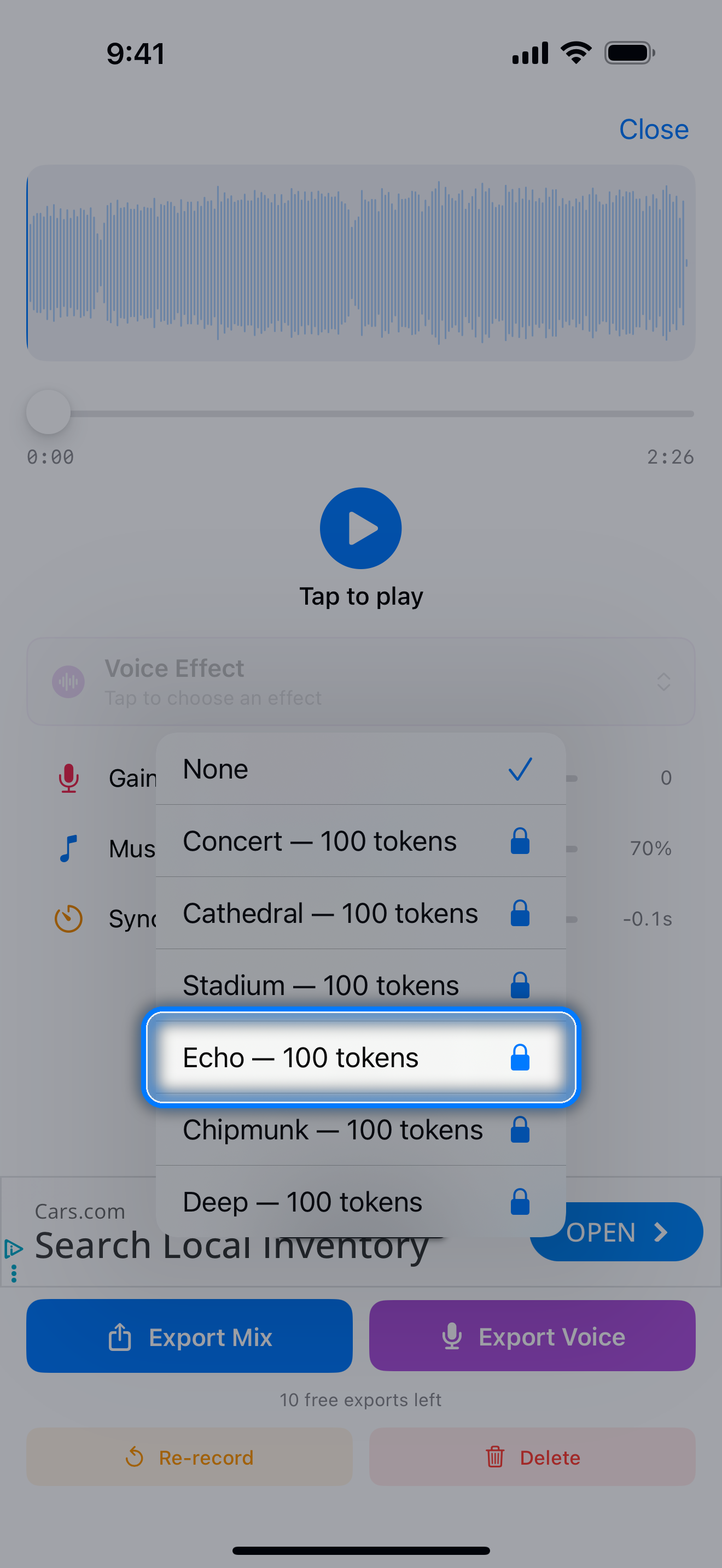
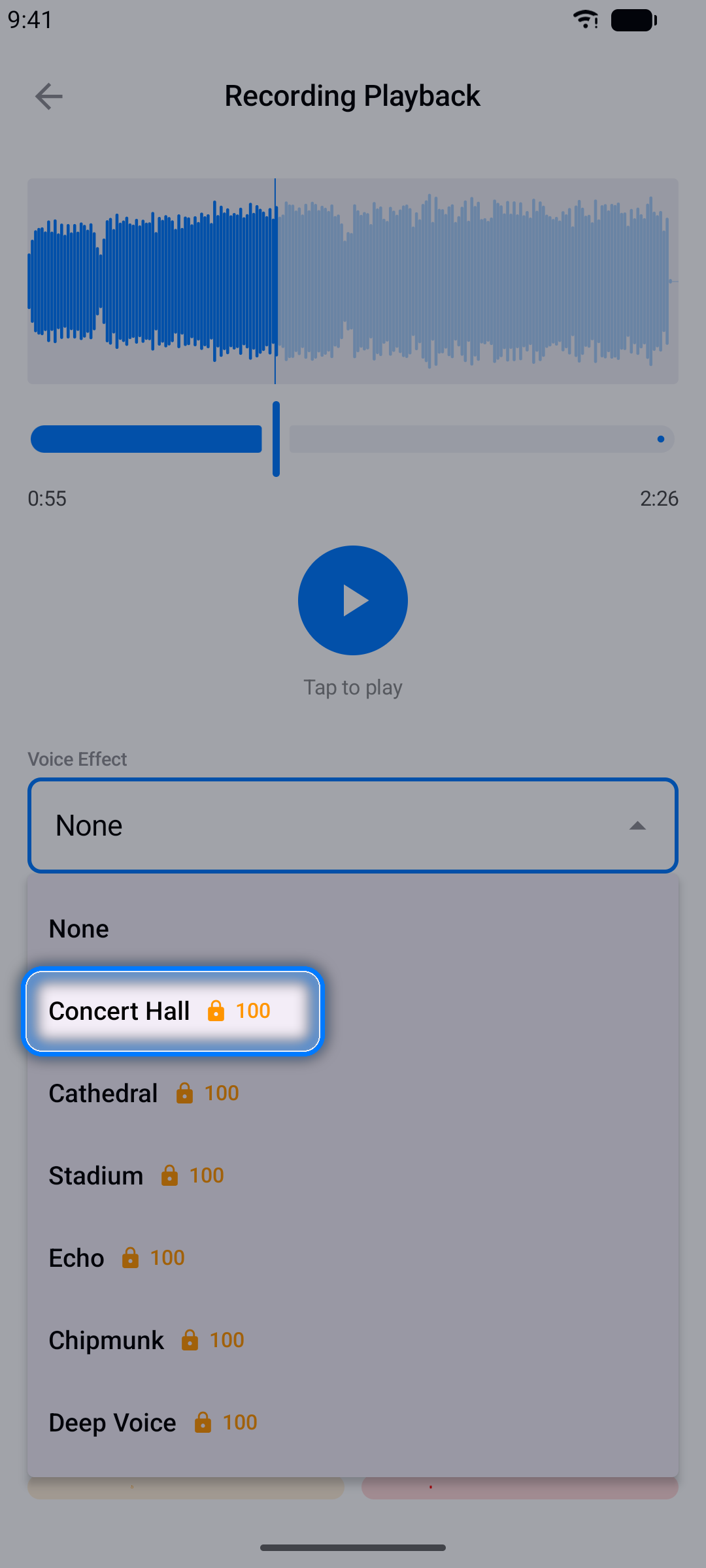
用聲音特效讓您的演出更有趣 — 從音樂廳殘響到花栗鼠音效應有盡有。特效可用您在 App 中賺取的代幣解鎖(請參閱代幣)。
注意: 錄音和音訊匯出適用於音訊檔案專案。YouTube 專案僅供計時和練習使用。
卡拉OK 模式
想要立刻開唱,不想先建立專案?卡拉OK 標籤提供現成的歌曲目錄,搭配同步歌詞。
- 瀏覽或搜尋目錄
- 點按歌曲開啟播放器 — 影片會以卡拉OK捲動歌詞方式播放
- 標記我的最愛,讓常唱的歌曲隨時取用
- 找不到想唱的歌?使用內建的請求歌曲表單
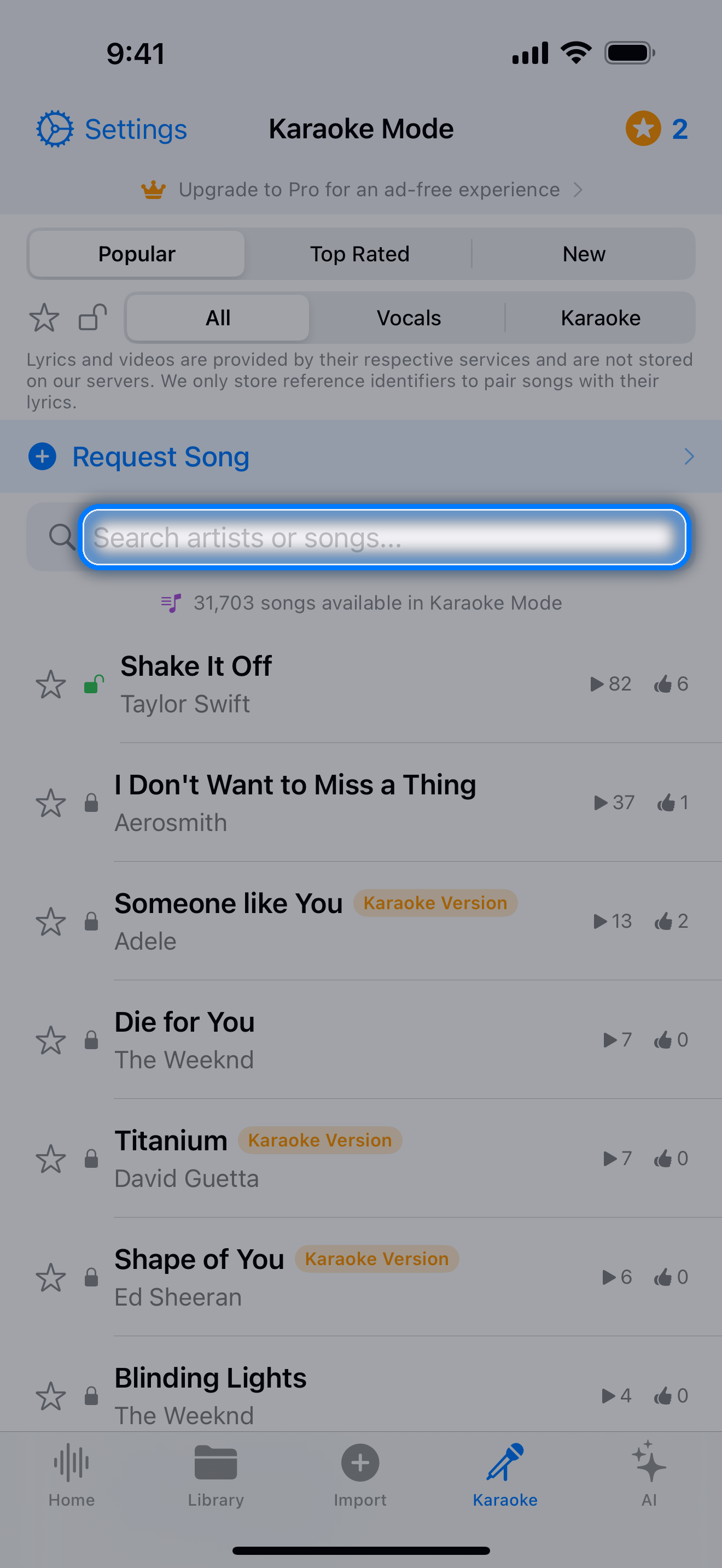
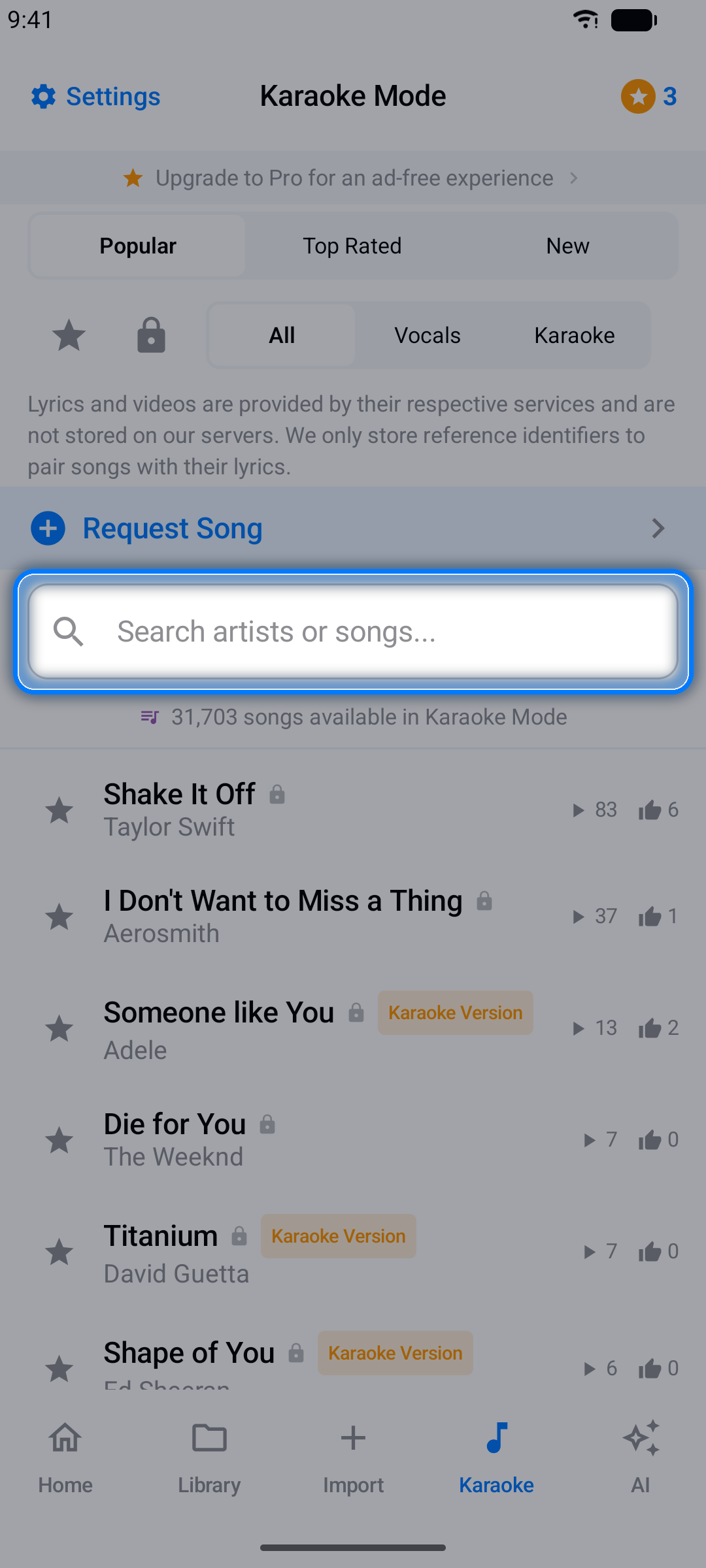
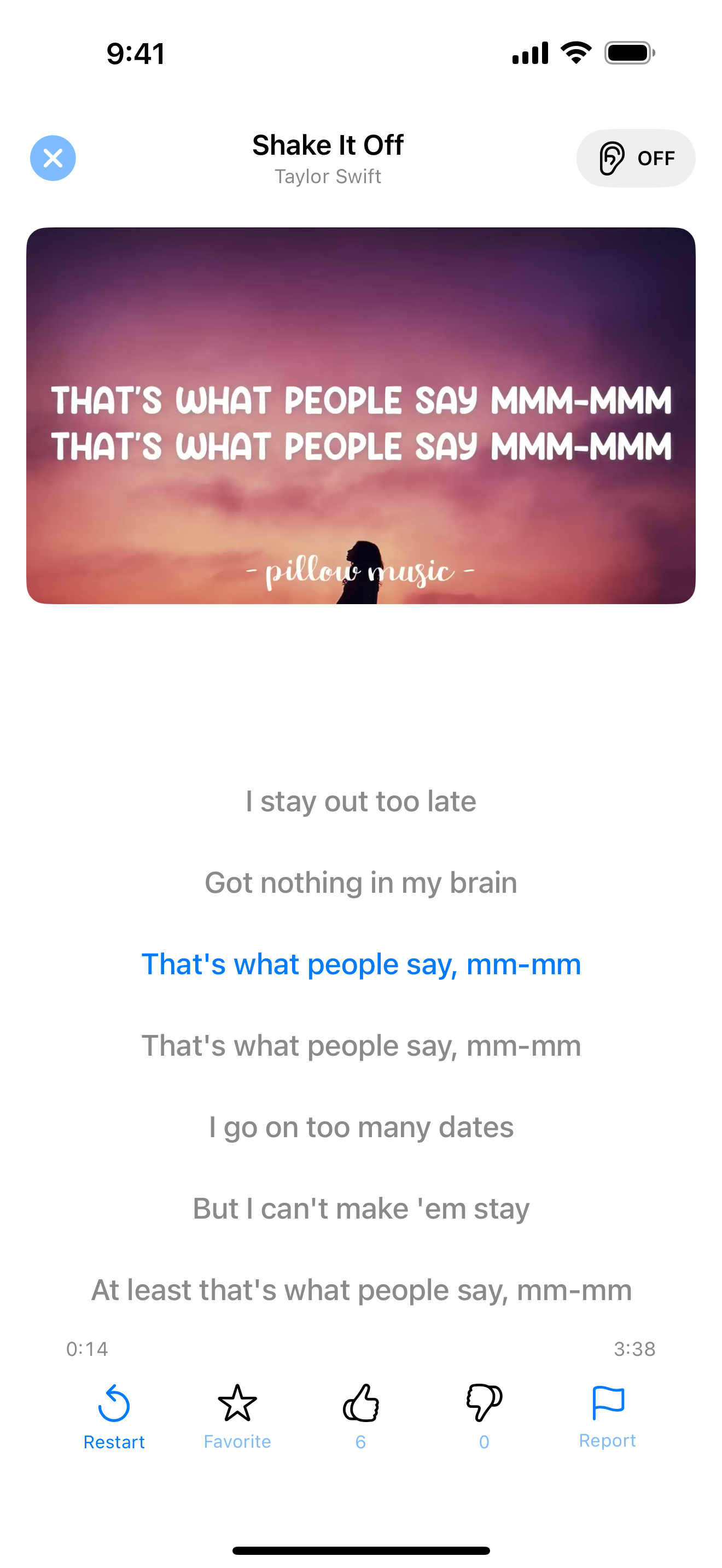
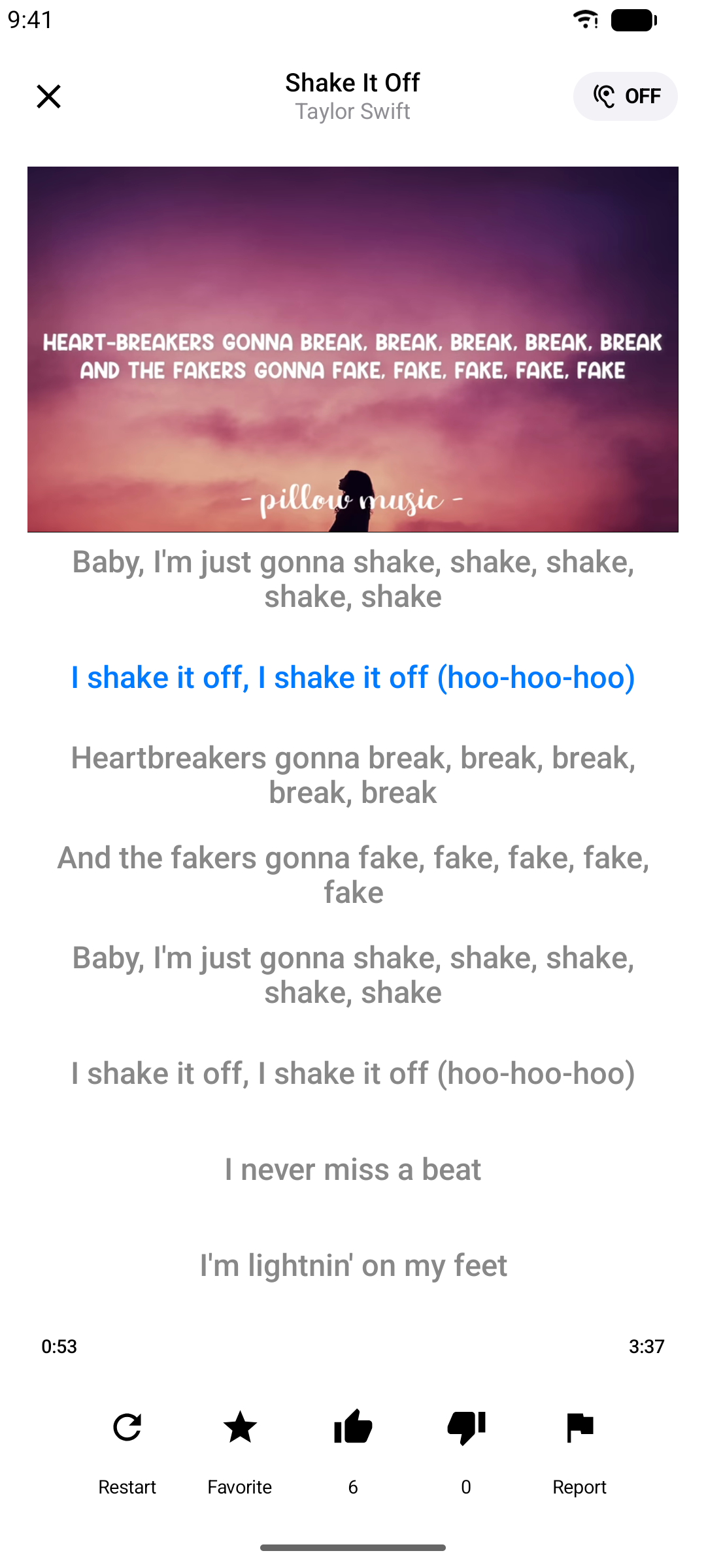
注意: 截圖中的歌曲來自 App 內卡拉OK目錄,僅供說明用途。所有歌曲、影片、美術作品及商標均屬各自所有人的財產。
AI 歌曲問答與趣聞
AI 標籤將音樂問答變成遊戲:
- 歌曲問答 - 關於歌曲、歌手及其故事的多選題
- 歌曲趣聞 - 關於您喜愛歌曲的驚人背景資訊
瀏覽精選目錄,選擇一首歌,盡情探索。
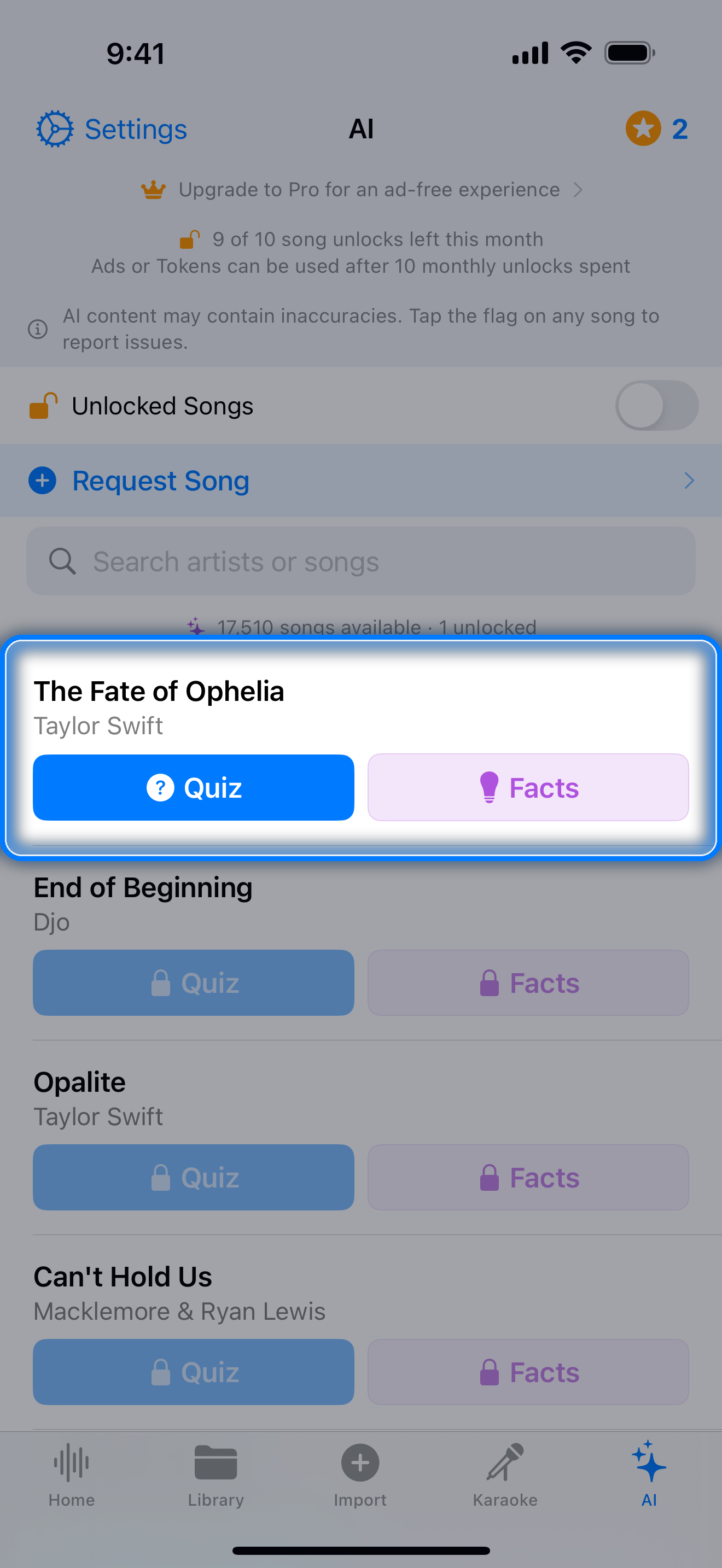
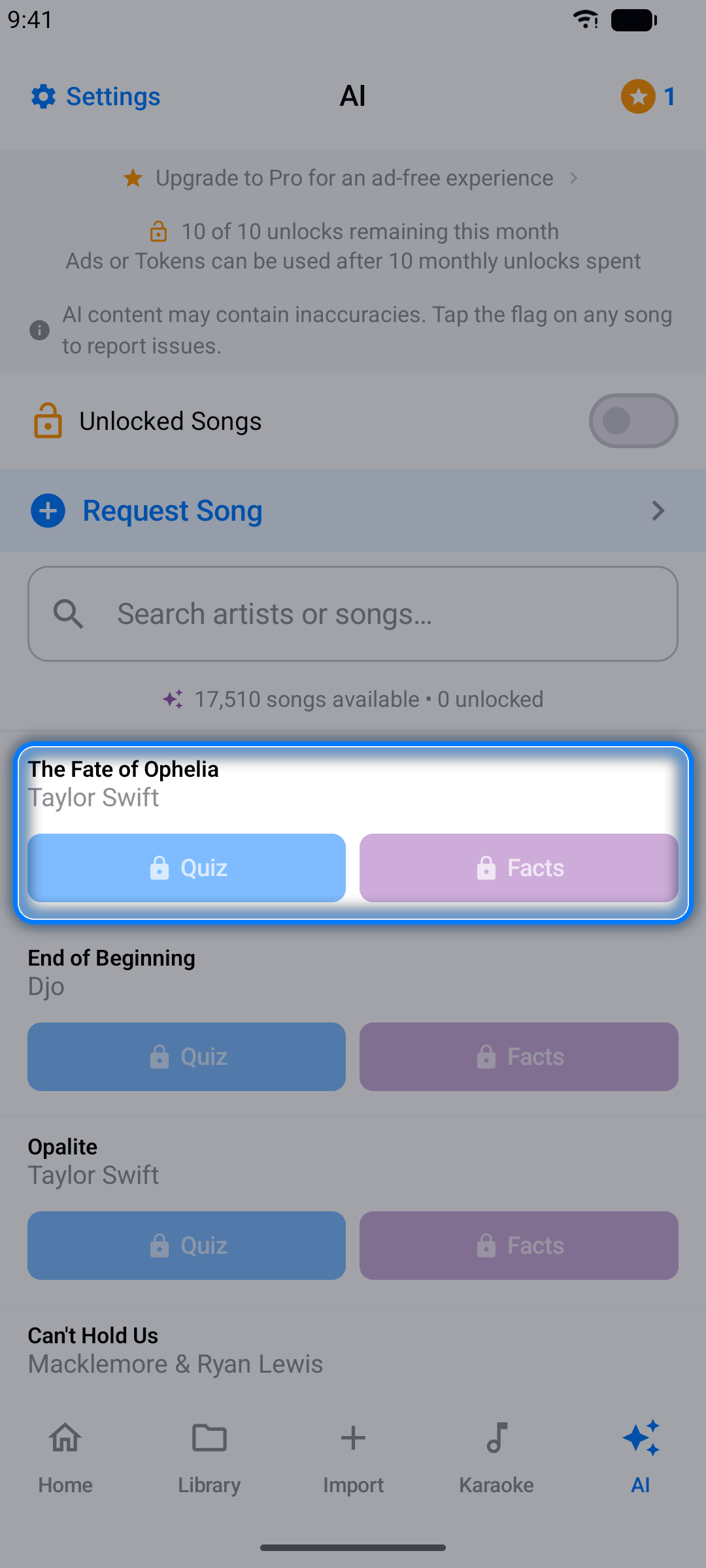
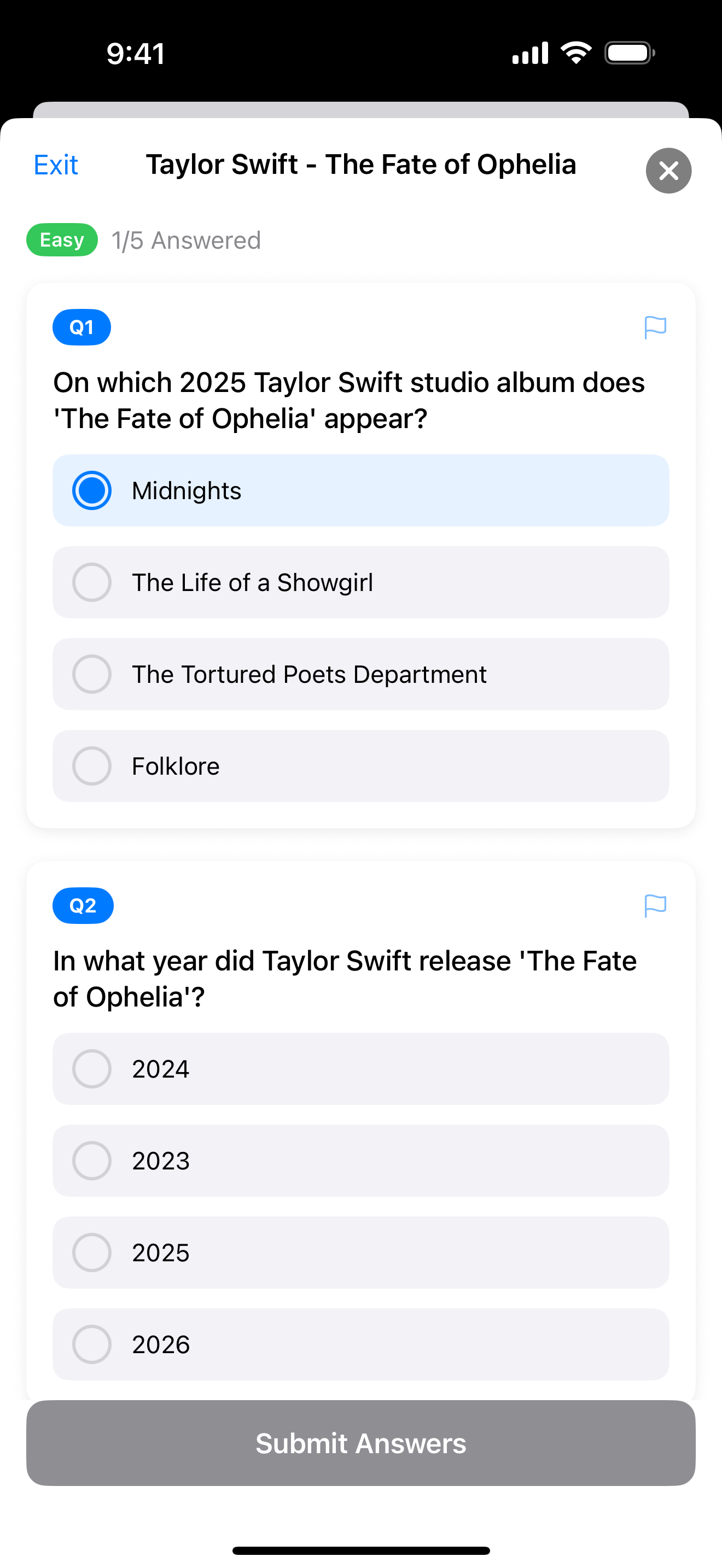
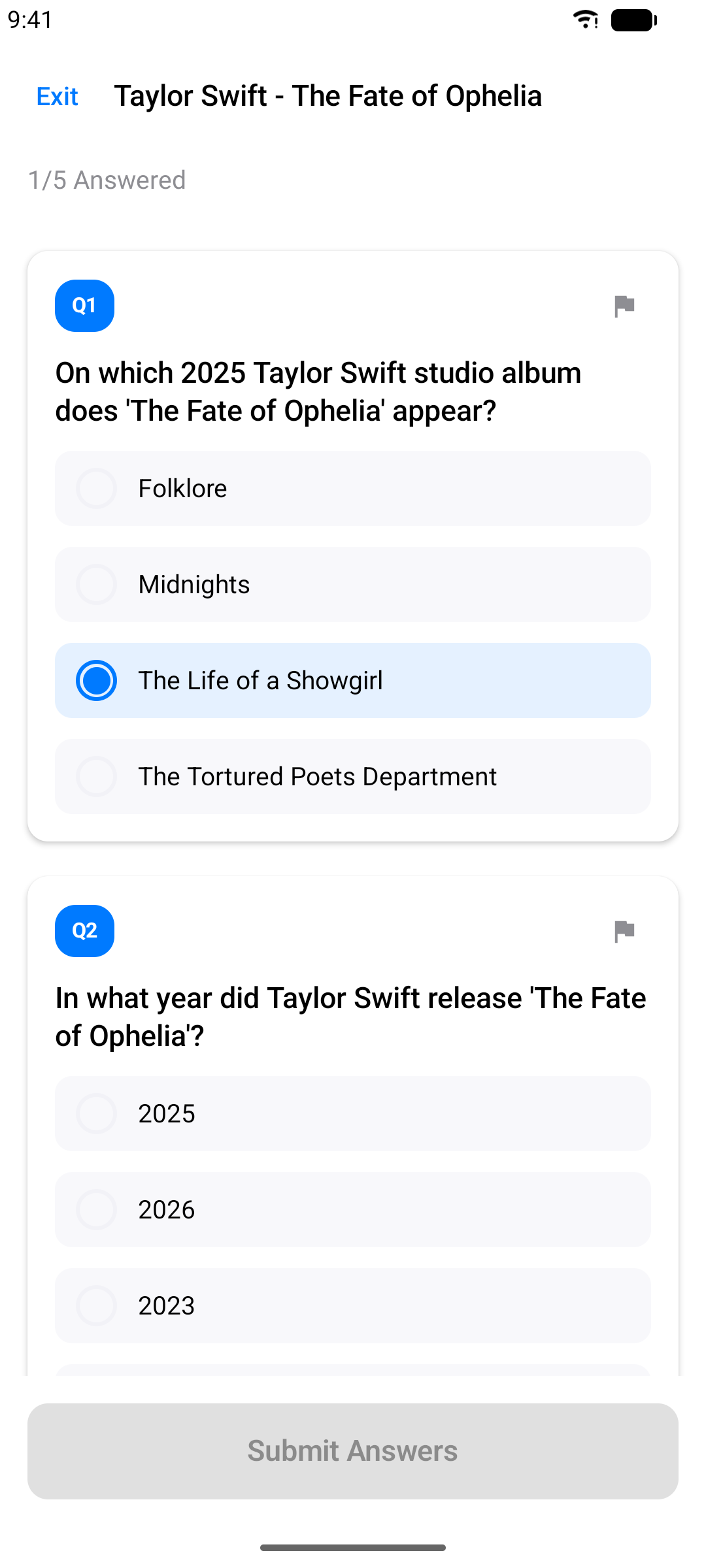
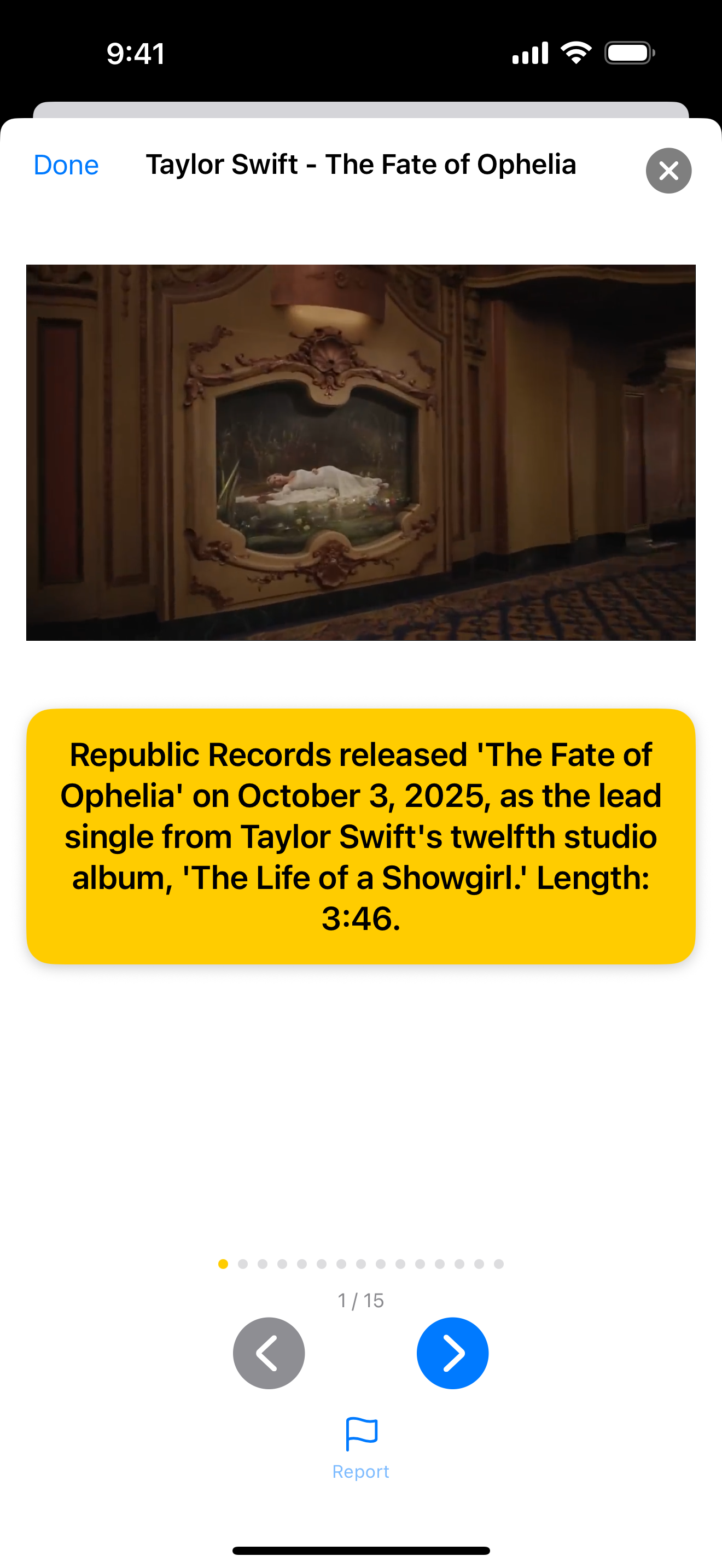
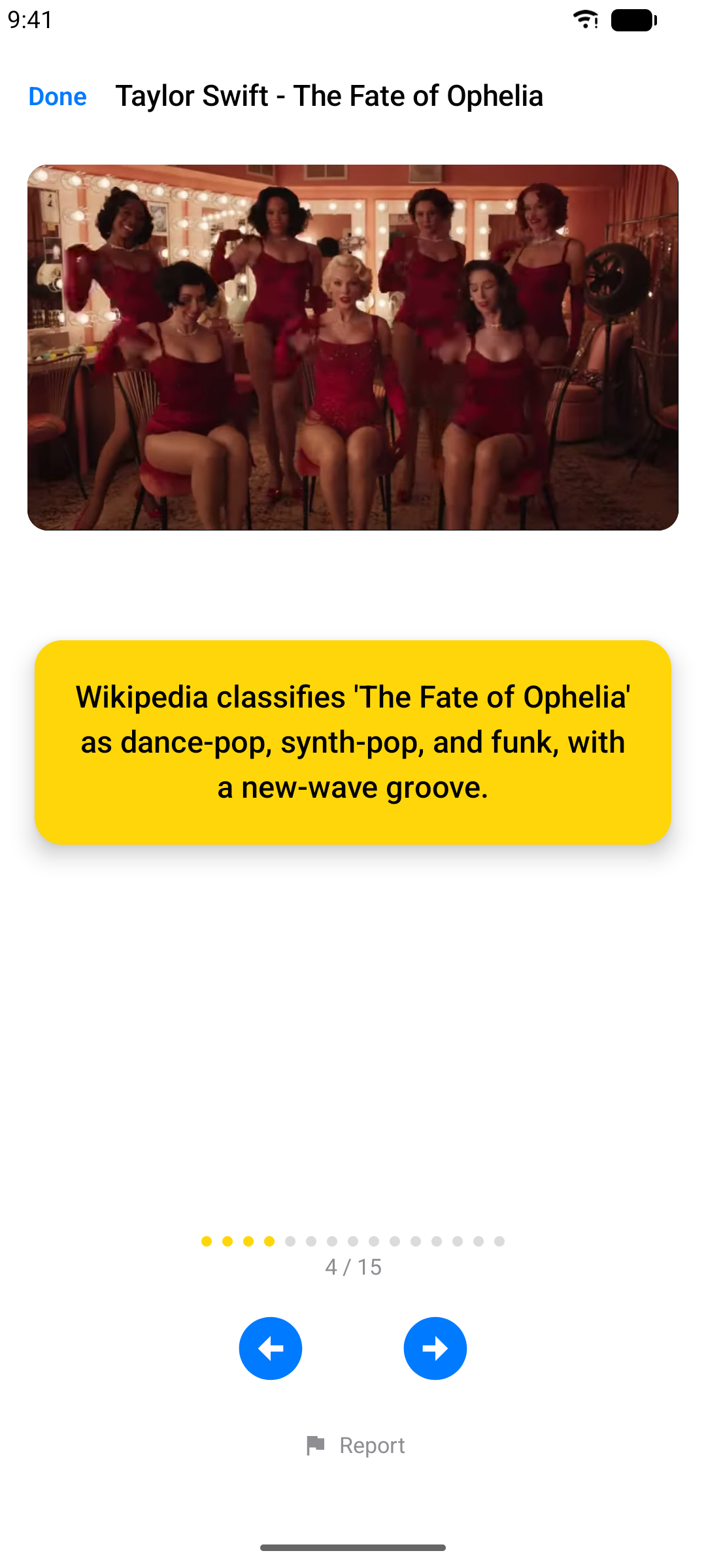
免費帳戶每月有問答和趣聞的配額(Pro 版大幅提升上限) — 而您已解鎖的內容將永遠保留。
注意: 截圖中的歌曲來自 App 內音樂目錄,僅供說明用途。所有歌曲、影片、美術作品及商標均屬各自所有人的財產。
卡拉OK 遊戲
您自己建立的計時專案也可以化身遊戲素材。在資料庫標籤中,點按玩遊戲:
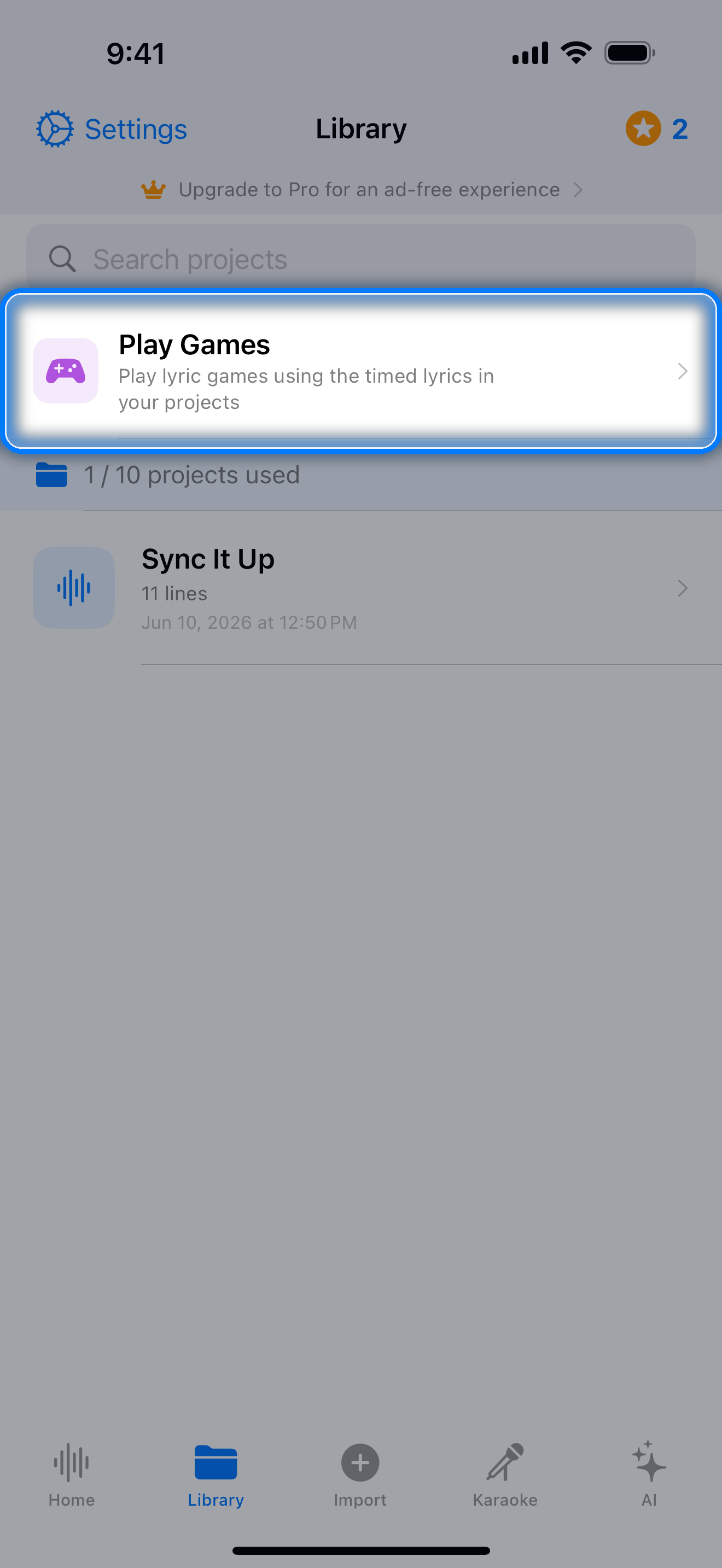
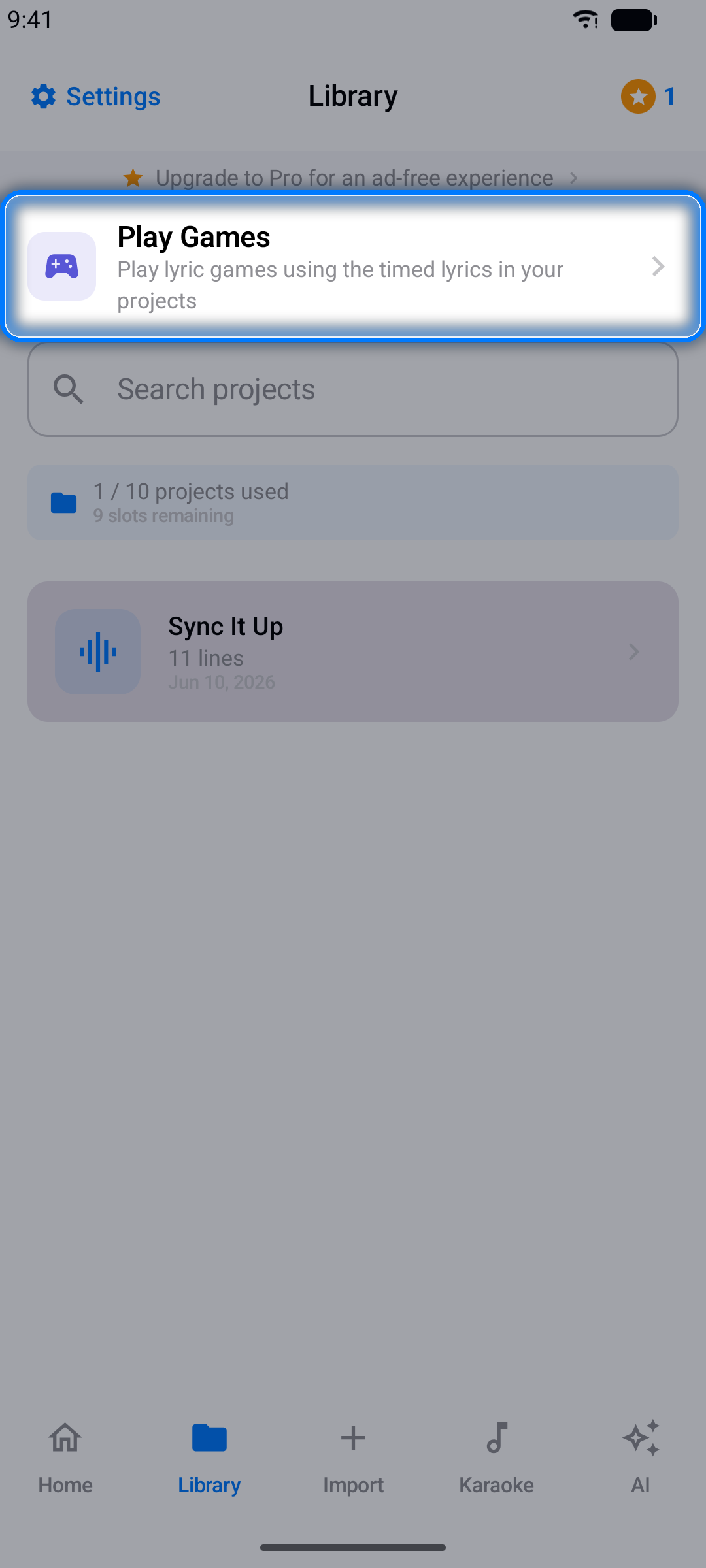
- 補全歌詞 - 歌曲播放後突然中斷:您能及時接完這行嗎?
- 歌詞排序 - 將一行中打亂的詞語排回正確順序
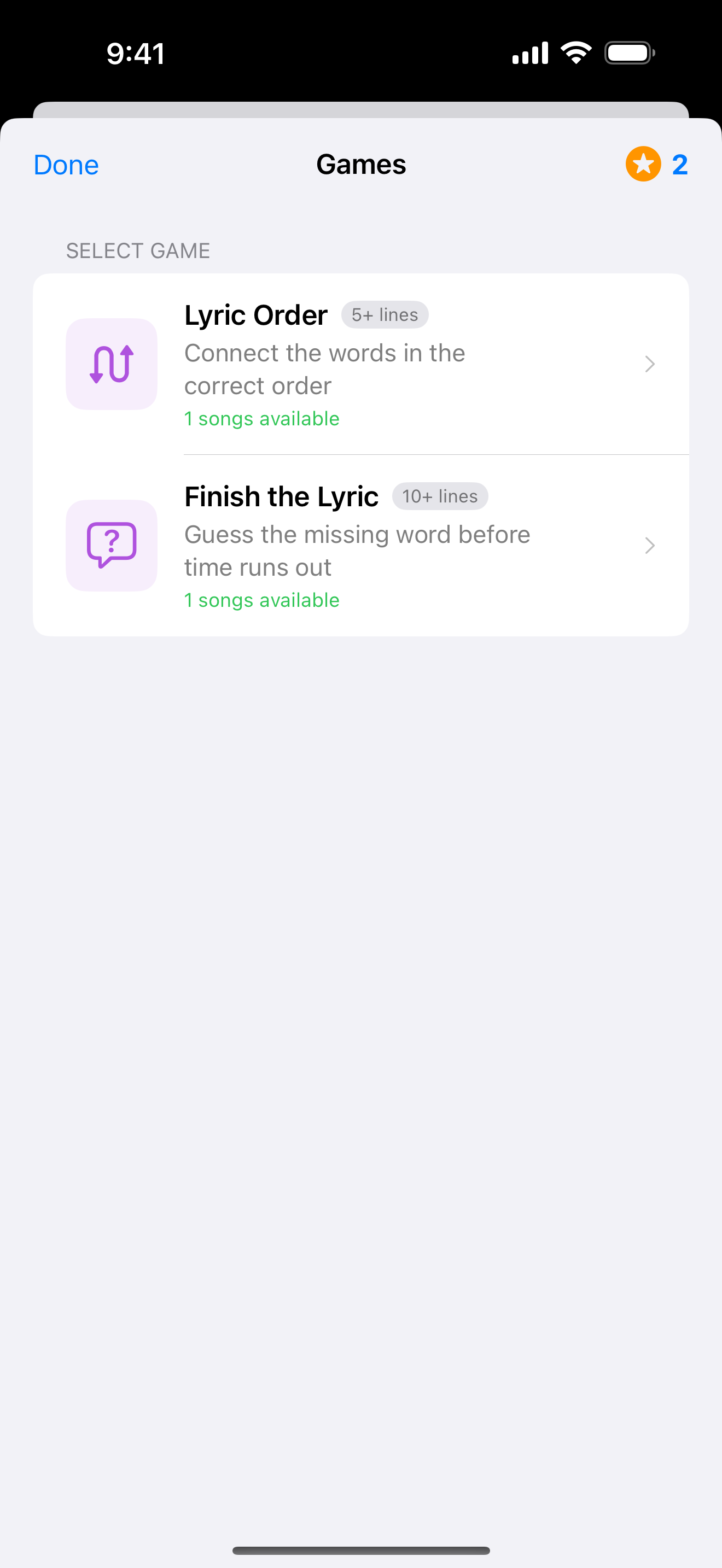
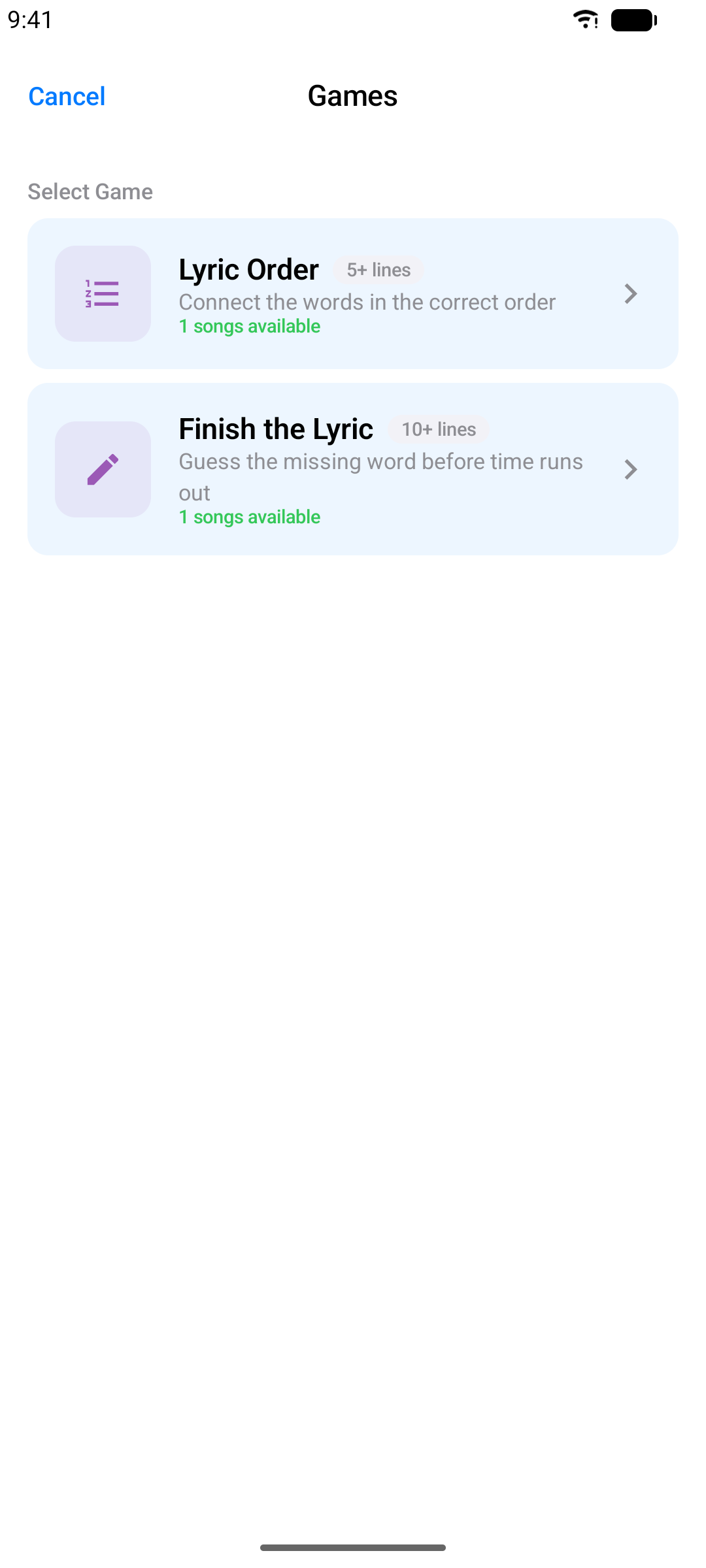
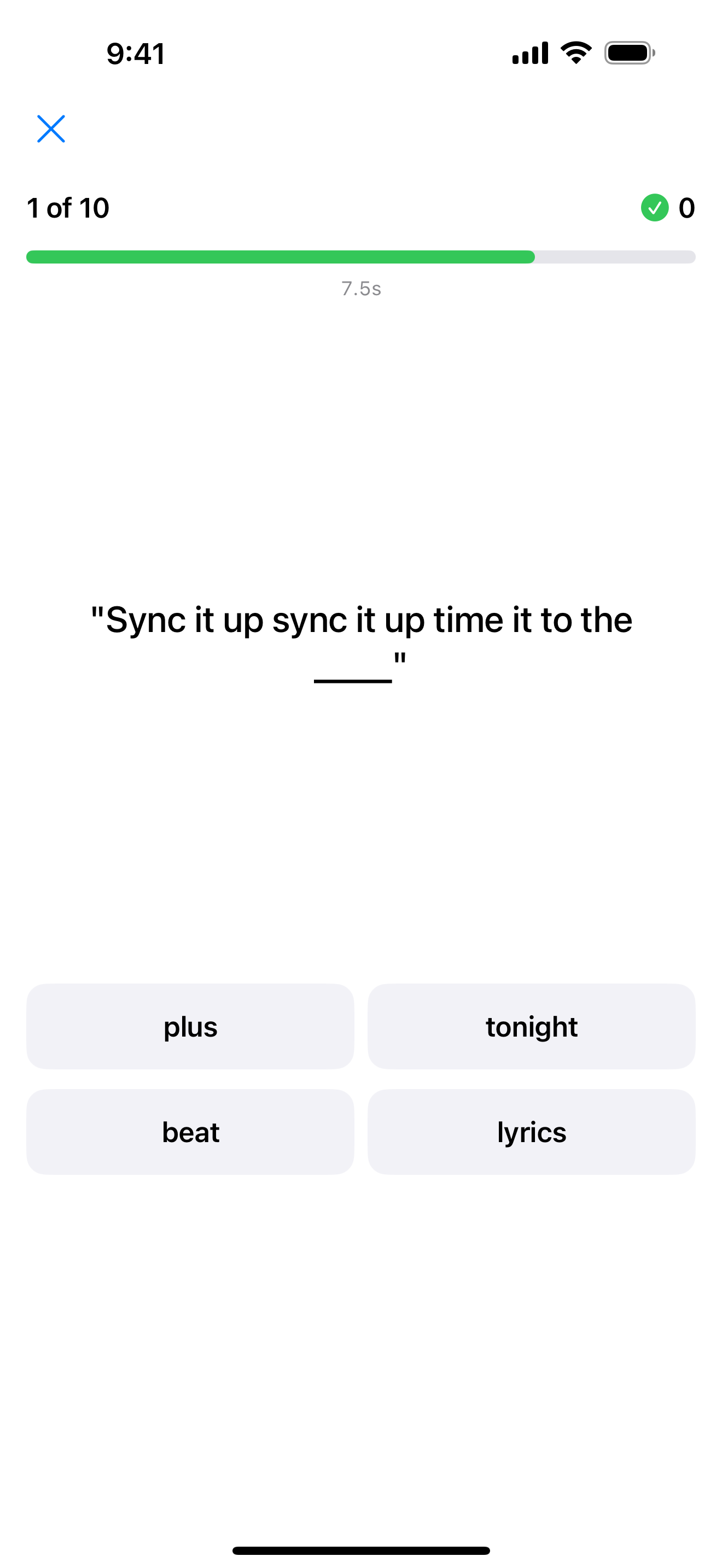
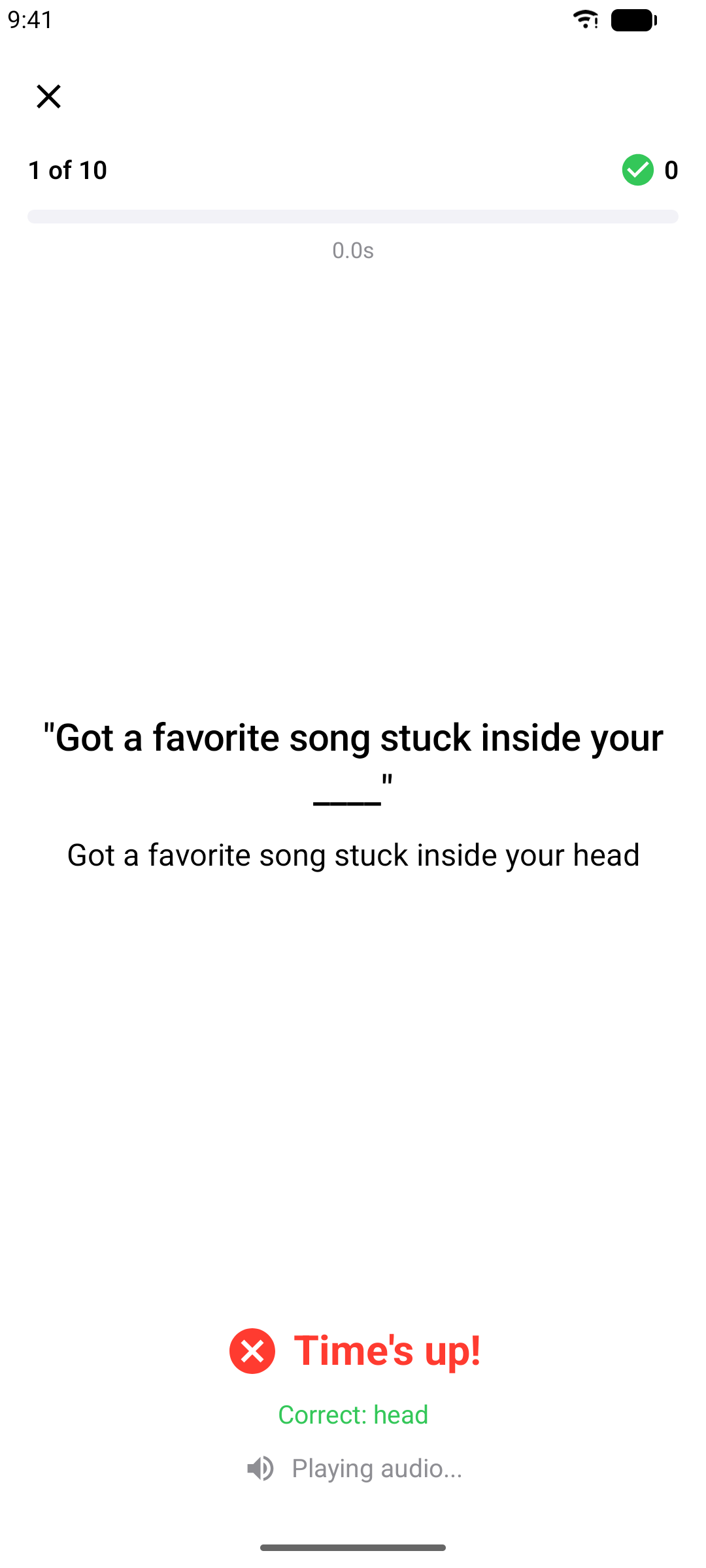
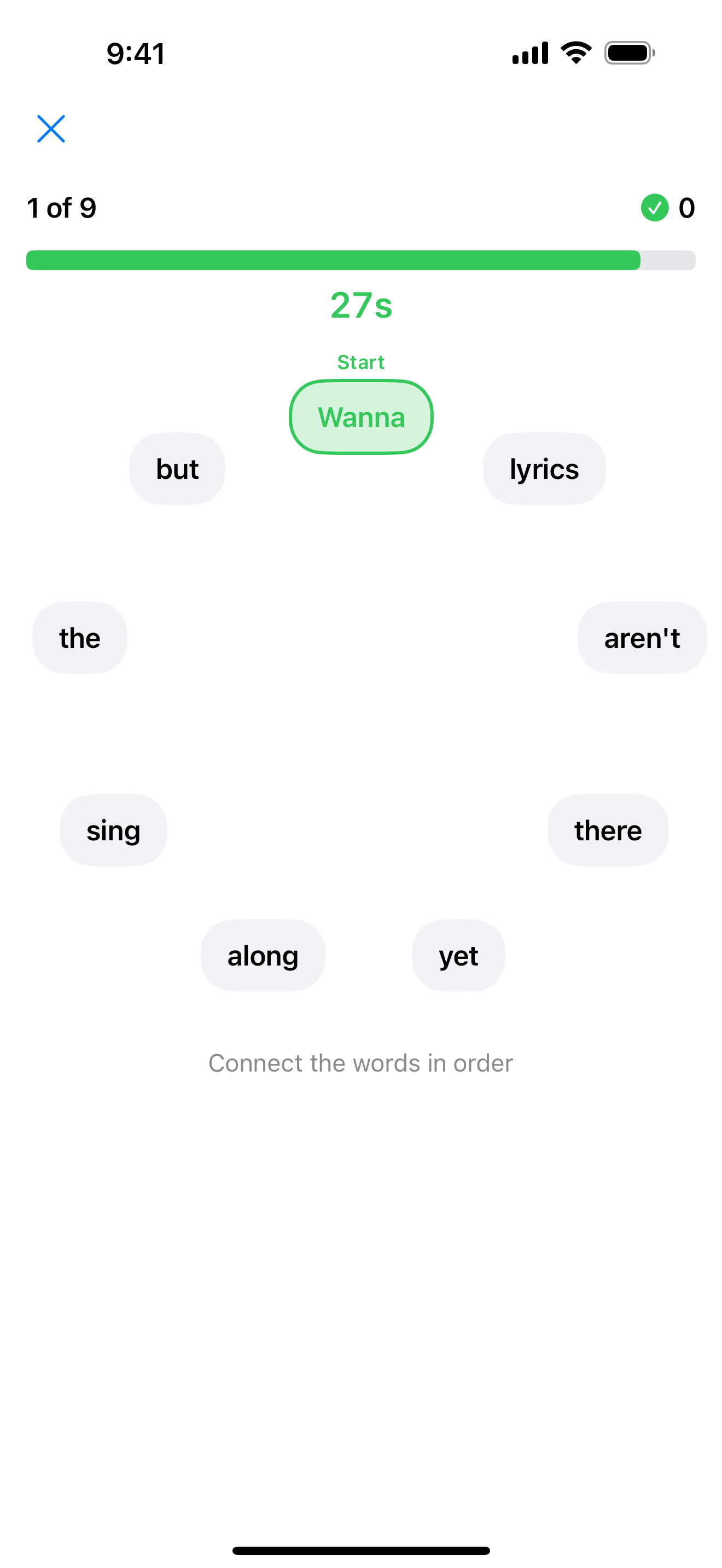
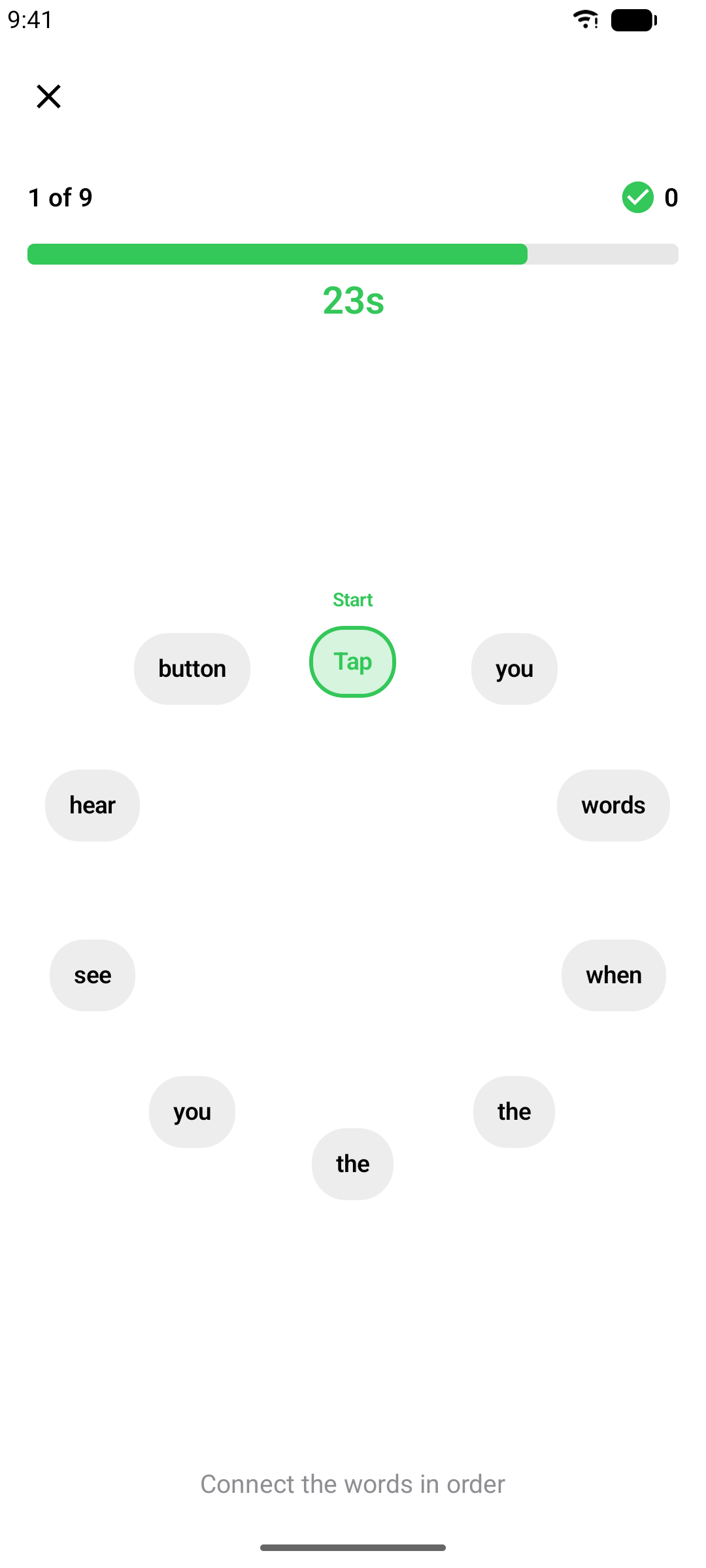
歌詞計時越精準,遊戲效果越好 — 這又是一個精心微調的理由!
注意: 遊戲需要足夠的計時素材:歌詞排序至少需要 5 行計時歌詞,補全歌詞至少需要 10 行。
代幣
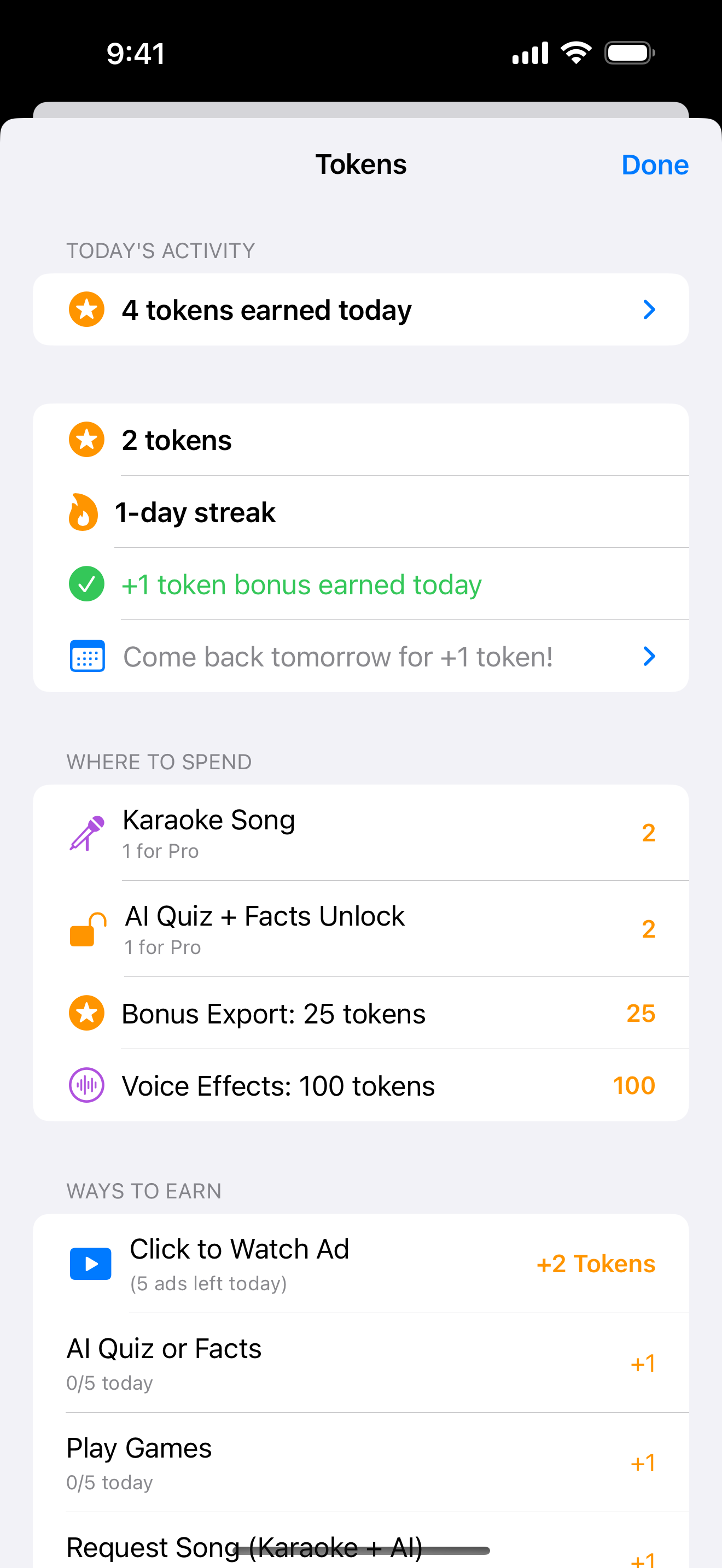
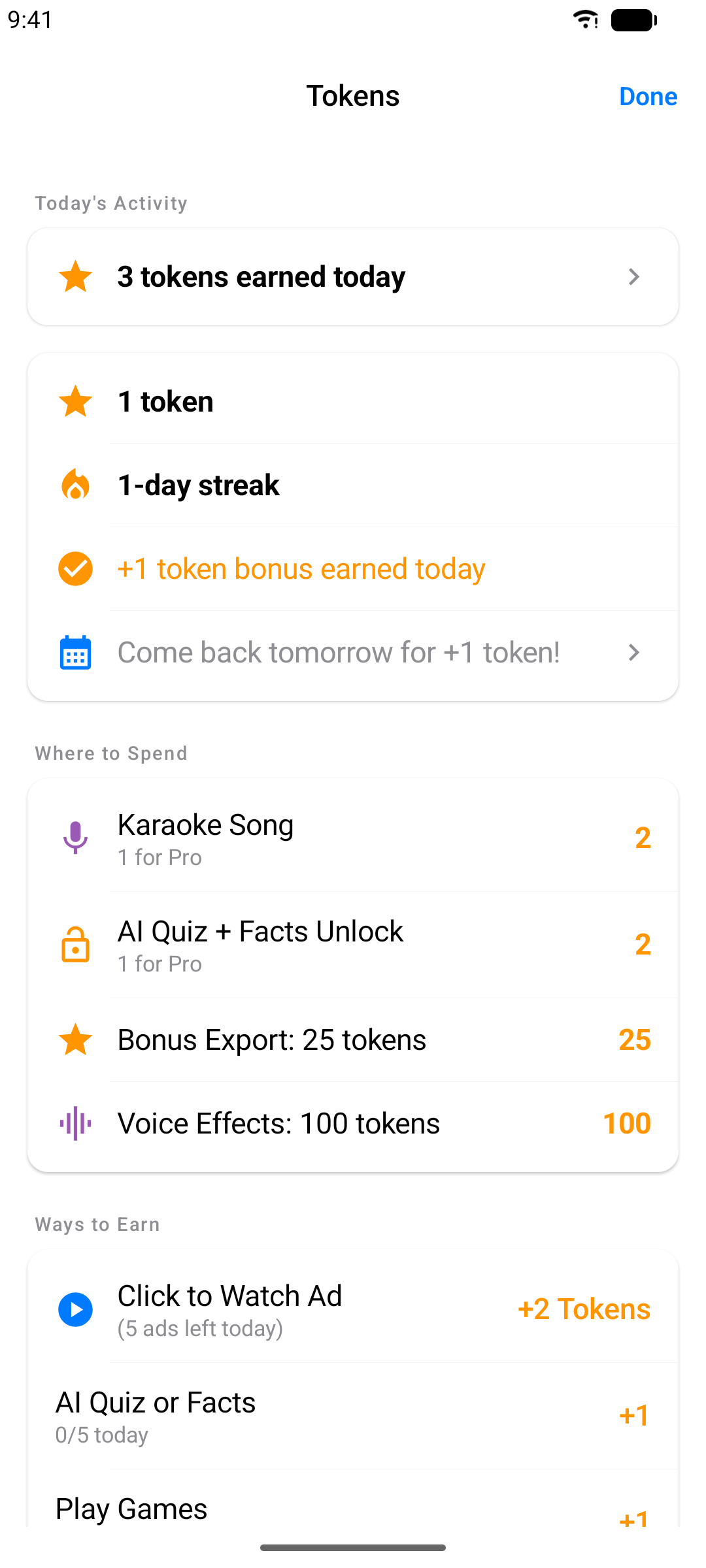
Karaoke Sync 獎勵您持續使用。您可以透過維持每日連續、匯出專案和玩遊戲來賺取代幣,然後用代幣兌換聲音特效和額外 AI 內容等加值項目。點按工具列上的代幣徽章,查看您的餘額、連續天數和歷史紀錄。
匯出專案
以您需要的格式分享計時歌詞,或分享您的錄音演出。
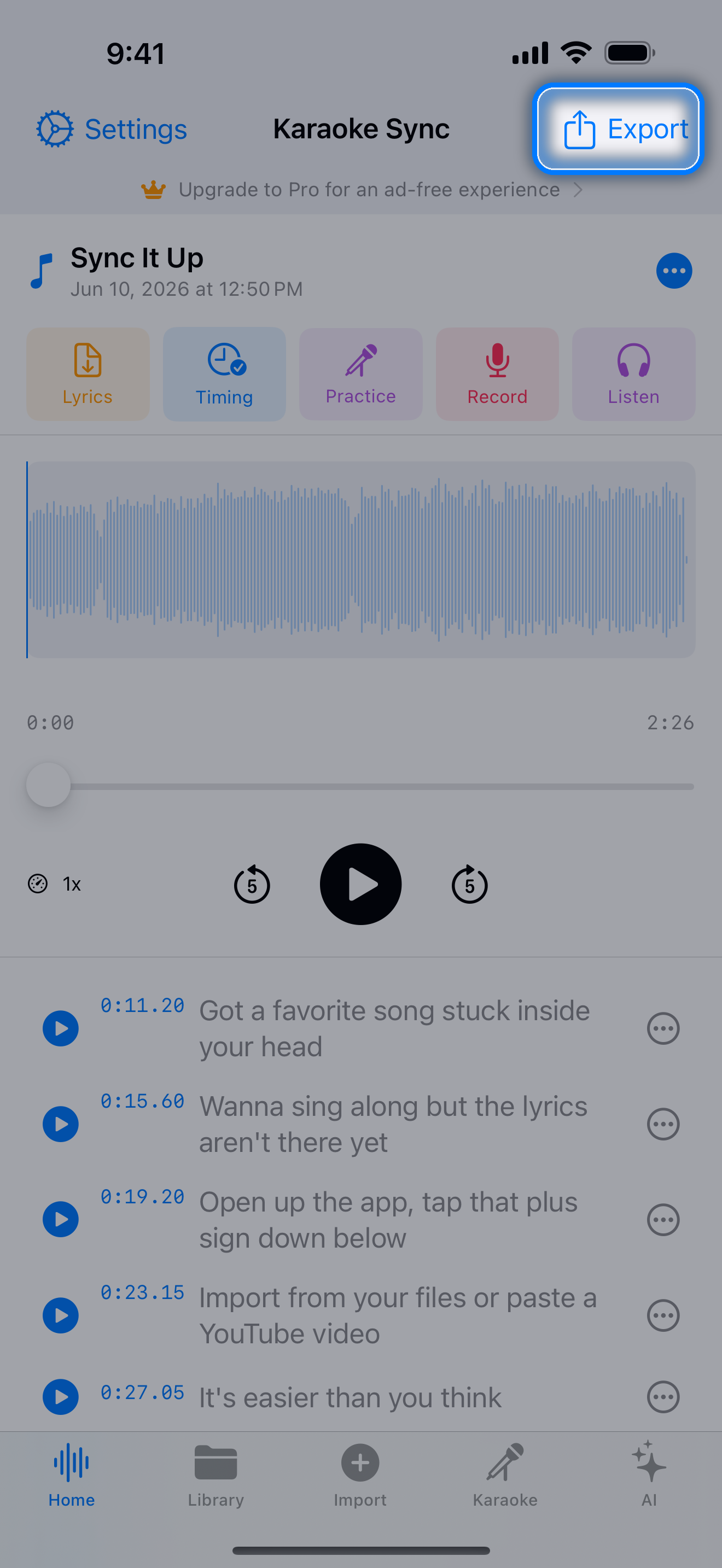
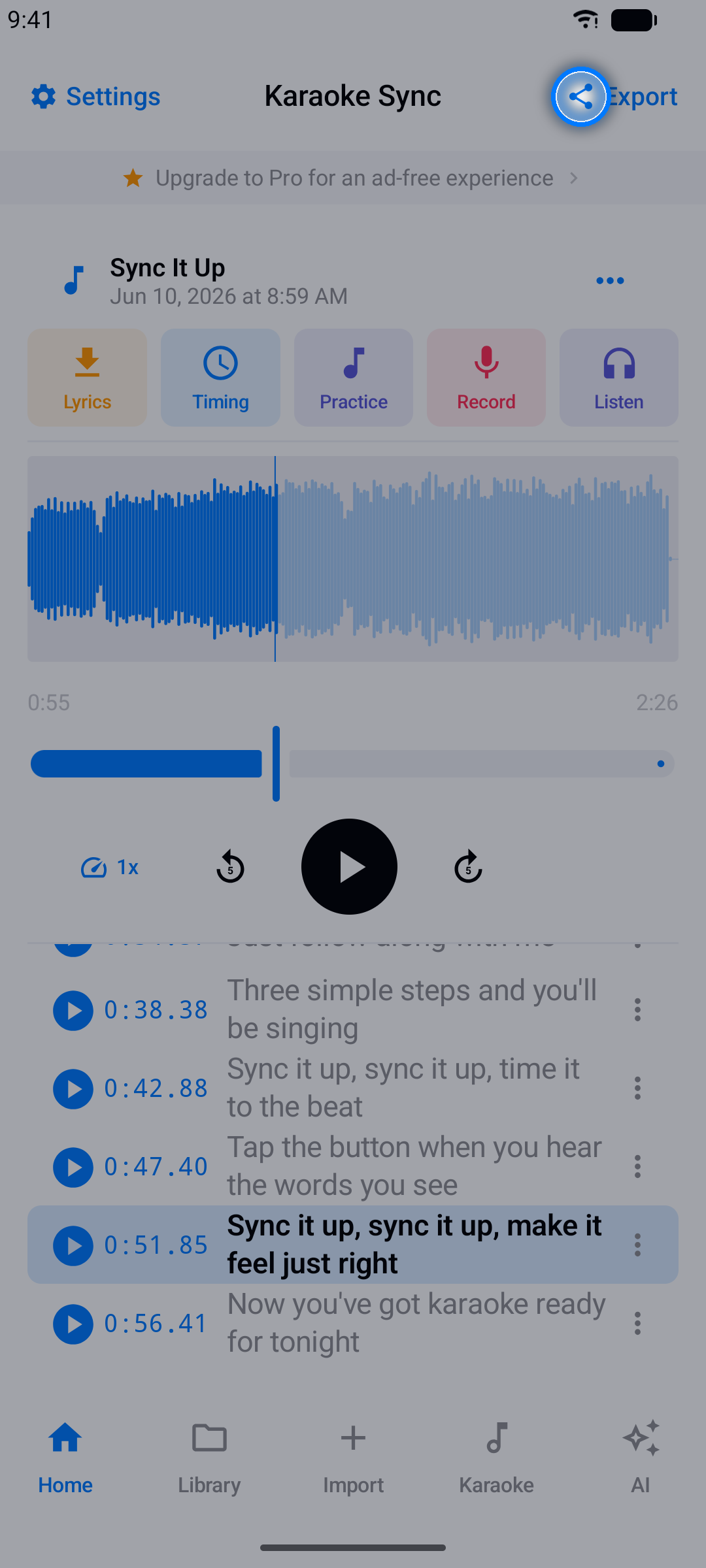
步驟 1:開啟匯出
在專案編輯器中,點按匯出。
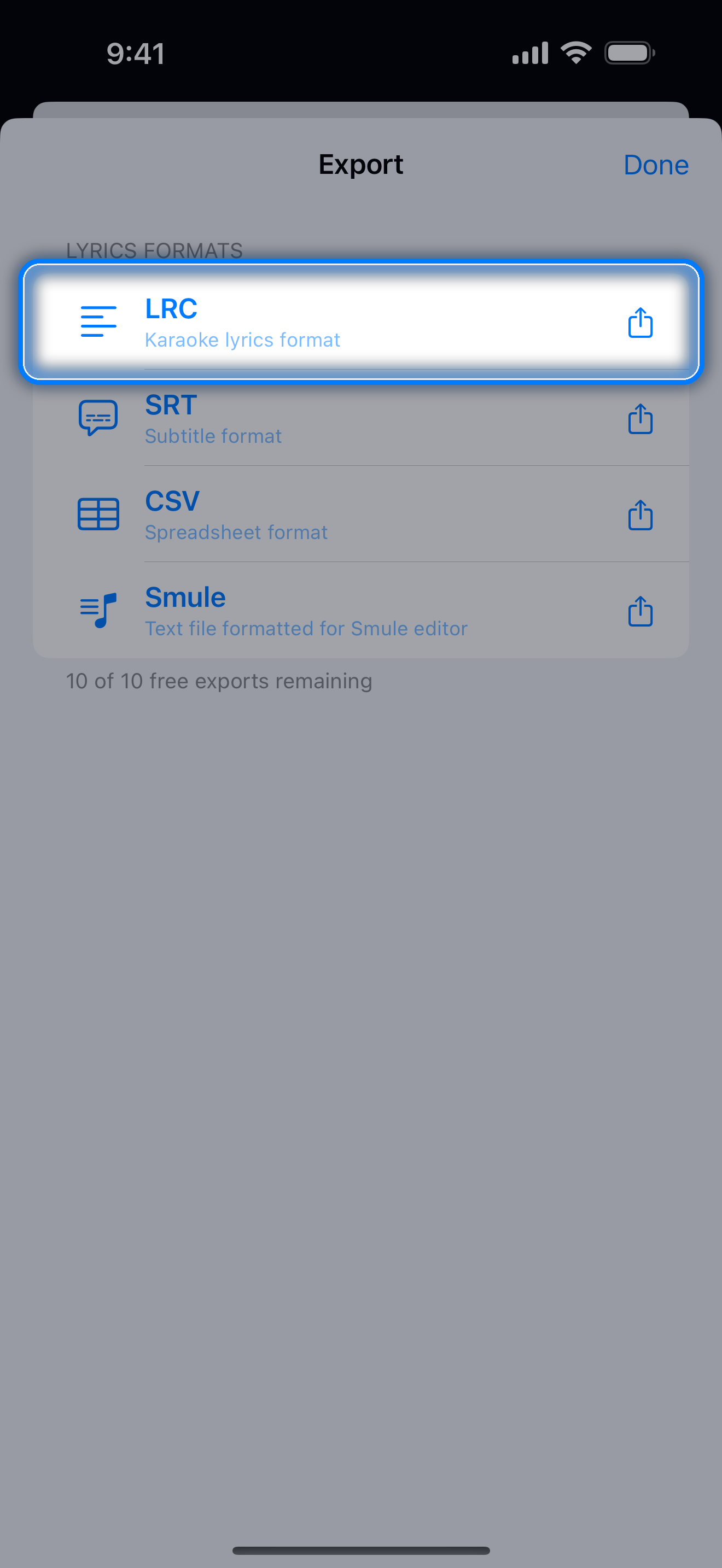
步驟 2:選擇格式
| 格式 | 最適合 |
|---|---|
| LRC | 卡拉OK App 和音樂播放器 |
| Enhanced LRC | 逐字高亮歌詞的播放器(需要逐字計時) |
| SRT | 影片字幕 |
| CSV | 試算表和資料工具 |
| Smule | Smule 卡拉OK App(自動換行以符合格式) |
步驟 3:儲存或分享
將檔案儲存到裝置,或透過分享選項傳送給任何 App。錄音演出以 M4A 音訊匯出 — 完整混音(人聲 + 音樂)或僅人聲皆可選擇。
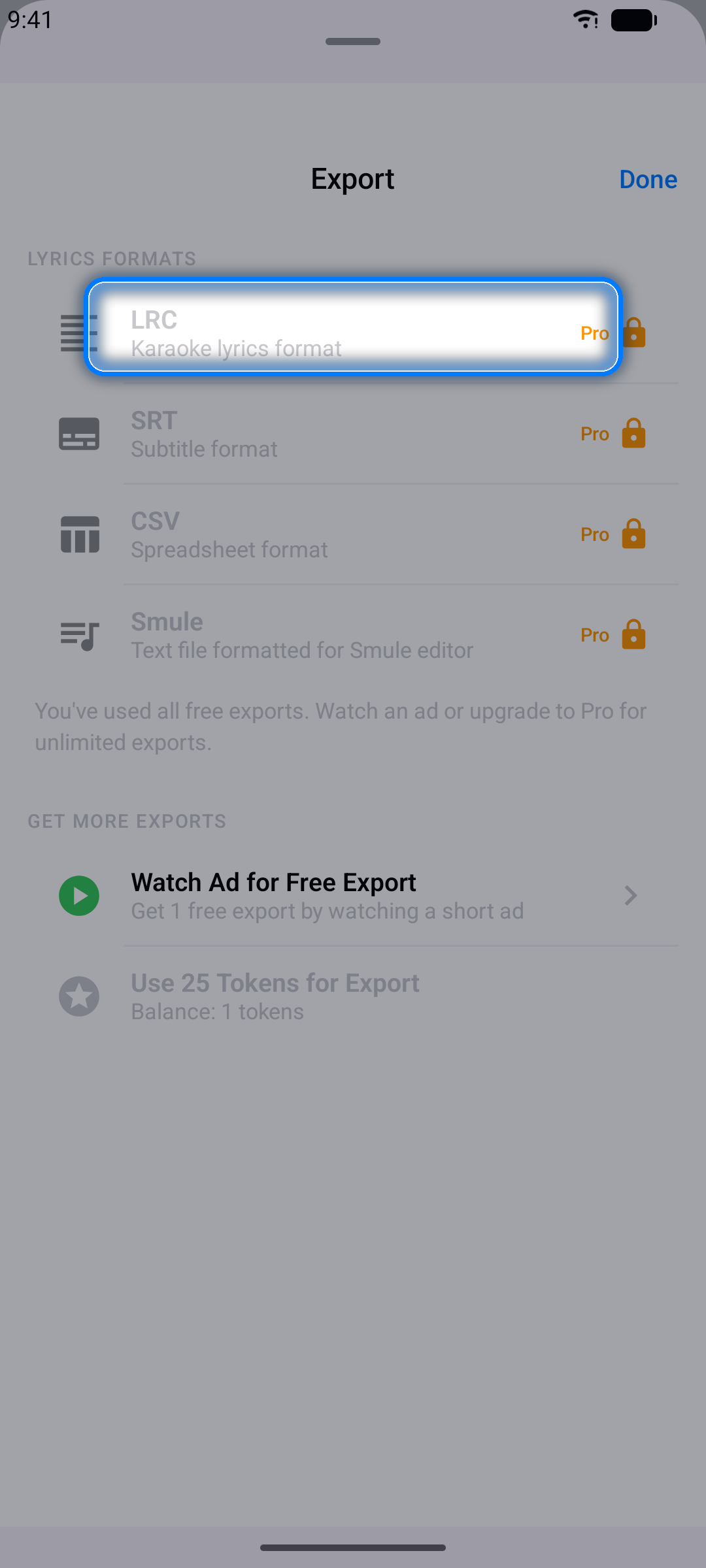
注意: 免費使用者有 10 次終身匯出,Pro 版則無限制。
管理專案
資料庫標籤是您所有作品的大本營。
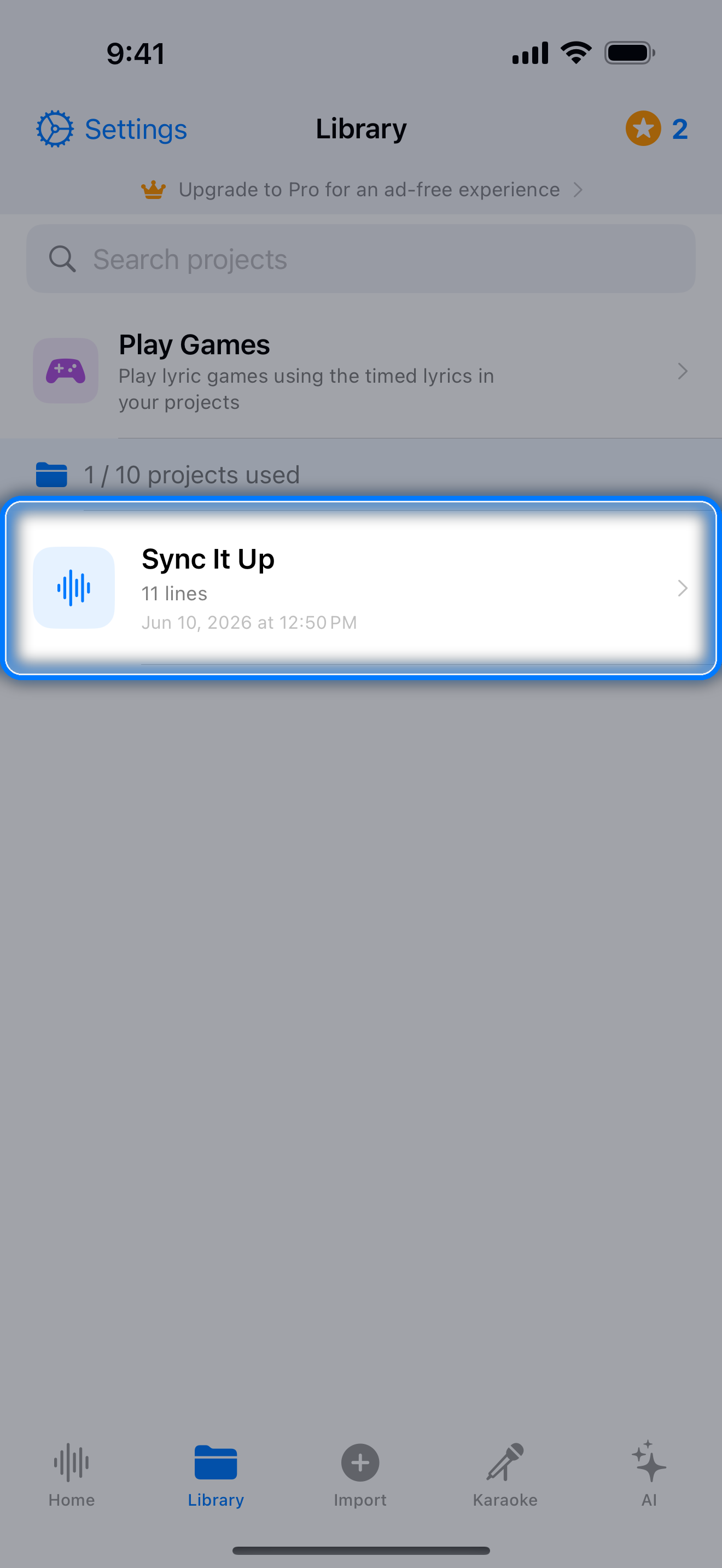
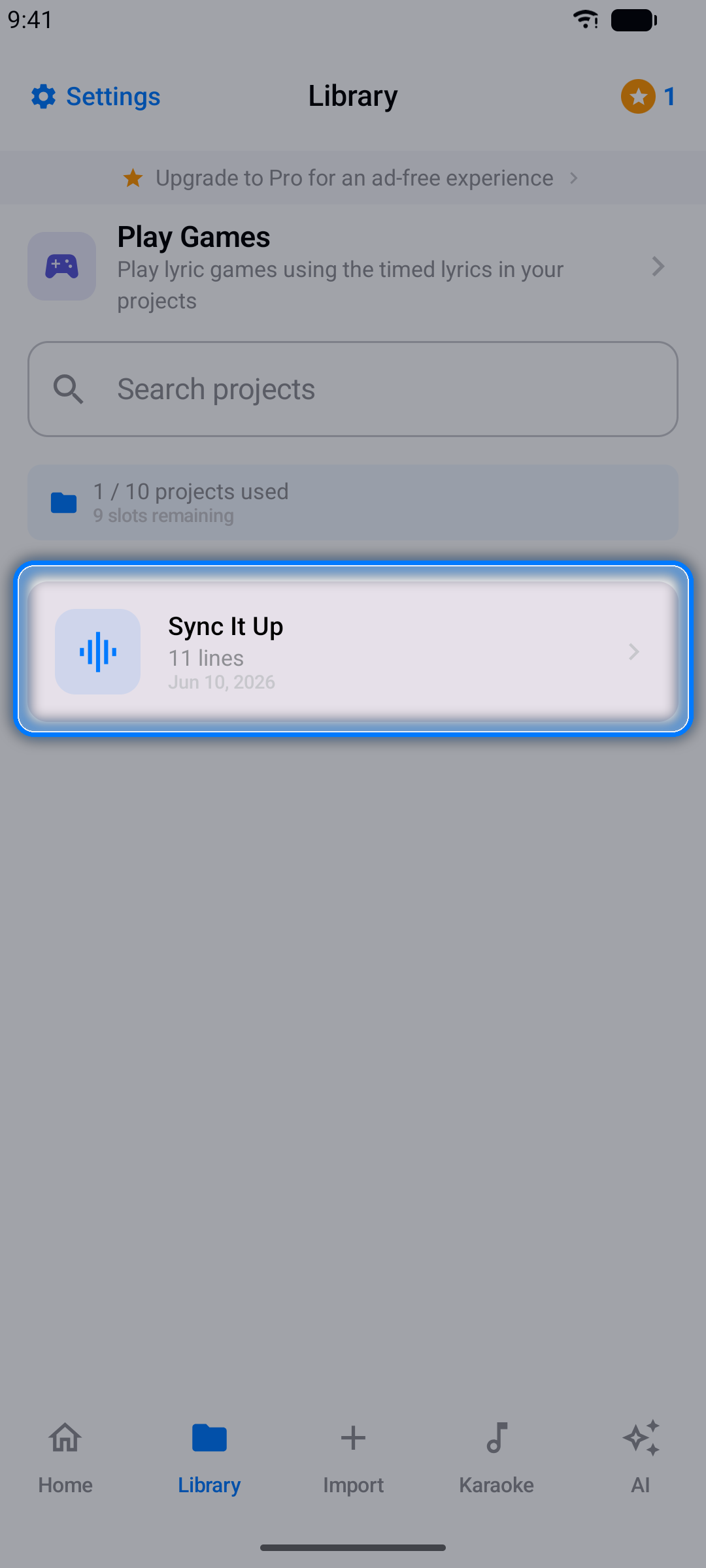
- 開啟 - 點按任意專案,在編輯器中載入
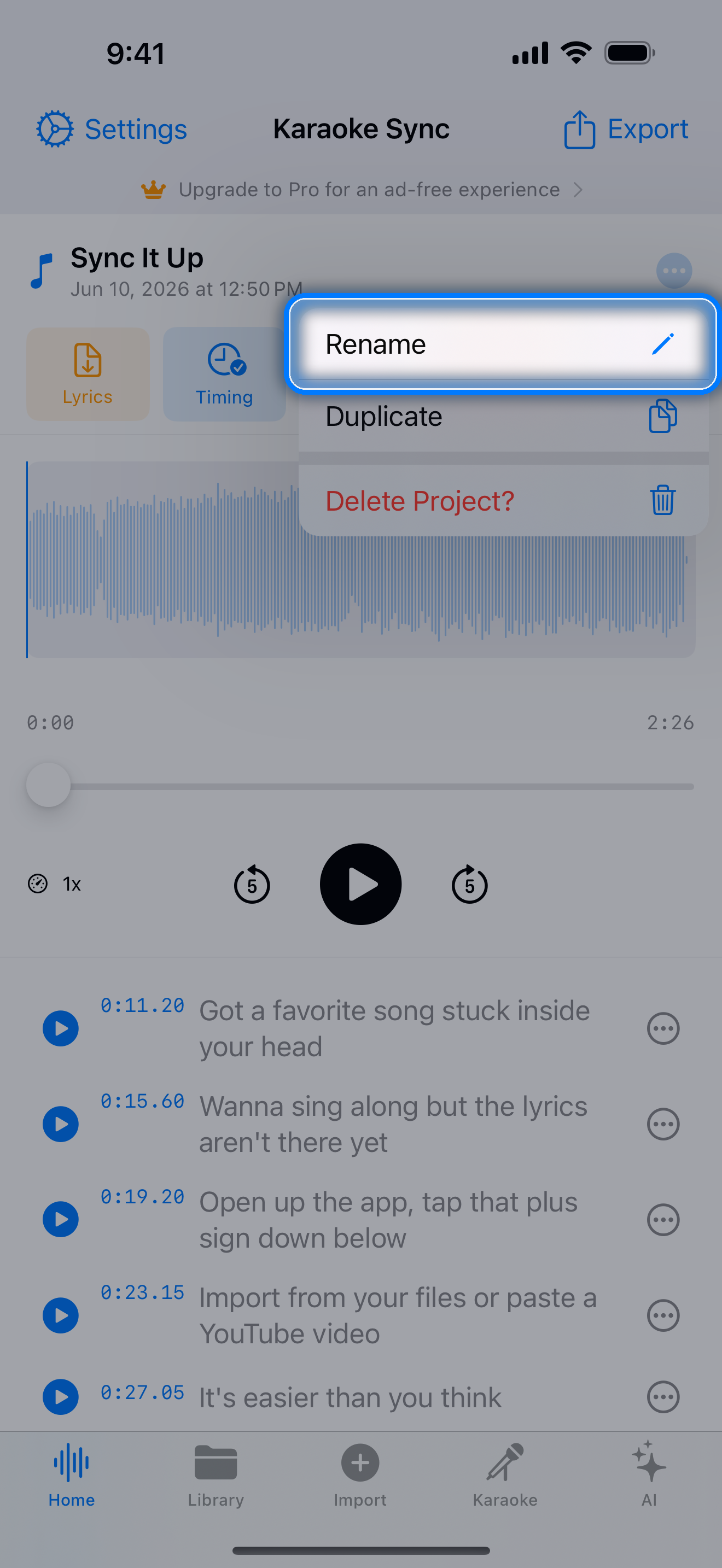
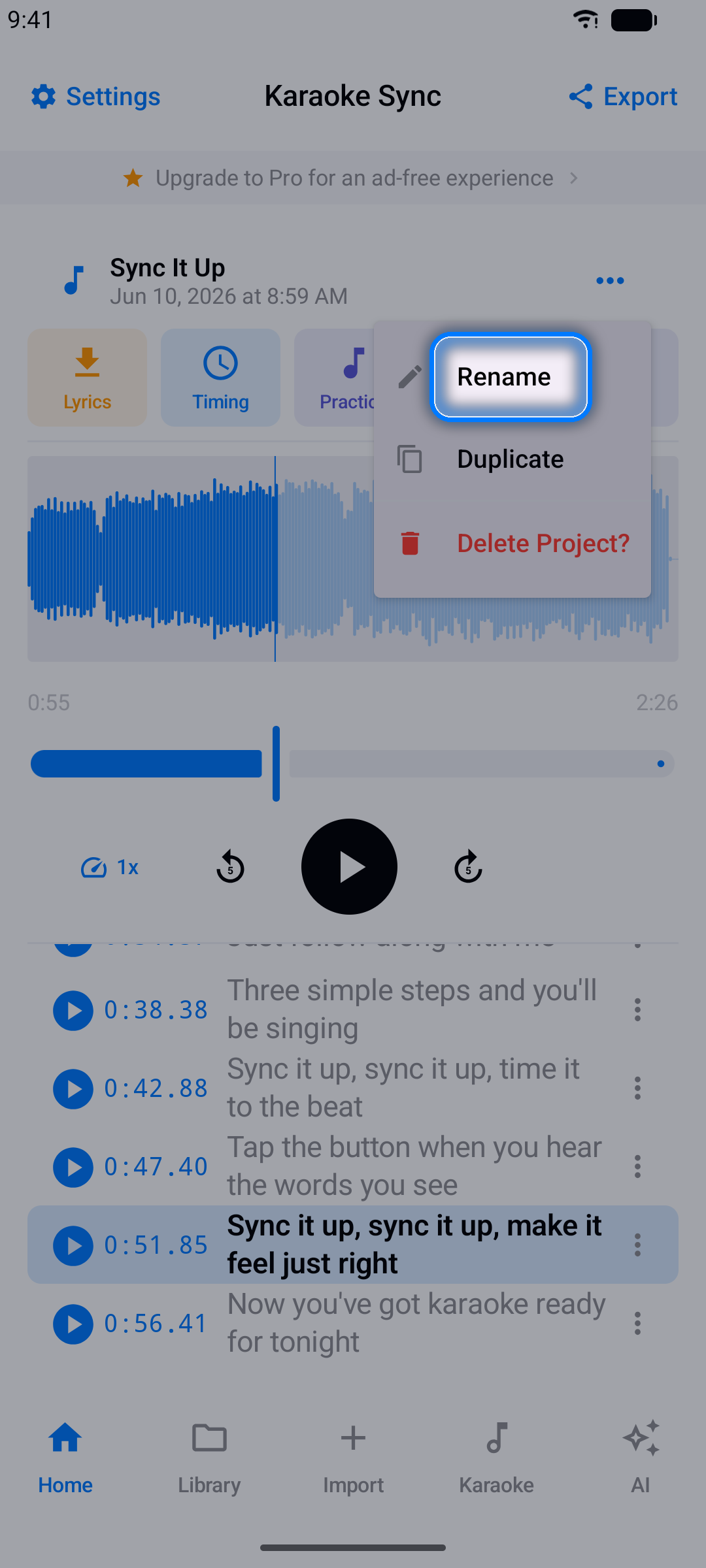
- 重新命名 - 開啟專案,點按選單按鈕(三個點),選擇重新命名
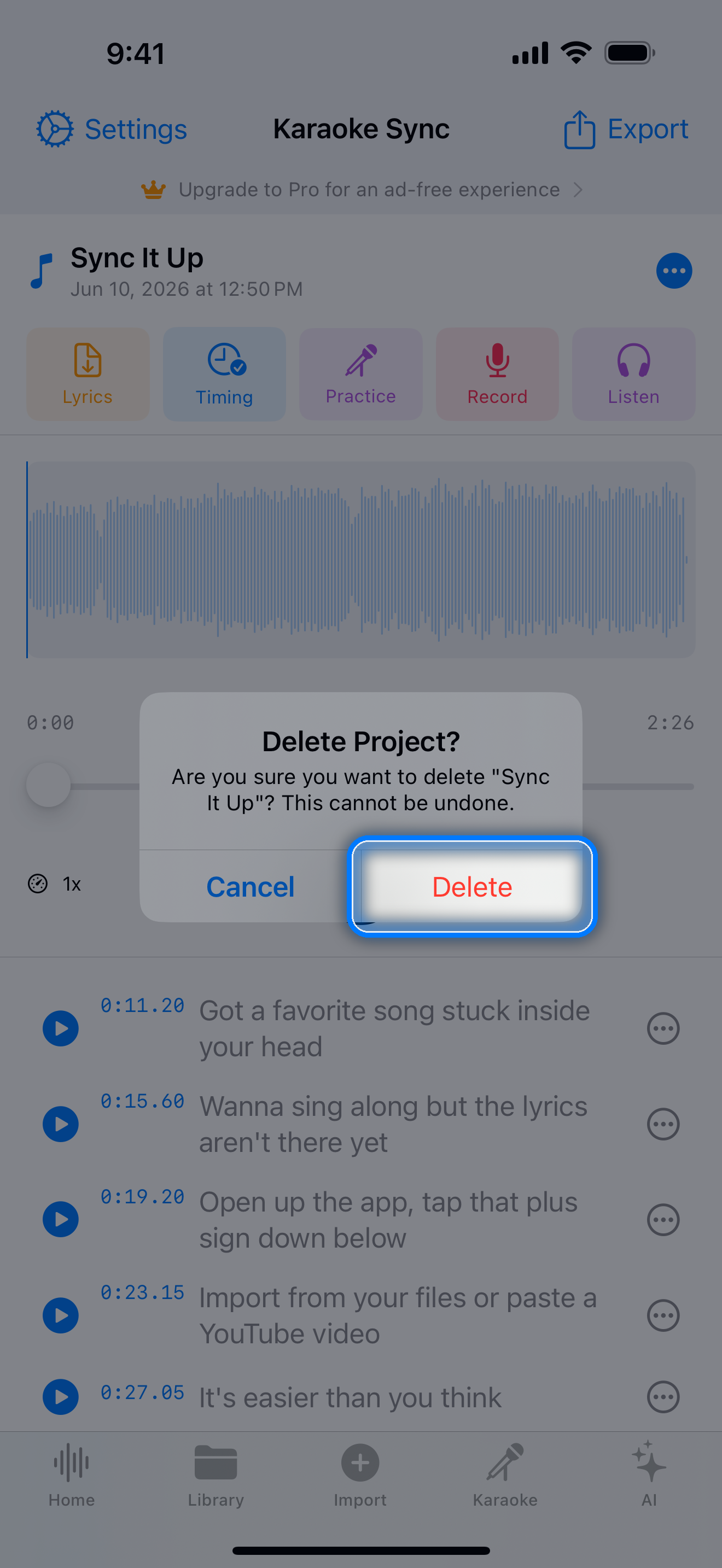
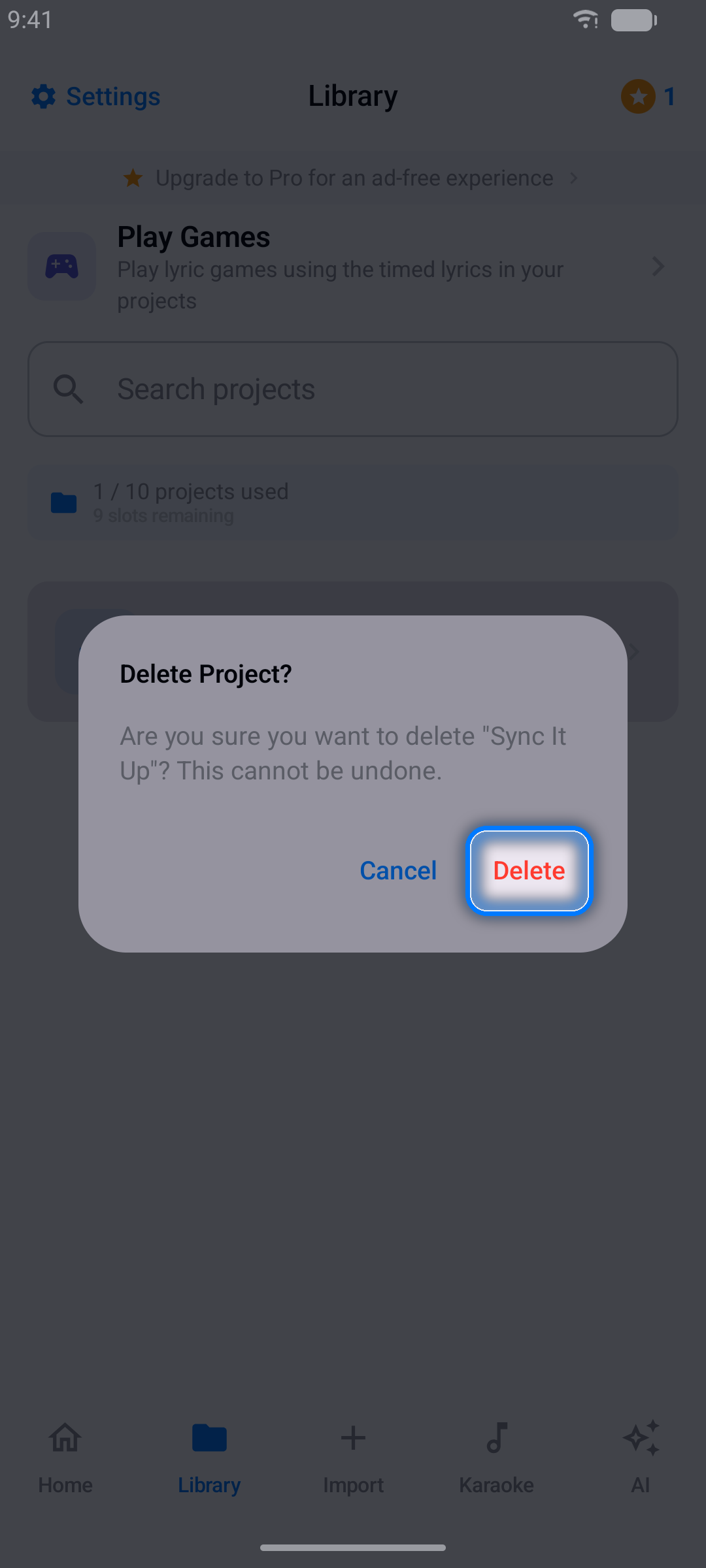
- 刪除 - 從資料庫移除專案(系統會要求您確認)
- 搜尋 - 隨著收藏增加,快速找到專案
Pro 訂閱
升級至 Pro,享受完整體驗:
- 無限專案和匯出
- 大幅提升的每月 AI 問答與趣聞配額
- 常唱的朋友最划算 — 選擇月度或年度方案
如何訂閱
- 開啟設定(齒輪圖示)並點按升級至Pro
- 選擇月付或年付
- 在 App Store 確認購買
管理您的訂閱
在 iPhone 和 iPad 上,訂閱由 App Store 管理:開啟設定 App,點按您的姓名,然後依序點按訂閱項目,選擇 Karaoke Sync。
在 Android 上,訂閱由 Google Play 管理:開啟 Play Store App,點按個人頭像,然後依序點按付款與訂閱 → 訂閱,選擇 Karaoke Sync。
設定
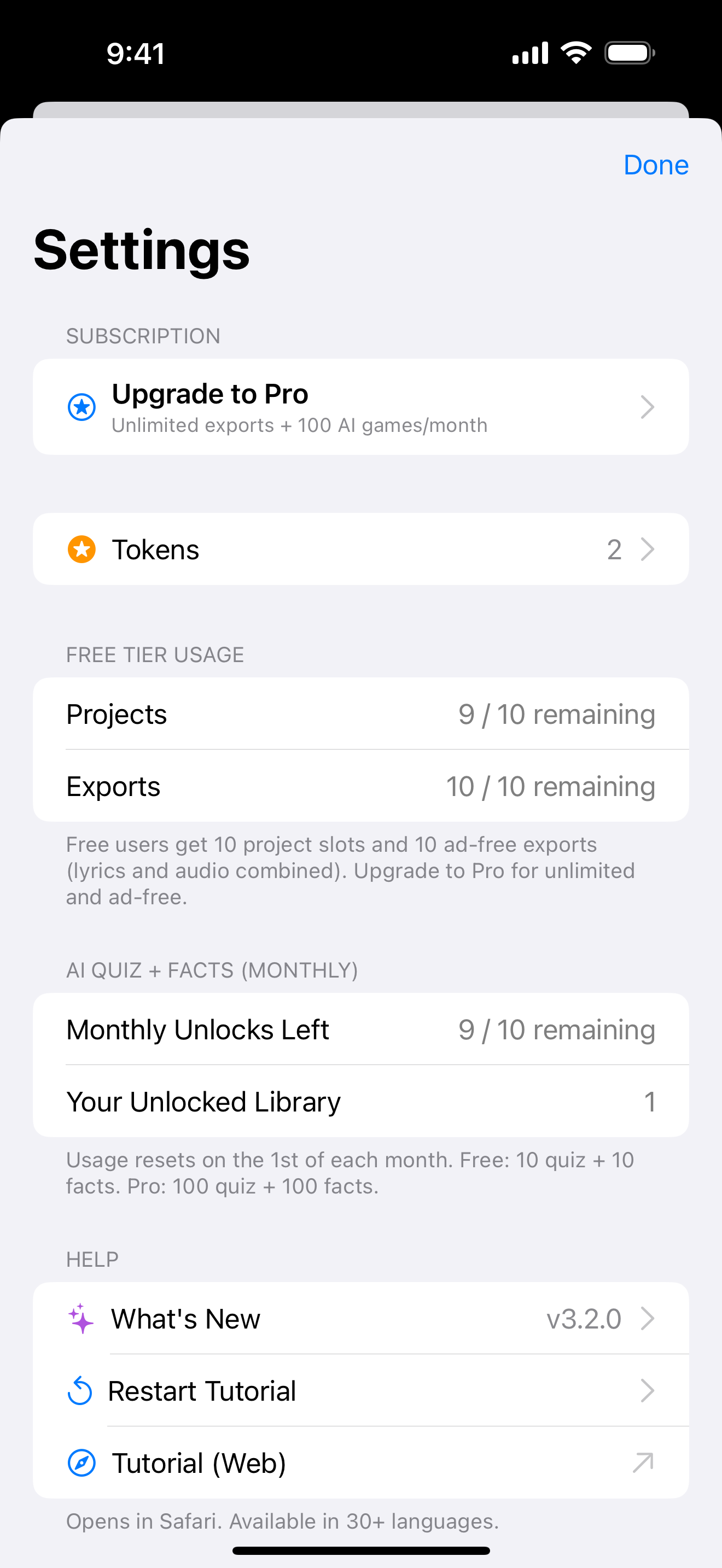
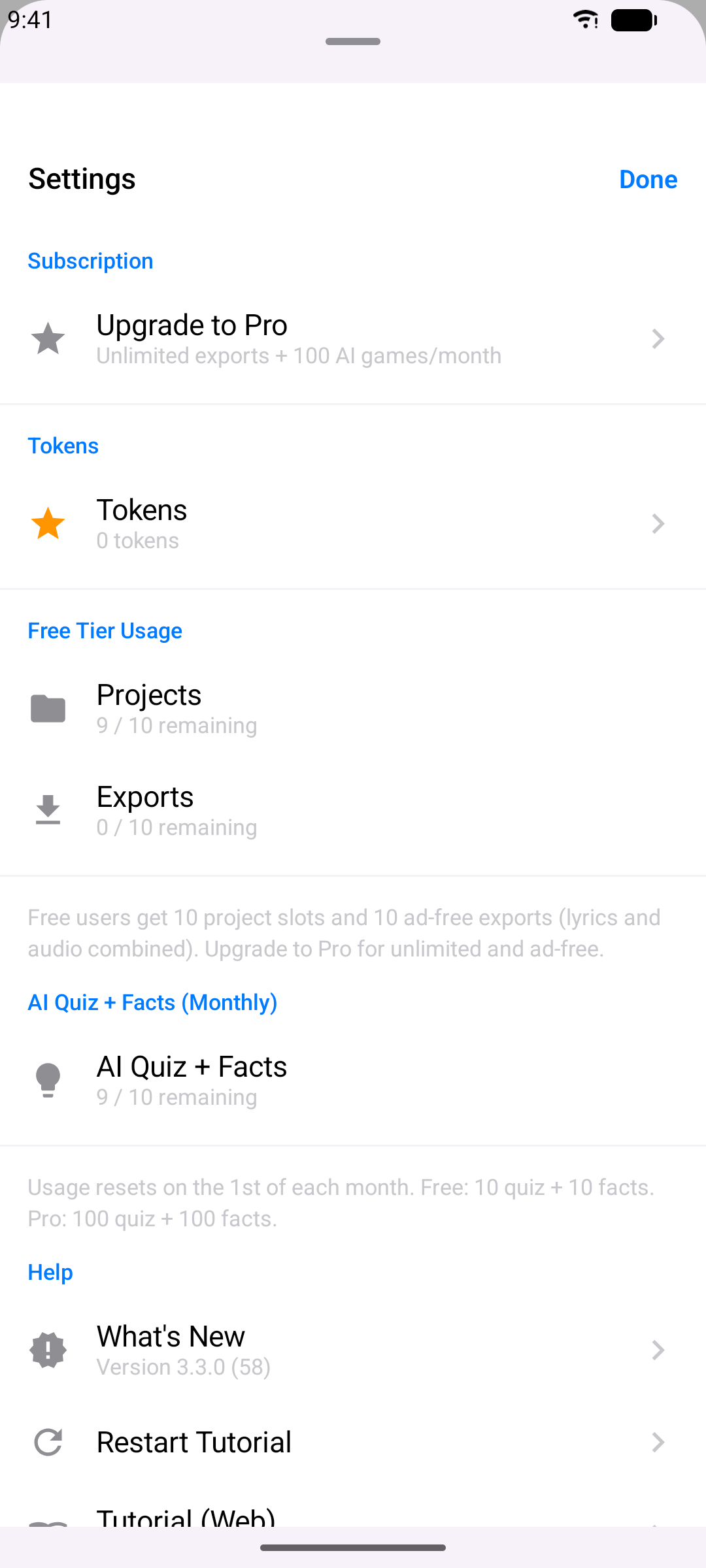
點按齒輪圖示開啟設定,您可以在這裡:
- 查看您的免費版使用情況(專案、匯出、AI 配額)
- 升級至Pro 或恢復先前的購買
- 查看隱私選項和法律文件
- 重新開啟教學並取得說明
- 查看 App 版本
提示與技巧
- 使用有線耳機進行練習模式和演唱模式 — 藍牙延遲太高,無法進行即時監聽
- 盡量貼上 LRC 歌詞 — 時間戳記自動匯入,幾乎不需要手動調整計時
- 計時快速段落時先放慢歌曲速度,再以全速確認效果
- 點按時間戳記預覽 — 檢查某行同步效果最快的方式
- 以 0.1 秒的步幅微調 — 細微調整優於大幅修正
- 整首歌偏移時批次移動行 — 不必逐行編輯
- 先計時行,再計時字 — 逐字模式會為您放置每一行的單字,您只需拖曳那些位置不準的
- YouTube 專案用於計時和練習 — 需要錄音和匯出時請使用音訊檔案
- 保持連續天數 — 每日造訪可賺取代幣,用於兌換聲音特效等加值項目